Does iPhone 11 Have eSIM? Free Trials for Travel
Yes, most iPhone 11 models support one eSIM alongside a physical SIM, so you can keep your regular number active while using travel data abroad. The important exception is regional: iPhone 11 variants sold in China, Hong Kong, and Macao may use two physical SIMs instead, so check your exact model before buying a plan.
A free eSIM trial is a smart test before you commit, especially with an older 4G device. You can see how quickly the profile activates, how much battery it uses while searching for a roaming signal, and whether the coverage holds up where you actually travel. Be sure to check that your iPhone shows “No SIM restrictions” under Carrier Lock, then follow this iPhone 11 eSIM setup guide if you need help installing it.
At BesteSIM.blog, I compare more than the word “free.” The real questions are what the plan costs per GB after the trial, how fast activation works, and whether the 4G coverage is reliable. Next, we’ll match the right option to a short city break, a multi-stop road trip, or a longer stay.
Does iPhone 11 Have eSIM Support for Travel?
Yes, most standard US and international iPhone 11 models support one physical SIM and one eSIM. That setup is ideal for travel because you can keep your home number available while using a local data plan abroad. The catch is that regional versions aren’t all built the same.
Which iPhone 11 models can use an eSIM?
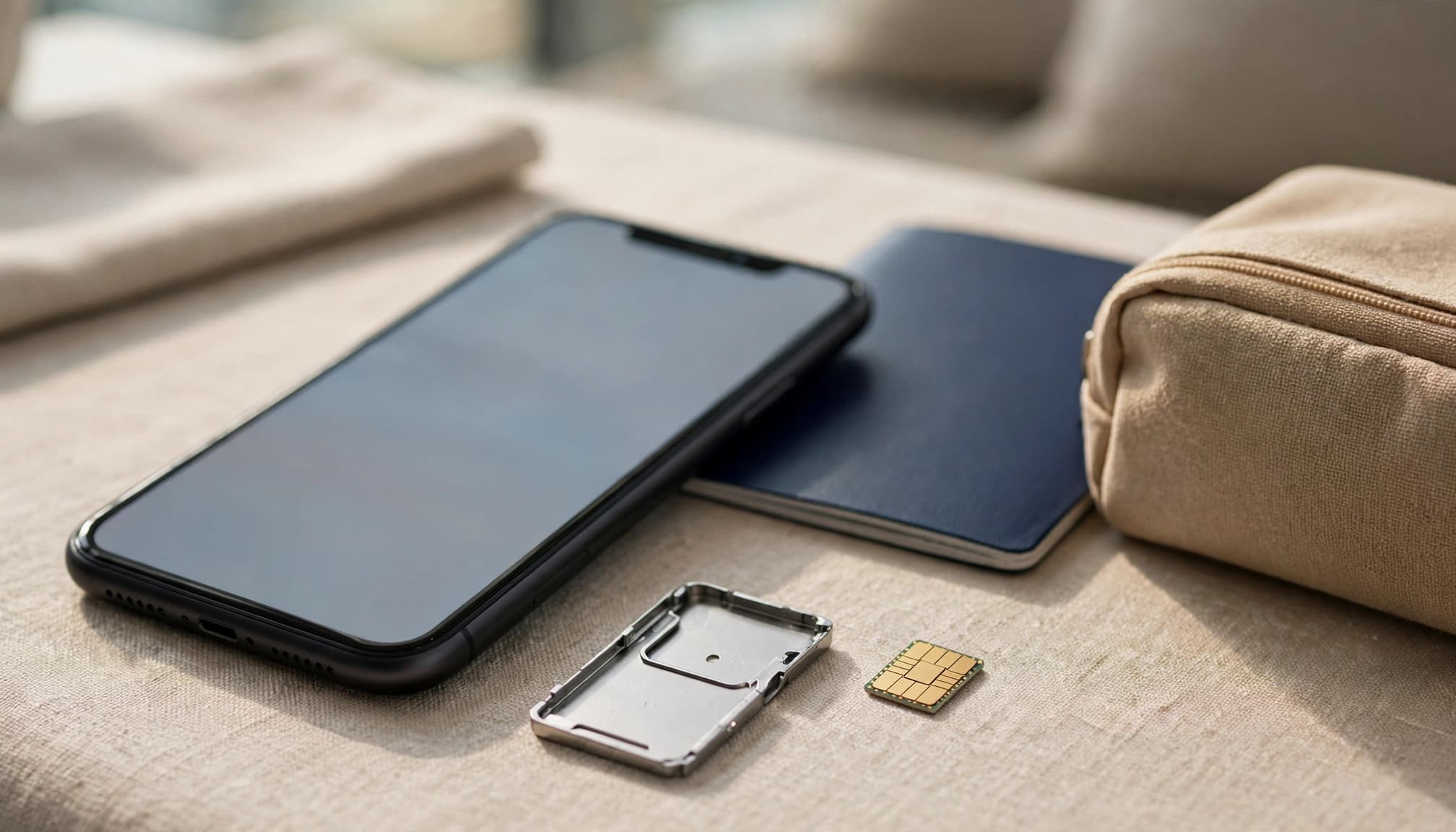
Most iPhone 11 units sold in the United States and many other markets use a physical SIM plus an eSIM. However, versions sold for mainland China, Hong Kong, and Macao can have two physical SIM slots instead. Those models may not offer eSIM support at all.
That regional difference matters more than the iPhone 11 name on the box. Before buying a travel plan, check three things:
- Look at the model number under Settings > General > About.
- Confirm where the phone was originally sold.
- Open Settings > Cellular or Mobile Data and look for Add eSIM or Add Cellular Plan.
If that option appears, the phone has the built-in support needed to install a travel profile. Apple’s explanation of iPhone models with two physical SIMs is useful if your device came from mainland China, Hong Kong, or Macao.
Your iPhone must also be unlocked. Go to Settings > General > About, then find Carrier Lock. The line should say “No SIM restrictions.” If it shows a carrier name or another restriction, contact that carrier before purchasing a travel eSIM.
One more detail is easy to miss: the iPhone 11 supports 4G LTE, not 5G. A travel plan advertised with 5G may still work, but your phone will connect through the available 4G network instead. For a short trip, stable LTE coverage matters more than a 5G label.
What dual SIM limits should iPhone 11 owners expect?
The iPhone 11 uses Dual SIM Dual Standby. In simple terms, your physical home SIM and travel eSIM can remain available for calls and texts, while the travel line handles mobile data. Both lines are ready, but the phone can’t use every function on both lines at the same time.
You can store multiple eSIM profiles on the phone, but storing a plan isn’t the same as turning it on. Only one eSIM profile can be active at a time on this generation, alongside the physical SIM. To use another travel plan, you must switch profiles in Cellular settings.
The iPhone 11 cannot run two active eSIM lines like some newer iPhone models. For most travelers, that isn’t a problem. Keep your regular SIM for calls and SMS, set the travel eSIM as the data line, and turn off cellular data switching so the home carrier doesn’t quietly handle your roaming data.
How to Judge an eSIM Free Trial Before You Travel
A free eSIM trial is only useful if it helps you judge the paid plan you may actually keep. Look at three things: the post-trial price, the setup experience, and the local 4G LTE coverage. A small free allowance can feel generous at first, but it won’t tell you much if the renewal price is high or the signal disappears outside the city center.
Check the real post-trial price per GB
Don’t judge a provider by the word “free.” Calculate the regular plan price divided by its included data. For example, a $10 plan with 5GB costs $2 per GB, while a $15 plan with 15GB costs $1 per GB. That difference matters once your trip moves beyond the trial.
A 100MB or 500MB allowance may cover a few map searches and messages, but it doesn’t represent a full weekend of navigation, browsing, rideshare use, and video calls. Use a travel eSIM data calculator to estimate your likely usage before comparing plans.
Check these details before you add a payment method:
- How long does the data remain valid?
- What does a refill cost after the trial ends?
- Does unused data expire at the end of the validity period?
- Is hotspot use allowed, limited, or blocked?
- Does the plan renew automatically?
A cheap trial can lead to an expensive renewal or a painful top-up when you are already abroad. In my book, the best offer is the one with a fair everyday price, not the one with the flashiest free allowance.
Measure activation speed and setup effort
A good trial should install over Wi-Fi before departure and clearly show when service begins. Scanning a provider’s QR code is usually quicker than entering an SM-DP+ address and activation code manually, especially when you are working through several iPhone settings screens.
Small setup problems can create a major headache at the airport. The confirmation email may arrive late, the QR code may fail to scan, or the plan may start its validity period during installation instead of when you land. Follow a QR code eSIM setup guide before leaving home, then test the line while you still have dependable Wi-Fi.
A trial that starts counting days during installation can waste part of your trip before you reach the destination.
Test coverage on the iPhone 11’s 4G LTE hardware
The iPhone 11 does not have a 5G modem, so focus on the partner networks and their 4G LTE coverage. Apple’s iPhone 11 technical specifications confirm the phone’s LTE capabilities, which means a 5G label on a travel plan won’t change the hardware limit.
Test the eSIM where you will actually use it: the airport, hotel, train route, downtown streets, and any rural areas on your itinerary. Open Apple Maps or Google Maps, send messages, browse a few web pages, request a rideshare, and make a short video call. Watch whether the connection holds or repeatedly drops.
Provider brands don’t guarantee identical performance in every country. One eSIM may use a strong LTE partner in one destination and a weaker network in the next, so check the local carrier details instead of judging by brand recognition alone.
Which Free Trial Fits Your Travel Style?
The best travel eSIM trial isn’t always the one with the largest free data allowance. A 5GB offer means little if activation is confusing, coverage drops after one city, or hotspot use is blocked when you need it most.
Match the trial to your trip instead. A short visit needs quick setup, a road trip needs flexible network access, and a workation needs predictable pricing and enough data to test real working conditions.
| Trip type | Recommended trial priority | Useful test allowance | Risk to check |
|---|---|---|---|
| Short city break | Fast QR activation | 500MB to 1GB | Airport Wi-Fi problems |
| Multi-country road trip | Regional network switching | 1GB or more | Weak rural coverage |
| Long stay or workation | Low post-trial price per GB | 2GB or more | Hotspot limits and throttling |
Short city break: choose fast activation
For a one-to-three-day visit, choose a trial that activates in minutes and includes roughly 500MB to 1GB. That is usually enough to test maps, messages, public transit searches, restaurant browsing, and a few rideshare requests without paying for more data than you need.
A simple QR process matters more than saving a dollar on a short trip. You don’t want to type activation details manually while standing at baggage claim with a dead phone and a long taxi line. Install the eSIM over reliable Wi-Fi before leaving home, then confirm that the line connects before you fly.
Airport Wi-Fi may be slow, overloaded, or unavailable when you need to activate your travel line.
Label the profile clearly, set it as your cellular data line, and turn off cellular data switching. If you want to compare setup steps first, this international travel eSIM guide covers the basic plan differences.
Multi-country road trip: prioritize network flexibility
A road trip across several countries needs a regional plan with broad coverage and automatic access to partner networks. Start with at least 1GB, because a tiny allowance won’t give you enough time to test border crossings, rural highways, navigation, and traffic updates.
A plan that works perfectly in one capital may perform poorly two hours outside the city. Before installing it, check the supported countries, local network partners, validity rules, and whether the eSIM switches networks automatically. Some plans require you to select a new country manually, which is easy to miss when you are crossing a border.
For European routes, compare multi-country Europe eSIM plans rather than buying separate country profiles. The right regional plan should keep working as your route changes, without forcing you to reinstall or reactivate the eSIM at every border.
Long stay or workation: focus on cost and hotspot rules
Longer trips need a more realistic trial. Look for 2GB or more, then test video calls, cloud documents, navigation, browsing, and tethering. A 100MB free offer won’t tell you whether the plan can handle a normal workday.
Judge the regular price per GB, not just the free allowance. Also check the fair-use policy, expected speeds, hotspot support, and whether heavy users are slowed after a certain amount of data. Some providers advertise generous plans but limit tethering or reduce speeds during busy periods.
Test the eSIM during the hours you plan to work. Try a video call, upload a file, and connect another device through Personal Hotspot. For a closer look at pricing, compare eSIM plans by cost per GB before choosing the trial that looks cheapest.
Set Up an eSIM Trial on iPhone 11 Without Roaming Surprises
A few minutes of setup at home can prevent an expensive roaming mistake abroad. Check your iPhone 11, install the travel profile over Wi-Fi, and decide which line handles data before you leave. That way, you aren’t trying to fix cellular settings in an airport lounge.
Install and label the travel line before departure
Start with this setup path while you still have reliable Wi-Fi:
- Open Settings > General > About and check Carrier Lock. It should say “No SIM restrictions.” Update iOS if an update is available, since older software can cause avoidable activation problems.
- Connect the iPhone to Wi-Fi, then open Settings > Cellular or Settings > Mobile Data. Tap Add eSIM or Add Cellular Plan.
- Choose Use QR Code and scan the code from your provider. Keep the email or app containing the code open on another screen if needed. If scanning fails, choose the manual entry option and enter the provider’s SM-DP+ address and confirmation code.
- Wait for the profile to download. Activation can take a few minutes, so don’t tap through the screens repeatedly.
- Label the lines when iOS asks. Use clear names such as Travel Data for the eSIM and Home SIM for your regular line.
- Open Cellular Data and select Travel Data as the data line. Then turn off Allow Cellular Data Switching.
You can also follow this iPhone eSIM installation guide if your provider uses slightly different wording. Save the QR code, manual activation details, and support information somewhere secure. Don’t delete a working profile during troubleshooting, because some QR codes are single-use and may not install again.
Leave your home line enabled only if you understand your carrier’s roaming fees. Keeping it available can help you receive calls or text messages, but availability doesn’t make those services free.
Choose the right data line and prevent accidental roaming
Under Settings > Cellular > Cellular Data, select the line labeled Travel Data. Turning off Allow Cellular Data Switching is usually the safest choice because it stops the iPhone from using your home line when the travel eSIM briefly loses signal.
Your home SIM may still receive calls and texts while the travel line handles data. Depending on your carrier, answering calls, sending SMS messages, or using carrier voicemail can create charges. Check the roaming terms before you depend on the home line overseas.
Wi-Fi Calling can help you receive calls through a trusted Wi-Fi network, but check your carrier’s conditions first. Some carriers treat Wi-Fi calls and texts differently when you’re abroad.
For the travel line, open its cellular settings and turn Data Roaming on if the provider requires it. This often lets the eSIM connect to its partner network abroad. Keep Data Roaming off for the home line whenever possible, and never assume the setting on one line controls the other.
Fix delayed activation and missing service
If the travel eSIM shows Searching, No Service, or has no data, work through this short checklist:
- Confirm the travel plan is turned on under Cellular.
- Verify that Travel Data is selected as the cellular data line.
- Toggle Airplane Mode on for 30 seconds, then turn it off.
- Restart the iPhone.
- Check that Data Roaming is enabled for the travel eSIM.
- Try selecting a supported network manually under Network Selection.
If the phone still won’t connect, use Settings > General > Transfer or Reset iPhone > Reset > Reset Network Settings as a later step. This removes saved Wi-Fi passwords and network preferences, so keep it as a last resort. For more help, see this guide to fixing eSIM data problems.
Avoid the iPhone 11 eSIM Trial Problems That Cost Time and Money
A free eSIM trial can expose problems before your trip, but only if you test more than activation. Weak 4G coverage, missing APN details, older iOS versions, and hotspot limits can make a cheap trial feel expensive very quickly.
Watch battery use when the signal is weak
The iPhone 11 has a 4G LTE modem, and repeated network searching can drain its battery faster than normal. This is especially common on trains, highways, and rural roads, where the phone keeps trying to hold a weak roaming signal or switch between partner networks.
Test battery performance during the trial instead of discovering the problem on a long travel day. Download offline maps before leaving, carry a reliable power bank, and use Airplane Mode with Wi-Fi when you don’t need cellular service. Apple’s iPhone travel settings explain how Airplane Mode can turn off cellular connections while allowing Wi-Fi to be enabled again.
Do not delete the profile while troubleshooting
Deleting an eSIM won’t cancel a billing issue or repair a network problem. In fact, some providers won’t let you scan the same QR code again, which can leave you without the trial you already installed.
Contact the provider first and keep the profile installed if possible. Before changing anything, take screenshots of the plan name, activation instructions, APN details, support contact, expiration date, and billing terms. If the line still won’t connect, use this guide to fix an eSIM not working abroad before removing the profile.
Check APN, roaming, and hotspot requirements
Some travel plans configure network settings automatically, while roaming aggregators may require a provider-supplied APN. Don’t copy random APN values from an online forum. Apple’s APN instructions for iPhone explain that the APN controls the network path for cellular data, so one incorrect entry can stop data completely.
Check whether the plan requires Data Roaming, supports Personal Hotspot, and works with your current iOS version. These rules vary by provider, and a trial that works for maps may still block laptop tethering or fail on an older iOS release. Verify the details before relying on it for work.
Your short pre-trip checklist should include:
- Test battery drain in a weak-signal location.
- Download offline maps and key travel documents.
- Save screenshots of activation and support details.
- Confirm hotspot, roaming, APN, and iOS requirements.
- Pack a power bank and keep a backup connection available.
Use a Simple Filter to Pick the Best Trial for Your Route
The best free trial depends on your route, data habits, and the networks available at each stop. A plan that works perfectly for a weekend in one city may be a poor choice for a rural road trip or a month-long workation.

Match the plan to your data habits
Start by estimating how you will use your iPhone 11, not by choosing the largest free allowance. Your needs usually fall into one of three groups:
- Light use covers messaging, email, occasional map searches, and basic travel websites.
- Moderate use adds regular navigation, social media, rideshare apps, photo uploads, and more frequent browsing.
- Heavy use includes video calls, music or video streaming, cloud uploads, and Personal Hotspot for another device.
Offline downloads can lower your data needs. Save city maps, playlists, boarding passes, and travel documents over Wi-Fi before you leave. Still, don’t choose a plan based only on the free data. Check the paid plan’s price per GB, validity period, hotspot rules, and refill cost.
Confirm the plan works where you will actually go
Compare coverage at every important point on your itinerary, including the arrival airport, hotel, work location, border crossings, train routes, and rural stops. A provider may list a country while offering access to only some local networks, and that can make a major difference on an iPhone 11’s 4G LTE connection.
Before buying, review the provider’s supported network list and refund policy. Check whether support is available during your travel hours, too. If activation gives you trouble abroad, a provider with slow replies is not much help. This travel eSIM setup guide can also help you confirm the activation method before departure.
Use this quick filter on any comparison page:
- Enter your destination and select iPhone 11, or an equivalent unlocked iPhone.
- Compare the post-trial price per GB.
- Confirm the plan’s 4G LTE partner networks.
- Check validity, data amount, hotspot access, and activation method.
- Verify support hours and multi-country access.
- Match coverage to your exact itinerary, not just the provider’s overall reputation.
For a short trip, prioritize quick activation and enough data for maps and messages. For a regional trip, choose broad network access and automatic switching. For a longer stay, focus on price per GB, hotspot rules, support, and realistic heavy-use limits.
Conclusion
If you’re asking, does iPhone 11 have eSIM support, the answer is yes for most compatible models, including the iPhone 11, iPhone 11 Pro, and iPhone 11 Pro Max. You can keep your physical SIM active while using a travel eSIM, but check the regional model and confirm “No SIM restrictions” before buying a plan. Remember, the iPhone 11 is 4G only, so reliable LTE coverage matters more than a 5G label.
The right trial depends on your trip. Choose fast activation for a short city break, flexible network coverage for a multi-country route, and a low post-trial cost with hotspot support for a long stay. If you’re comparing providers for heavier data use, this Ubigi vs. Airalo coverage and pricing comparison can help.
Install and test the eSIM at home over Wi-Fi, confirm the travel line handles data, disable automatic data switching, and compare the full paid cost before committing. A free trial is useful, but only when it reflects how the plan will work on your actual trip.