Samsung Galaxy eSIM: Check Compatibility Before You Travel
Want to use your Samsung Galaxy abroad without paying your home carrier’s roaming rates? The right travel eSIM depends on your exact phone model and region, whether it’s unlocked, where you’re going, how much data you need, and the plan’s terms.
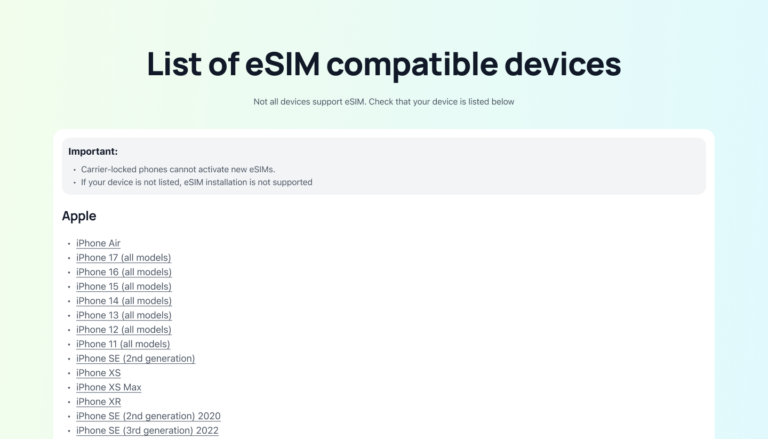
Because Galaxy eSIM support can vary by model code and region, check your phone before comparing plans. Then weigh the total cost, activation steps, destination network access, and features like hotspot support. Start by checking which Samsung phones support eSIM, then compare options against your trip needs.
Samsung eSIM: Check Your Galaxy Model Before You Choose a Plan
Samsung eSIM support varies by exact model, country, carrier, and software version. Check your specific phone before buying a travel plan, then size the data allowance around your trip.

Confirm the EID, eSIM support, and carrier-unlock status
Open your phone dialer and enter *#06#. If an EID appears, that’s a useful sign your Galaxy has eSIM hardware, but it doesn’t guarantee that a specific plan will work. Also check Settings > Connections > SIM manager for an option to add an eSIM. Menu names can vary by software version.
Galaxy S20 and newer models, Z Fold and Z Flip phones, and select A-series devices are good starting points, not universal guarantees. Regional versions differ, and some FE and older A-series phones lack eSIM support, though exceptions exist.
| Galaxy lineup | Support caveats | What to verify | Travel-planning implications |
|---|---|---|---|
| Galaxy S, including S20 and newer | Support varies by model code, region, and carrier | Exact model number, EID, and software version | Confirm support before choosing a destination plan |
| Galaxy Z Fold and Z Flip | Most recent models support eSIM, but regional versions may differ | Model code and carrier support | Check before relying on a digital plan abroad |
| Selected Galaxy A models | Support appears on some models, not the whole series | Exact model and EID | Have a physical SIM or roaming backup if uncertain |
Samsung’s Galaxy eSIM compatibility and carrier guidance can help you check supported devices. Also review your carrier’s support information. A carrier-locked phone may reject a travel eSIM profile, even when the hardware supports eSIM. Confirm the model, region, and unlock status with your carrier or seller before purchase. For more device-specific caveats, see Samsung Galaxy eSIM compatibility details.
Match your trip length and data needs to a realistic plan size
Estimate your data based on how you’ll use your phone each day. Maps, messaging, and light browsing use less data than frequent video calls, streaming, or hotspot sharing. Background app updates and photo backups can also consume data without much notice.
For a week of basic navigation and messaging, a small allowance may be enough. If you’ll work remotely, make video calls, or connect another device, consider a larger plan. Usage varies, so leave a modest buffer rather than paying for far more data than you expect to use. Check whether the plan supports top-ups, then estimate your travel eSIM data needs before you choose.
Choose a Samsung Galaxy Travel eSIM by Three Real Criteria
No single Samsung Galaxy travel eSIM suits every trip. Compare the plan’s usable data, setup requirements, and access to local networks. Destination coverage and plan limits matter more than promotional wording.
Compare the true price per usable gigabyte
To compare plans fairly, divide the total plan price by the included high-speed data. For example, a $15 plan with 10 GB of high-speed data costs $1.50 per usable gigabyte. Treat that figure as a comparison target, not a universal market rate.
Daily “unlimited” plans can look inexpensive, but a fair-use limit may trigger slower speeds after a set amount of high-speed data. Check when throttling starts and whether the reduced speed will handle maps, calls, and browsing. Also review the plan’s validity period, top-up costs, speed caps, hotspot rules, and coverage in every destination on your itinerary.
Check how quickly the profile installs and activates
Installing an eSIM profile and starting its data-validity period are separate steps. Some plans start the clock at installation, while others begin when the phone connects to a supported network. Check the provider’s activation rules before scanning the QR code.
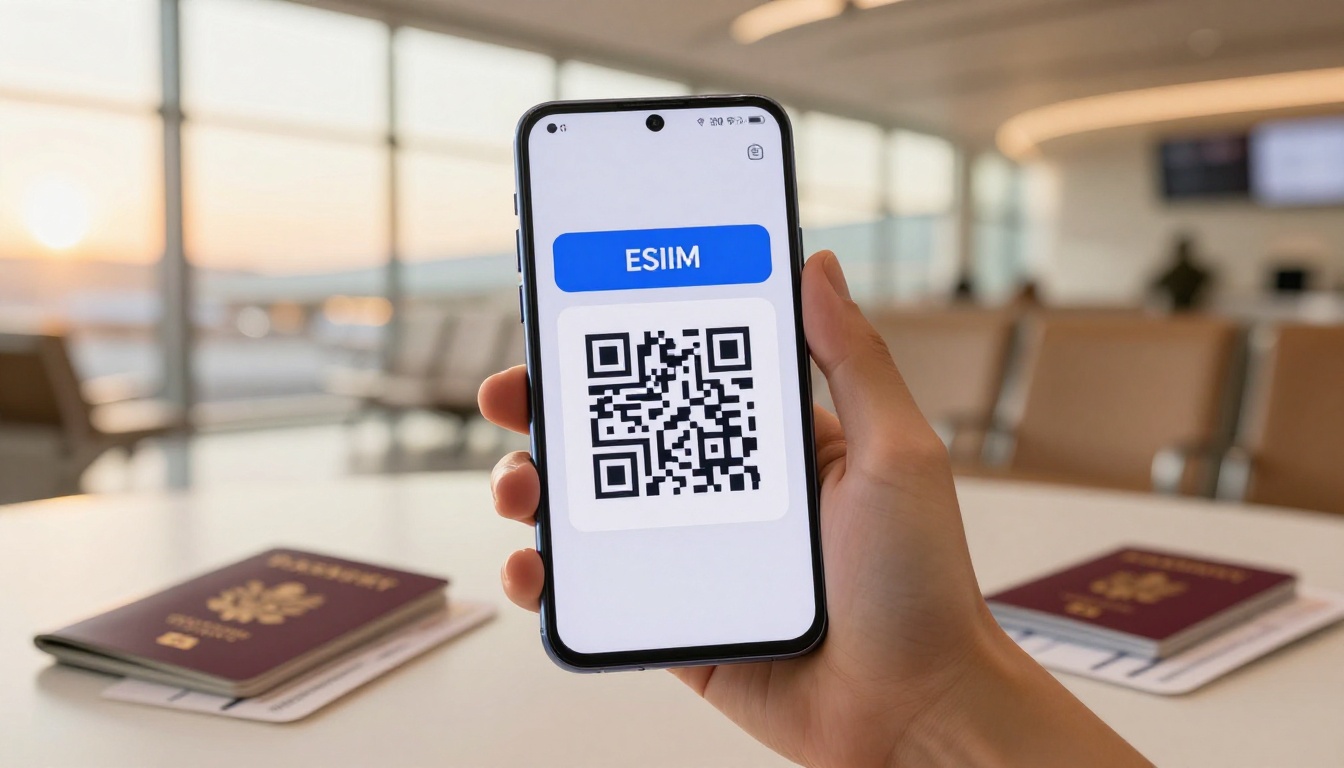
QR setup needs a stable internet connection to download the profile. Crowded airport Wi-Fi can slow or interrupt the process, so install the eSIM at home before departure. Follow the plan’s instructions about when to enable it, and review this Android eSIM installation guide. A Samsung Galaxy QR setup guide also describes the Wi-Fi requirement.
Verify local network access and Galaxy band support
Check the plan’s named local network partners and confirm coverage for each destination. Then compare the partner’s supported 4G or 5G bands with the specifications for your exact Galaxy model and regional variant. A compatible eSIM profile alone doesn’t guarantee access to every band.
Direct access to a strong local network may improve service, but signal strength still varies by location, building materials, and indoor conditions. A plan labeled “5G” doesn’t promise 5G everywhere, either. Your phone connects only where the partner network offers coverage and your Galaxy supports the necessary bands.
Install a Travel eSIM in Samsung One UI Before You Fly
Install your travel eSIM at home while you have reliable Wi-Fi. Menu labels can differ slightly by One UI version or carrier, but the setup usually follows these steps.

- Connect to Wi-Fi. Use a stable home network so your Galaxy can download the eSIM profile without interruption. Check the plan’s activation rules first, since some plans start their validity period during installation.
- Open SIM Manager. Go to Settings > Connections > SIM Manager. Samsung’s Galaxy eSIM setup instructions confirm this general menu path.
- Add the eSIM. Tap Add eSIM, then choose the provider’s QR-code option. Center the QR code in the camera view and follow the prompts. If scanning isn’t available, select the alternate setup method, such as entering the activation code manually.
- Keep the profile installed. Wait for the confirmation, then check that the travel plan appears in SIM Manager. For more detail, follow this QR code eSIM setup guide. Avoid deleting the profile if setup stalls, because some providers issue QR codes that work only once. Contact the seller before removing or reinstalling it.
Set the travel profile as the mobile data line
In SIM Manager, select the travel eSIM under Mobile data. You can keep your home SIM available for calls or text messages, including bank verification texts, if your carrier allows it. However, turn off Data roaming for the home line to reduce the risk of roaming charges.
Some travel eSIMs require data roaming on for their own profile. Follow the plan’s instructions, and confirm you enable roaming for the travel line, not the home line. When you need to manage several profiles, these steps can help you switch between eSIM plans on Samsung Galaxy.
Test the connection and fix common setup problems
If Add eSIM doesn’t appear, confirm your exact Galaxy model supports eSIM and your phone is unlocked. If the QR scan fails, reconnect to reliable Wi-Fi, clean the camera lens, and ask the seller for an alternate activation method.
For no service or mobile data, restart your phone and check that the travel profile is enabled and selected for mobile data. Also verify whether the plan requires data roaming. If the problem continues, contact the plan seller before deleting or reinstalling the profile.
Use This Pre-Flight Checklist to Avoid Data and Roaming Issues
Before you leave, confirm that your Samsung Galaxy can use the eSIM and that your travel plan is ready. A few checks now can prevent setup delays, unexpected roaming charges, or a data connection routed through the wrong SIM.

Check these settings before departure
| Check | What to confirm |
|---|---|
| EID and model | Dial*#06# and confirm an EID appears. Check your exact Galaxy model and region, then verify eSIM support in Samsung’s official Galaxy eSIM setup guidebefore purchasing a travel eSIM |
| Carrier unlock | Ask your carrier to confirm the phone is unlocked. eSIM hardware alone doesn’t guarantee that another provider’s profile will install. |
| Destination coverage | Check that the plan covers every country on your itinerary and lists a supported local network. |
| Validity and data | Confirm when the plan starts, how long it lasts, its data allowance, and any speed limits or top-up options. |
| Profile installation | Install the eSIM over reliable Wi-Fi before departure, following the provider’s activation instructions. Keep the profile on your phone. |
| Mobile-data line | In SIM Manager, select the travel eSIM for mobile data. |
| Home-line roaming | Turn off data roaming for your home SIM. If the travel plan requires roaming, enable it only for the travel eSIM. See when to turn data roaming on or off. |
| Support details | Save the provider’s contact method, setup instructions, and any activation or troubleshooting details where you can access them offline. |
You can keep your home SIM active for calls or verification texts, such as bank codes, without using it for mobile data. Set the travel eSIM as the data line, then leave data roaming off for the home line to reduce the risk of charges. For more guidance on using both lines, see how to keep your home number active while traveling.
Finally, check that the travel profile appears in SIM Manager and that you know which line should handle data after you land.
Pick the Best eSIM Option for Your Destination and Travel Style
Once your Samsung Galaxy supports eSIM and your phone is unlocked, match the plan to your route and daily data use. A lower price matters, but only if the plan covers the places you’ll visit and includes the features you need.

For a short city break or light data use
If you’re visiting one country for a few days, compare country-specific plans first. They may cost less than a regional plan when you only need service in one place. For maps, messaging, and occasional browsing, choose a modest data allowance with enough validity for your full stay. You can estimate your travel data needs before comparing packages.
For a multi-country itinerary
A regional eSIM can save you from switching plans at each border, provided it covers every country on your route. Check the included destinations rather than relying on a broad region name. Also confirm whether the data allowance works across all destinations and whether the plan remains active for your entire trip. For example, Asia regional eSIM plans for multi-country trips can help you compare options for travel across the region.
If you’re spending most of your trip in one country, a country-specific plan may still be the better value. Compare its price, coverage, and validity with the regional option before deciding.
For Heavy Data Use or Hotspot Sharing
Remote work, video calls, streaming, and photo backups can use data quickly. Choose a larger fixed-data plan or an unlimited option, but read its speed limits and fair-use terms.
If you’ll connect a laptop or another traveler’s phone, confirm that the plan allows hotspot use and check any tethering limits. Some providers restrict hotspot access or reduce tethered speeds, so review the Apple Personal Hotspot support guide before purchasing a travel eSIM.
Before buying, compare the plan’s actual coverage, data allowance, validity, and hotspot rules against your exact Galaxy model and itinerary. For another device check, see how to pick a travel eSIM.
Conclusion
Choosing a Samsung eSIM plan starts with your exact Galaxy model and carrier-unlock status. Then compare the price per usable gigabyte and confirm that the plan connects to a local network in every destination on your itinerary.
Before departure, install the profile over reliable Wi-Fi and test that it appears in SIM Manager. Check your One UI settings, assign mobile data to the travel eSIM, and keep data roaming off for your home line unless your carrier’s instructions say otherwise.
Your next step is to verify your phone’s compatibility, then compare plans against your route and expected data use. That way, you can travel with a clear idea of which SIM handles mobile data and what your plan includes.