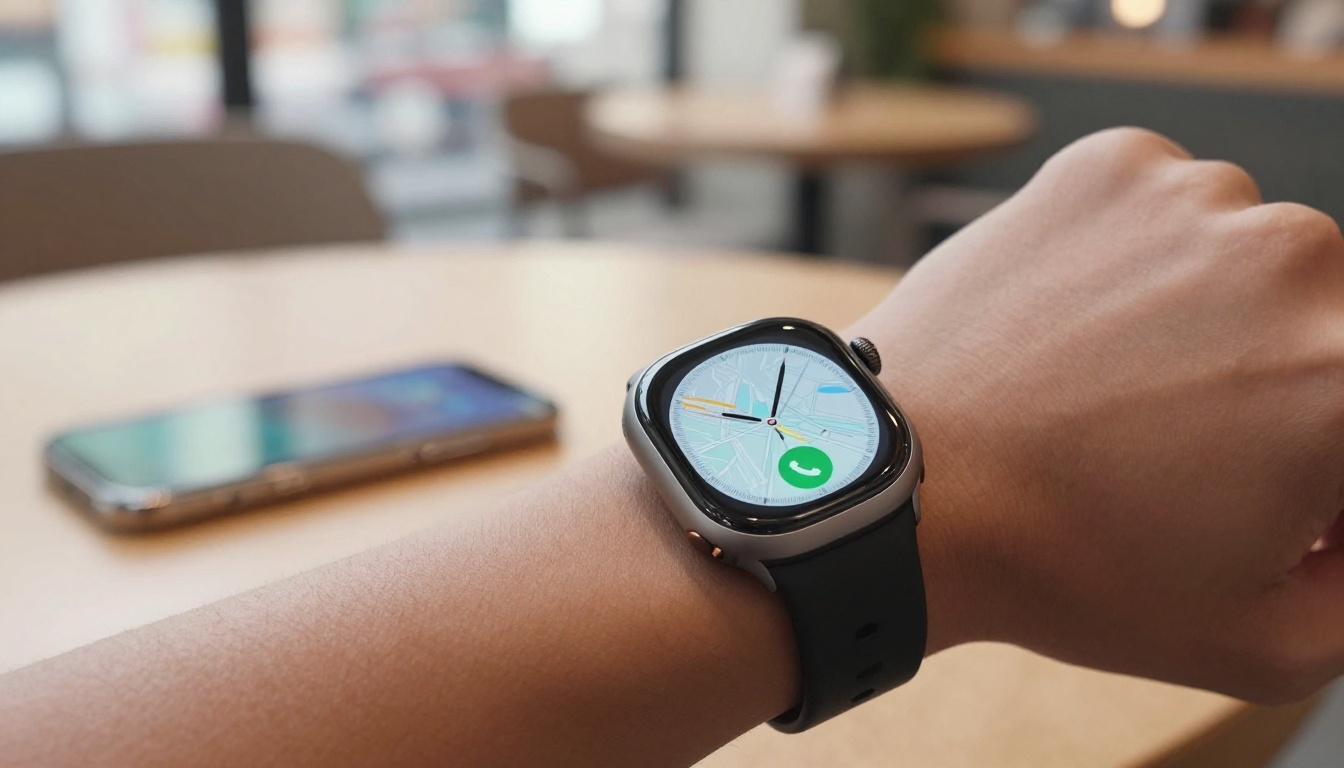
Apple Watch eSIM: Compare Costs, Setup, and Coverage
Want to call, message, and track routes without carrying your iPhone? An Apple Watch Cellular model can do that with a supported carrier plan, but you don’t set it up by scanning a standalone eSIM QR code. You activate service through the paired iPhone, and the details depend on your carrier and watch model.
Price, setup steps, and coverage can also change when you travel, so check your carrier’s terms before you count on wrist-only connectivity. Here’s what to compare, plus what to know about Apple Watch eSIM support.
Apple Watch eSIM: Compare Price, Setup, and Coverage at a Glance
An Apple Watch cellular plan can keep calls, messages, and maps available when your iPhone isn’t with you. The quick comparison below shows what to check before adding it to your travel setup.
| What to compare | Typical experience |
|---|---|
| Monthly add-on cost | Often about $5 to $10 per month in the U.S.; carrier fees vary. |
| Setup effort | Usually a few minutes in the Watch app, with carrier sign-in or confirmation. |
| Data use | The watch usually shares your iPhone plan’s data allowance, not a separate per-GB bundle. |
| Coverage | Depends on carrier support, the watch model, and service in your destination. |
| Travel roaming | Varies by carrier and plan; confirm availability and charges before departure. |

What the comparison means for your trip
Before you leave, confirm that your carrier supports cellular service on your Apple Watch and allows roaming at your destination. Apple’s Apple Watch cellular setup guidance explains how to activate a plan, while its carrier availability information helps you check participating providers. Fees and features vary by country and plan, so check your carrier’s current terms rather than relying on a familiar monthly price.
Then ask yourself: how often do you really want to leave your iPhone behind? If you run, explore a city, or take quick errands without your phone, a monthly add-on may feel worth it. If your iPhone will stay in your bag most of the day, Bluetooth and Wi-Fi may cover your usual needs without another charge.
For a separate travel data plan on your phone, review how to activate your eSIM after arriving. Compare that option with the watch add-on, then choose based on whether phone-free access is worth the extra fee.
How Apple Watch Cellular Plans Work and What You Need
An Apple Watch Cellular plan isn’t a mini phone plan you install by scanning a travel eSIM QR code. It connects through your paired iPhone and a carrier feature that lets both devices use the same phone number.
That setup is convenient, but it depends on the right watch, iPhone, carrier, and plan. Check those details before buying a separate travel eSIM for your watch.
Why an Apple Watch does not use a travel eSIM like an iPhone
With a supported carrier, your Apple Watch shares your iPhone’s number through a service often called NumberShare or NumberSync. The name varies by carrier, and the watch may have an additional monthly fee. Data allowances and roaming rules also depend on your plan.
You activate service in the Watch app on your iPhone, usually under My Watch > Cellular. Your carrier then provisions the watch for its network. That’s different from adding a travel eSIM by scanning a QR code directly on an iPhone. Apple Watch doesn’t offer that same independent setup flow, so check your carrier’s watch-plan and roaming rules before purchasing a separate travel data eSIM.
Check your watch model, iPhone, and carrier first
A GPS-only Apple Watch can connect through your iPhone or Wi-Fi, but it can’t use cellular service on its own. For phone-free connectivity, you need a GPS + Cellular model and a carrier that supports that specific watch.
Before you sign up, run through this quick compatibility check:
- Confirm your watch is a GPS + Cellular model, and check its regional model support.
- Make sure your iPhone is compatible with your watch and running a supported iOS version.
- Verify that your carrier supports Apple Watch service and your exact watch model.
- Check whether your current phone plan qualifies for the carrier’s watch add-on.
Apple’s Apple Watch model comparison notes that international roaming depends on carrier coverage and isn’t available in every region. Since carrier rules and device support vary, don’t assume a watch that works at home will connect abroad. You can also check Apple Watch eSIM-compatible models before buying or adding a plan.
How to Compare Apple Watch Cellular Plan Prices
The monthly add-on fee is only part of the bill. Check activation charges, taxes, plan limits, and roaming costs too, then compare the total with how often you’ll leave your iPhone behind.
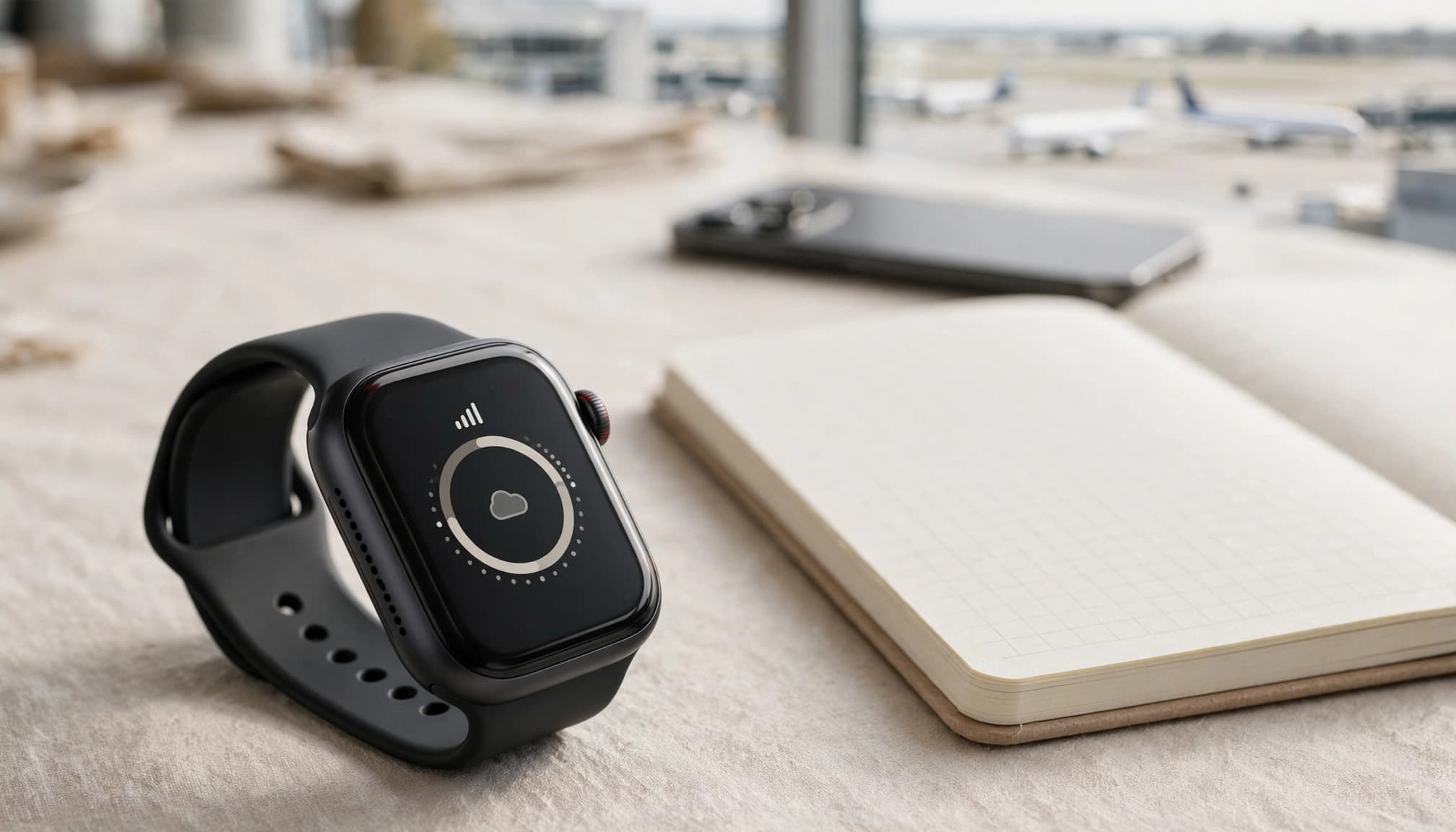
Calculate the real cost when data is shared
Most Apple Watch cellular plans use the data allowance on your paired iPhone plan. That makes a simple price-per-GB figure misleading: the watch usually doesn’t get its own separate bucket of data. In that case, compare the add-on as the cost of watch connectivity, not as a per-GB price.
Use this formula only when your carrier provides a distinct watch data allowance:
Monthly cost per GB = (monthly watch fee + extra plan or roaming charges) ÷ watch data allowance
For shared data, add the recurring watch fee to any extra monthly charges, but don’t divide by the iPhone plan’s shared allowance.
For example, say a hypothetical plan charges $8 per month for the watch and a one-time $20 activation fee. If you keep the plan for four months, that activation charge adds $5 per month during that period. Your watch connectivity costs $13 monthly before taxes, then $8 after the activation cost is no longer part of the comparison. Roaming charges, if any, would add to the total.
Look beyond the monthly add-on fee
Before signing up, check whether your current phone plan supports Apple Watch service, and whether family or business accounts have different rules. Ask about activation fees, cancellation terms, taxes, and charges for international roaming. Apple’s carrier availability list can help you confirm support, but your carrier has the final say on current pricing and plan eligibility.
If you’re weighing watch roaming against a travel data plan for your phone, compare the full costs and what each option covers. This guide to travel eSIM and roaming costs can help you size up that trade-off. For current watch fees and roaming terms, check your carrier directly before you travel. A low add-on price is a no-brainer only if you’ll use phone-free connectivity often enough to make it worthwhile.
How to Set Up Cellular on Your Apple Watch
Set up cellular before your trip, while your iPhone and watch are nearby and connected. Apple Watch cellular service activates through your carrier account, not by scanning a travel eSIM QR code. For a quick refresher on how Apple Watch connects to cellular service, remember that your watch shares service through its paired iPhone plan.
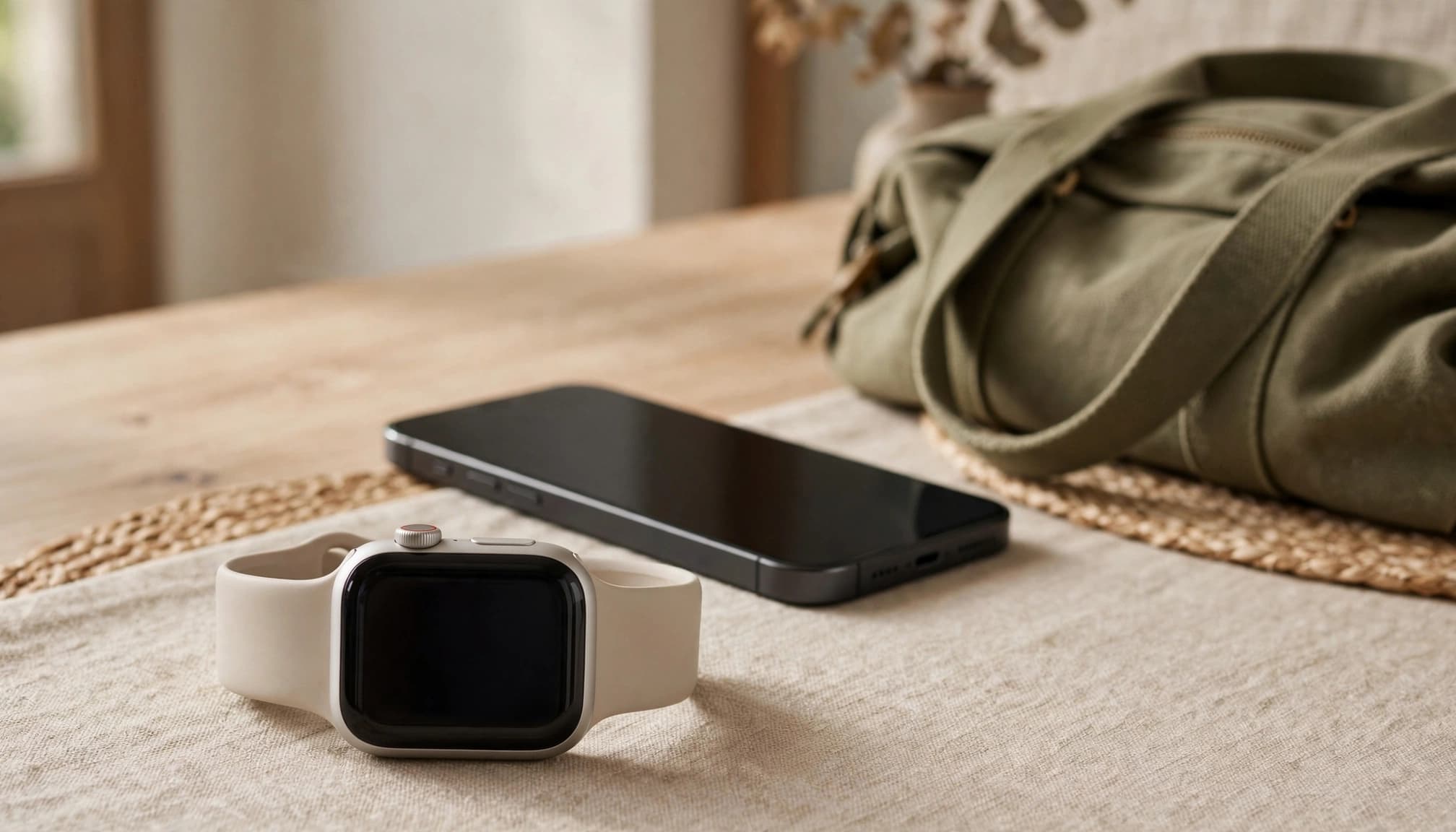
Pair the cellular plan through the Watch app
Before you start, confirm that you have a GPS + Cellular Apple Watch, a compatible iPhone, and an active plan with a carrier that supports Apple Watch. Your carrier account must also be eligible for its watch add-on. Update both devices first, since outdated software can interrupt setup.
Then follow these steps:
- Keep your iPhone and Apple Watch near each other, with Bluetooth enabled on the iPhone.
- Open the Watch app on your iPhone and tap My Watch.
- Tap Cellular, then choose Set Up Cellular or the similar option shown on your screen.
- Follow your carrier’s prompts. You may need to sign in, verify your account, or accept plan terms.
- Wait for activation to finish, then check the Cellular section in the Watch app for your plan status.
Menu names can vary slightly by iOS and watchOS version, so follow the prompts on your devices. Apple’s cellular setup instructions cover the standard flow. If setup fails or your carrier account doesn’t qualify, contact the carrier to confirm watch support, account eligibility, and activation status.
Test the connection and manage battery use
Once activation finishes, test the watch away from your iPhone. Leave the phone behind or move out of Bluetooth range, then place a call or try a data task, such as loading a map. Check the Cellular control in Control Center on your watch, too. A cellular connection indicator confirms the watch is using its own connection; if it can’t connect, check that cellular service is on and that you have coverage.
Your watch doesn’t need to rely on LTE when another connection is available. Bluetooth can connect it to your nearby iPhone, and Wi-Fi can handle data when the watch joins a known network. LTE use can drain the battery faster, especially when your iPhone is out of range for long stretches. Keep Bluetooth on and use cellular when you need phone-free access, not as a default setting all day.
Check Apple Watch Coverage and Roaming Before You Travel
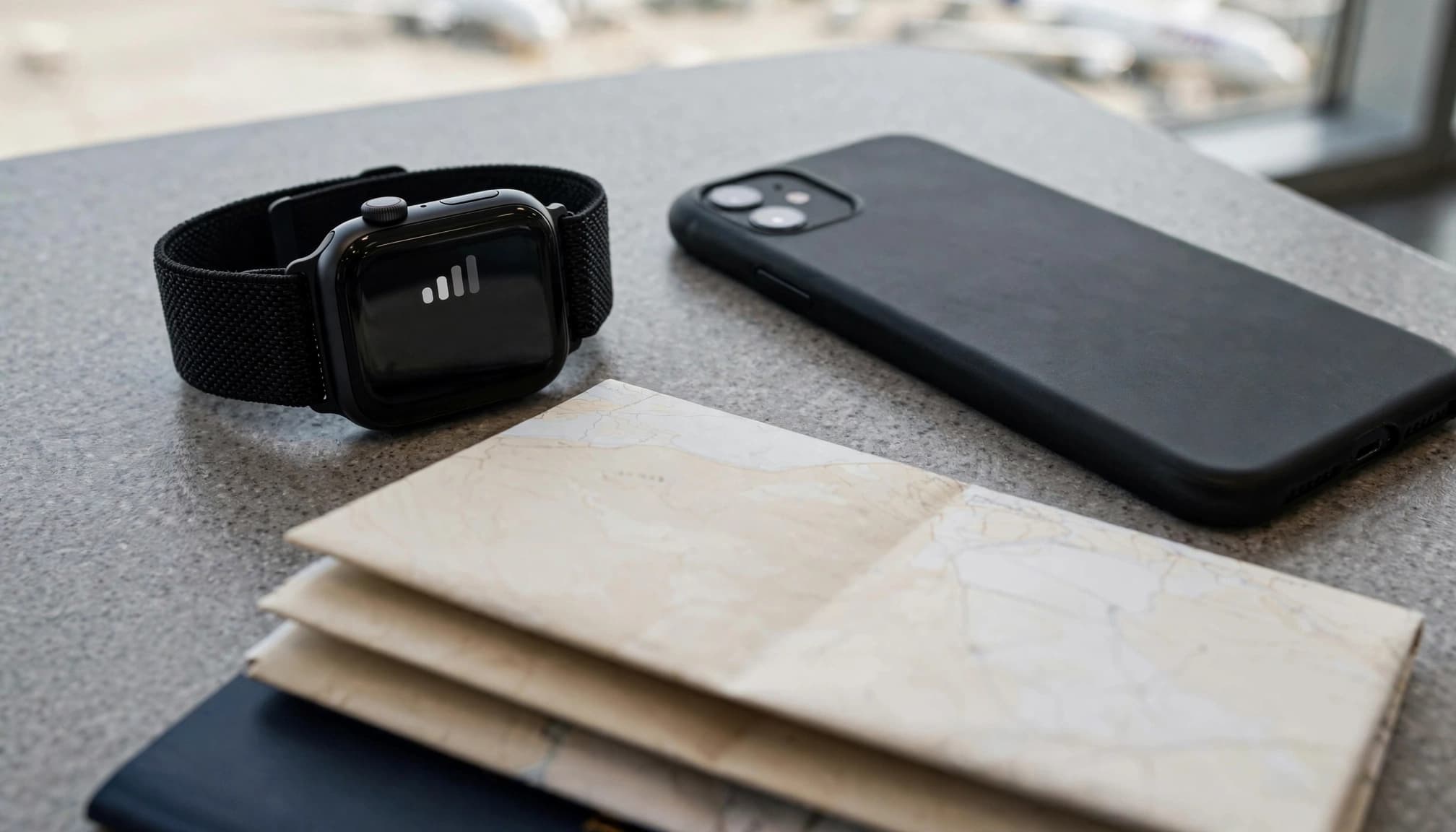
An Apple Watch cellular plan that works at home may not connect abroad. Coverage depends on your carrier’s network, plan terms, destination support, and the specific watch model you own. Before you pack, confirm the details with your carrier, not just the general coverage map.
Confirm destination support, roaming fees, and network access
Ask your carrier whether your exact Apple Watch plan and model can roam in your destination. Check which local partner networks support the service, what roaming charges apply, and whether you need to buy or activate a roaming pass. International roaming varies by carrier and device software, so updating watchOS alone won’t guarantee a connection.
Your paired iPhone’s travel data plan does not automatically enable roaming on your watch. The watch still needs carrier support for its own cellular service abroad. Apple’s Apple Watch cellular setup guidance explains where to check Data Roaming, but your carrier can confirm whether your account and destination are supported. For separate phone travel data, review how roaming works on a travel eSIM.
Use a quick preflight checklist
A few quick checks can prevent a frustrating surprise after landing. Before you leave, confirm:
- Your iPhone and Apple Watch run current software, and your carrier has no additional software requirements.
- Your Apple Watch cellular plan is active and the account is in good standing.
- Data Roaming is enabled on the watch if your carrier supports international roaming.
- Your carrier confirmed destination coverage, local network access, fees, and any required roaming pass.
- Bluetooth is on when your iPhone is nearby.
Bluetooth helps your watch connect to a nearby iPhone and conserve battery. But once your watch is away from the phone, Bluetooth can’t replace cellular coverage. If roaming isn’t supported, your watch may still connect through Wi-Fi or a nearby iPhone, but don’t count on wrist-only service.
Conclusion
The right Apple Watch eSIM choice comes down to a few checks: confirm your watch has Cellular hardware and your carrier supports it, compare the full add-on and roaming costs, and finish setup before you travel. Then verify coverage at your destination, since a plan that works at home may not work abroad.
For a closer look at Apple Watch eSIM support, check the device and carrier details before you commit.