Travel eSIM Activation Time: Why It Takes 20 Minutes
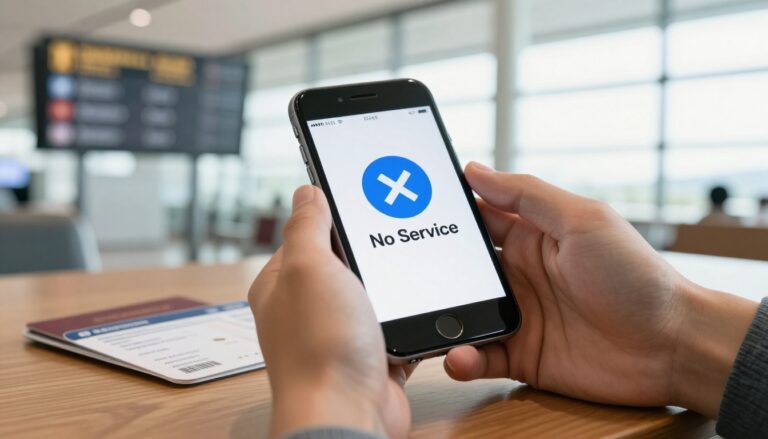
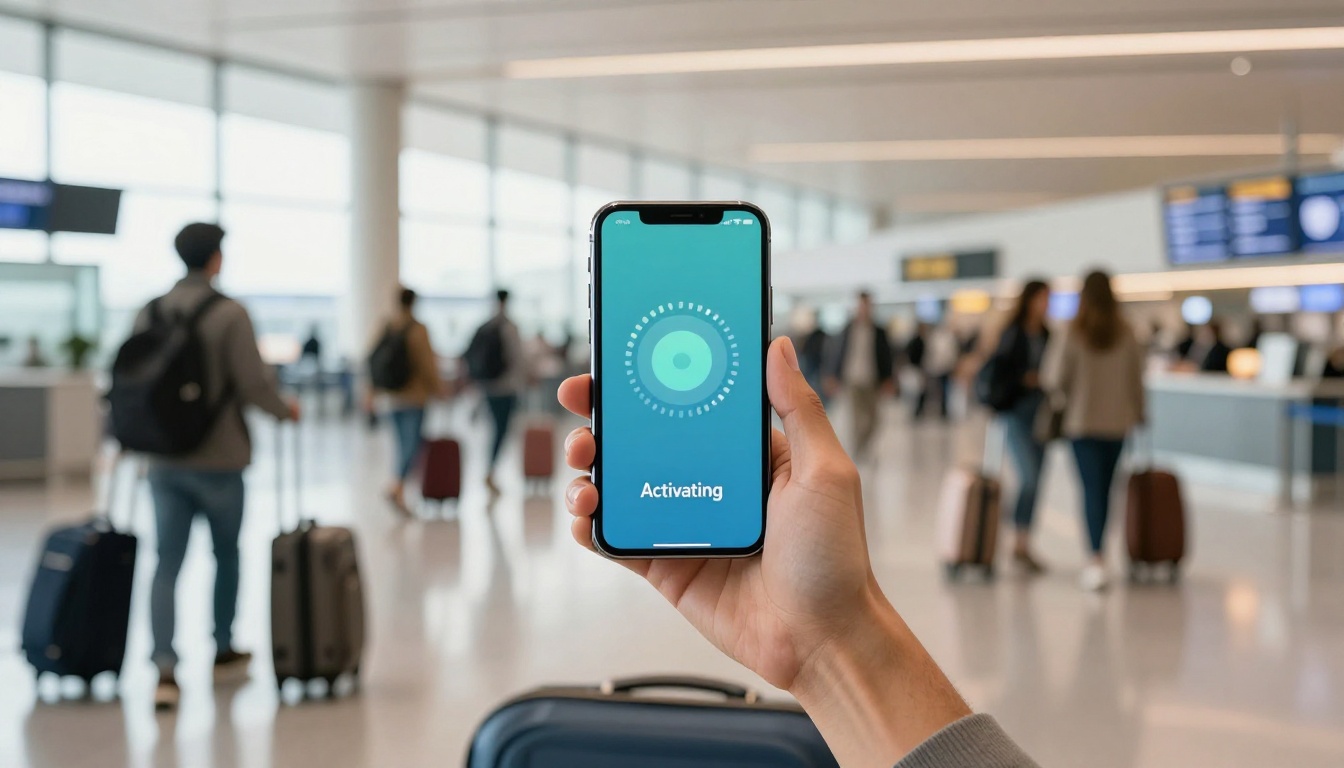
You land, turn off Airplane Mode, and expect your phone to come alive instantly. Instead, the eSIM sits on “Activating,” the signal bars stay empty, and you’re left trying to book a rideshare using airport Wi-Fi. Frustrating? Absolutely, but a QR code download and actual network access are two different steps.
Scanning the QR code or installing an eSIM profile only places the digital SIM on your phone. Your device still has to register with an approved local network, complete authentication, and establish data routing before you can browse, message, or open Google Maps. That’s why travel eSIM activation time belongs beside price per GB, coverage, and network quality when you’re comparing plans.
A 20-minute delay can come from provider routing, phone settings, local network congestion, or the plan’s activation policy, and it doesn’t mean every eSIM needs 20 minutes to work. This practical 2026 guide explains what happens behind the scenes, what timing you should expect, and which checks can get your connection moving without promising an unrealistic under-two-minute setup every time.
Travel eSIM Activation Time: What Actually Happens Before You Get Data
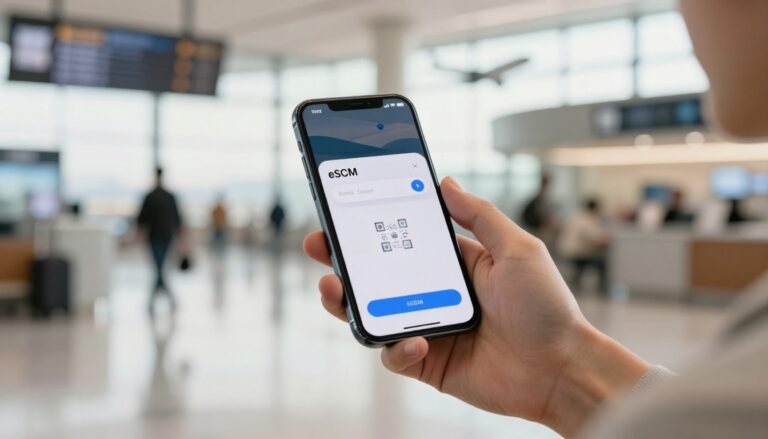
A travel eSIM activation has several separate steps, even though your phone may display them as one “Activating” message. The profile must download, the line must turn on, the device must find an approved network, and the carrier must allow data access. That handoff is why a QR code can scan almost instantly while usable mobile data takes several more minutes.

Downloading the Profile Is Not the Same as Connecting to a Tower
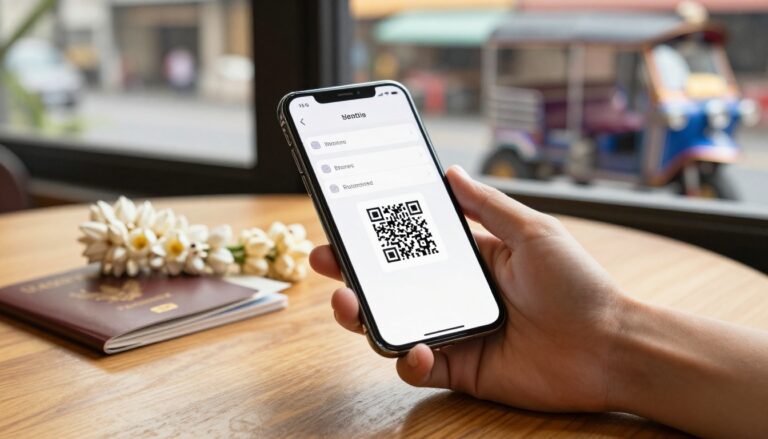
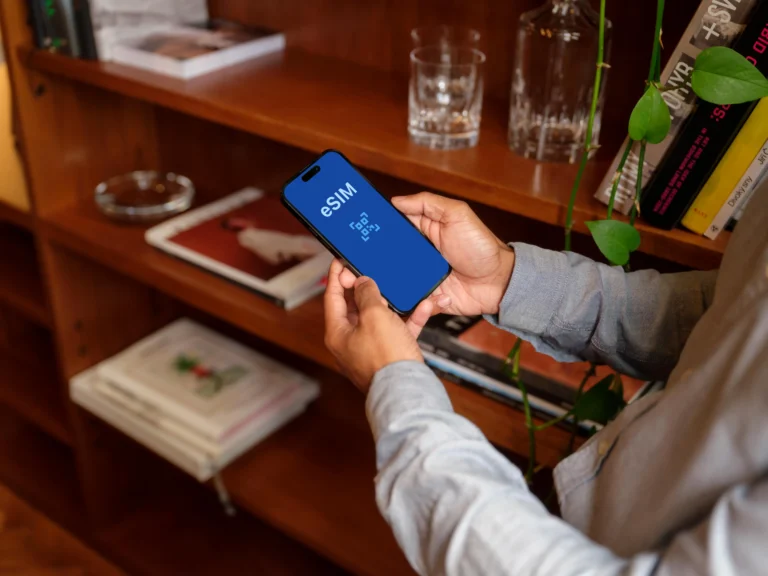
Think of the QR code as an address, not the eSIM itself. When you scan it, your phone uses that secure pointer to contact the provider’s SM-DP+ server and download your plan’s profile. The profile is then stored on the phone’s eUICC, the built-in chip that holds digital SIM credentials.
That part can finish in seconds on reliable Wi-Fi. You may even see the new line listed in your cellular settings, which makes the phone look ready to go. However, successful installation only confirms that the profile reached your device. It doesn’t confirm that a local carrier has accepted the line or assigned it a working data session.
The distinction is easy to see at an airport. You scan the code at home, name the eSIM “Japan,” and watch the installation complete before your flight. After landing, the phone still needs to search for an approved Japanese network and register the travel line. A QR code scan is like downloading a boarding pass. You have the document, but you still need to get through the gate.
If you want the installation steps covered separately, this QR code eSIM setup guide explains why stable Wi-Fi matters and why the code doesn’t contain the entire profile.
Why Authentication and IP Routing Can Add Several Minutes
Once the phone finds a supported tower, the eSIM provider may need to verify your subscription through a roaming platform, international gateway, or local carrier partner. The network checks whether your plan is allowed to connect, then passes the request through the systems that manage subscriber authentication and data access.
After approval, IP routing creates the path between your phone and the internet. With an international travel plan, that path may include several handoffs between the provider, a roaming platform, and a carrier in your destination country. Each system can respond quickly, but the full chain may still take several minutes.
That means there is no universal travel eSIM activation time. A strong Wi-Fi connection, compatible phone, nearby partner network, and direct provider connection may produce data in a minute or two. A busy airport, weak signal, delayed roaming platform, or manual APN requirement can stretch the process closer to 20 minutes.
A profile that says “installed” is not necessarily a profile that has completed network registration.
Normal processing usually ends with signal bars and working data after a short wait. If the eSIM remains stuck well beyond that, shows no supported network, or repeatedly fails authentication, treat it as a setup problem rather than assuming the delay is normal.
The Main Reasons Some eSIMs Take 20 Minutes to Activate
A 20-minute wait doesn’t automatically mean your eSIM is defective. The delay may happen while the provider verifies your plan, configures data access, or connects you with a local roaming partner.
Direct, well-automated setups can often finish in a few minutes. Multi-step roaming connections may take 10 to 20 minutes, especially when you arrive during a busy travel period.

Provider Routing Can Create Extra Network Handoffs
Some eSIM providers connect travelers through a direct carrier relationship or a tightly integrated roaming platform. In that setup, your phone, the eSIM provider, and the local network have fewer systems to coordinate. Authentication may finish in one to three minutes when the profile, device, and destination network all line up.
Other plans rely on third-party aggregators that connect with several international systems and roaming partners. Your registration request may pass through multiple gateways before the local carrier approves it. Each handoff can add a little time, and delays become more likely when a provider is switching between partner networks or handling a large wave of arrivals.
Peak travel periods can make the wait longer, too. A busy airport, holiday weekend, or sudden surge in arrivals may create extra requests for the same roaming systems at once.
An aggregator isn’t automatically a sign of poor quality. Price, coverage, network priority, and customer support matter just as much as the number of systems behind the connection.
A cheaper multi-network plan may still be the right choice for a long trip where saving money matters more than instant access. For a late-night arrival or short business trip, a direct or well-integrated profile may be worth paying a little more for.
Missing APN Settings Can Stop Data Even After Registration
The Access Point Name, or APN, tells your phone where to send mobile data after the eSIM connects to a network. Some phones receive the correct APN automatically through the eSIM profile. Others need you to enter it manually, particularly when the plan uses a less common roaming configuration.
The symptom usually gives you a useful clue. If the eSIM is still searching for service, shows “Activating,” or has no signal bars, the problem is probably registration or network selection. If you have signal bars but websites, maps, and messages won’t load, the eSIM may already be registered and missing the correct data route.
Use only the APN details supplied by your provider. Guessing the value, copying settings from your home carrier, or changing unrelated fields can create more problems. This travel eSIM APN setup guide explains where to find the setting on iPhone and Android.
Airport Congestion and Activation Timing Can Change the Result
When hundreds of travelers arrive at once, many phones may try to register with the same local towers and roaming systems. You may see full or partial signal bars while the connection remains slow, or service may appear briefly before data starts working. In these cases, waiting a few minutes and retrying network registration can help.
Your plan’s activation policy also affects the timing. Some eSIMs start their validity when you install them, while others begin when they first connect to a supported network abroad. Installing an “activate on installation” plan at home may start the clock before your flight, even if you don’t use any data.
Waiting until arrival avoids wasting validity, but it carries its own risk. If the plan needs Wi-Fi, manual setup, or an activation confirmation, you may be stuck without data when you need directions or a rideshare. Check the policy before installation, then choose the timing that fits your arrival plans.
How to Fix a Slow eSIM Activation Before You Panic
Before changing advanced settings, connect to stable Wi-Fi and confirm that your phone supports eSIM service. Check that the device is unlocked, because a carrier-locked phone may refuse to register a travel plan even when the profile installed correctly.
The exact menu names vary between iPhone and Android devices, but the troubleshooting order is usually the same: check the line, refresh the connection, confirm the APN, then restart the phone. Also, don’t delete the eSIM profile yet. Some QR codes are single-use, and deleting the profile can leave you without a simple way to reinstall it.

Check the eSIM Line, Data Roaming, and Phone Settings
Open your cellular or mobile network settings and confirm that the travel eSIM is turned on. It also needs to be selected as the line used for cellular data. If the phone is still using your home SIM for data, the travel plan may be installed but completely inactive.
Many travel eSIMs require Data Roaming to be enabled for that specific eSIM. That sounds risky when you’re used to keeping roaming off, but the setting may be necessary for the provider’s local network connection. Turn it on for the travel line, not automatically for every line on the phone.
Keep an eye on your home SIM. Leaving its data access enabled can trigger expensive roaming charges, especially if the phone switches back to it when the travel eSIM fails. Set the travel eSIM as the data line, then disable mobile data or data roaming on your home line unless your carrier confirms that roaming is included.
If you have signal bars but no internet, check whether the provider supplied custom APN details. Enter those values exactly as provided. Do not copy the APN from your home carrier or guess the setting, since the wrong data route can block service.
Refresh the Network Connection and Select a Partner Manually
Start with the quickest reset. Turn Airplane Mode on for about 10 seconds, then turn it off and wait for the phone to search for service. Give it a minute or two to register before opening apps or changing another setting.
If automatic network selection still fails, open Cellular or Mobile Network settings and temporarily disable the Automatic selection option. Choose an approved partner network listed in your eSIM provider’s instructions. The phone may show several local carriers, but not every visible network can authenticate your plan.
Once data works, return network selection to Automatic if your provider recommends it. Then restart the phone to clear any unfinished registration attempt and let the eSIM reconnect with a clean session. For more targeted steps, use this guide to fix an eSIM that is not working abroad.
Know When a Delay Is Normal and When Support Is Needed
A few minutes of waiting can be normal, especially after landing in a busy airport. However, a continued “Activating” message, no service after repeated refreshes, or no data after roughly 20 to 30 minutes is a good reason to contact the provider.
Send support your phone model, destination, eSIM order number, exact error message, and the steps you’ve already completed. Their team may need to check whether the profile was used, suspended, or assigned to the wrong roaming partner.
Do not erase the eSIM unless support confirms that it can be reinstalled. If the QR code works only once, deleting the profile can turn a slow activation into a replacement-profile problem.
How to Balance Activation Speed, Price per GB, and Coverage
The cheapest eSIM isn’t always the best travel deal. Compare the whole experience: activation time, price per GB, local network access, destination coverage, fair-use limits, hotspot support, and customer service. A plan that saves $3 but leaves you without maps after landing may not feel cheap for long.
Use this quick framework before buying:
| Factor | What to check |
|---|---|
| Price per GB | Total cost divided by the included data |
| Activation time | Expected setup time and when validity begins |
| Network partners | Local carriers and multi-network access |
| Destination coverage | Countries, regions, and rural areas included |
| Usage limits | Fair-use rules, speed reductions, and hotspot support |
| Support | Live chat, setup instructions, and replacement policy |
The best value eSIM plans balance these details instead of winning on one headline price.

When Paying More for Faster Activation Makes Sense
A few extra dollars can be money well spent when you arrive late, travel alone, or have somewhere to be immediately. You may need maps to find your hotel, a rideshare app at the pickup area, or messaging access if your driver cannot locate you. Airport Wi-Fi might be crowded, restricted, or unavailable beyond the terminal.
Business travelers face the same choice. If you have a meeting, airport transfer, or train connection within the hour, spending less time troubleshooting has real value. A faster plan can reduce friction when you have limited time and no familiar support nearby.
That said, a higher price doesn’t automatically guarantee faster activation. Check whether the provider explains its expected setup time, uses automatic provisioning, and connects through reliable local partners. Customer support matters here, too. A responsive team can be more useful than a premium label if registration fails.
When a 10 to 20 Minute Wait Is a Reasonable Trade-Off
A short delay is easier to accept when you’re staying for weeks, working remotely, or arriving during the day. Families can connect to hotel Wi-Fi, unpack, and let the eSIM finish registering without needing mobile data every second. Digital nomads may care more about a large allowance and low price per GB than shaving 10 minutes off setup.
Low-cost, high-volume plans often make sense for long stays, especially when you can use Wi-Fi at your accommodation. Just check the fine print before buying. Confirm that the plan supports every destination on your itinerary, uses several local networks when possible, and explains how network selection works.
Also look for fair-use limits and hotspot rules. “Unlimited” data may slow after a daily allowance, while some plans block tethering completely. If you need reliable laptop access, those details matter more than a small activation delay.
Choose an eSIM That Matches Your Arrival and Travel Plans
The best eSIM depends on how you travel, not just how little it costs. A late-night arrival needs immediate access, while a long stay may benefit more from extra data, hotspot support, and broader network coverage.
The Best Features for Short Trips and Late Arrivals
If you land late, travel alone, or need a rideshare immediately, prioritize automatic over-the-air setup and clear installation instructions. A plan that connects to strong local networks without manual configuration is far more useful than one with a tempting price per GB but a slow or confusing activation process.
Look closely at the activation wording. “Instant activation” may only describe profile installation. “Automatic activation” can mean the provider starts the plan as soon as you install it. Activation on first network connection usually means validity begins when the eSIM registers in your destination, which is often the better option for travelers.
Install the profile over reliable Wi-Fi before leaving home when the plan allows it. However, don’t turn on the travel line or start validity until you’re ready to use it. A plan that works when you arrive is worth more than one that simply looks cheap on a comparison page.

The Best Features for Multi-Country Travel and Long Stays
For a multi-country trip, look for access to several host networks, automatic partner switching, a larger data allowance, and a longer validity period. These features can keep your connection alive when you cross borders or move between cities with different coverage conditions.
Remote workers should also confirm that tethering is allowed. A plan may work perfectly on your phone but block hotspot access to your laptop. If you need mobile backup for video calls, cloud files, or navigation, compare these Europe eSIM plans with hotspot support before buying.
Multi-network plans may take longer to register because they support several carriers and roaming systems. That extra processing can be a fair trade for broader coverage over a two-week trip or extended stay. Don’t trust a broad label such as “Europe” or “Asia” without checking the exact countries included.
A Simple Pre-Trip Test Can Prevent Airport Stress
Install the eSIM at home over dependable Wi-Fi, label the line clearly, and check when the provider says activation begins. You can confirm that the profile installed correctly, but don’t try to fully test a destination-only plan from home if it cannot connect outside the covered country.
Save the provider’s APN instructions offline in case mobile data doesn’t work after registration. Also download offline maps, booking details, airport transfer information, and emergency contacts. Then a short delay in your Travel eSIM activation time won’t become a full airport crisis.
Before purchasing, compare:
- The exact destination countries and covered regions.
- Host networks and automatic partner switching.
- Expected activation time and activation trigger.
- APN requirements and setup instructions.
- Data allowance, validity period, and hotspot rules.
- Refund terms and access to live customer support.
That checklist takes a few minutes, but it can save you much longer troubleshooting after landing.
Conclusion
A QR code scan only installs the eSIM profile. It doesn’t mean your phone has finished registering with a local network or received a working data route. Provider routing, missing APN settings, crowded towers, and the plan’s activation trigger can all stretch travel eSIM activation time to 20 minutes or more.
Give the connection a fair chance, then follow the troubleshooting order: check that the travel line is active, confirm data roaming and cellular data settings, refresh with Airplane Mode, select an approved network if needed, and verify the APN. Don’t delete the profile while troubleshooting unless support confirms you can reinstall it. For more help, use this guide to check eSIM activation time and network settings.
Before buying, compare activation speed with coverage and price per GB. Install carefully before the trip, understand exactly when validity begins, and choose a plan with the right level of speed for the way you travel. A 20-minute wait may be acceptable on a long trip, but it feels very different when you need a rideshare immediately after landing.