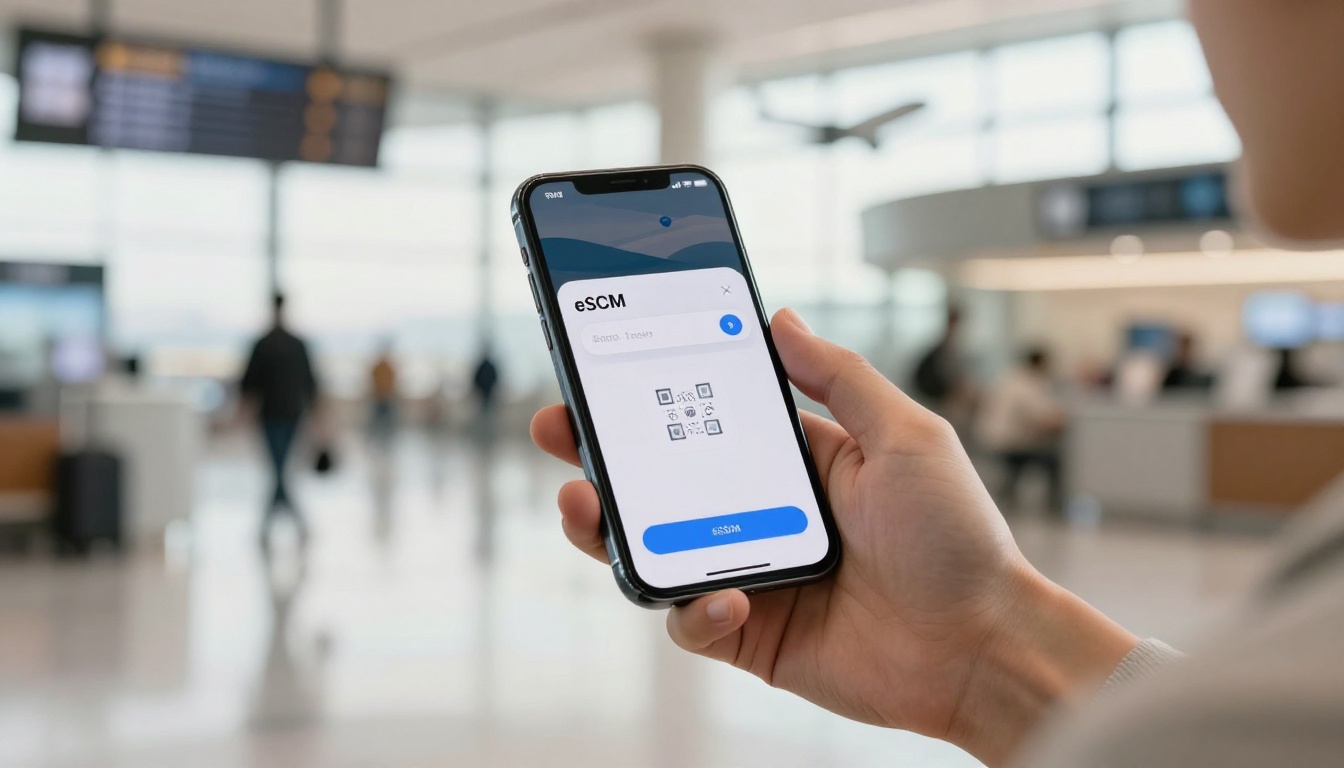
Android eSIM Setup: 6 Travel Mistakes to Avoid
You land, open your Android phone, and there’s no mobile data. A travel eSIM only works when your phone supports it, your device is unlocked, the right settings are on, and your plan fits your trip.
Miss any one of those checks and you could be stuck searching for airport Wi-Fi. Avoid five common setup mistakes, then follow a practical pre-flight setup and checklist. Start by checking your phone’s compatibility and preparing your eSIM before you fly, with this Android eSIM installation guide.
5 Critical Android eSIM Setup Mistakes to Avoid
A smooth Android eSIM setup takes more than scanning a QR code. Your phone needs compatible hardware, your travel plan must install and activate correctly, and the right SIM needs to connect to local networks.
| Mistake | Why it causes trouble | The fix |
|---|---|---|
| Assuming your Android supports eSIM | Support varies by model, year, and region. | Check the exact model, carrier support, and EID. |
| Ignoring carrier locks and regional limits | A locked or unsupported variant may reject the plan. | Confirm your phone is unlocked and compatible with the destination plan. |
| Buying “unlimited” data without checking speed limits | Fair-use rules may reduce speeds after a high-speed allowance. | Compare high-speed data, coverage, validity, hotspot rules, and price. |
| Leaving roaming off on the travel eSIM | Some plans need roaming to reach partner networks. | Enable roaming for the travel profile only. |
| Waiting until the airport to install | Unreliable Wi-Fi can interrupt the profile download. | Install before departure and check when validity begins. |
| Keeping the home SIM as the default data line | Background sync can use your home plan and trigger roaming fees. | Select the travel eSIM for data and disable roaming on your home line. |
Assuming Your Android Phone Supports eSIM
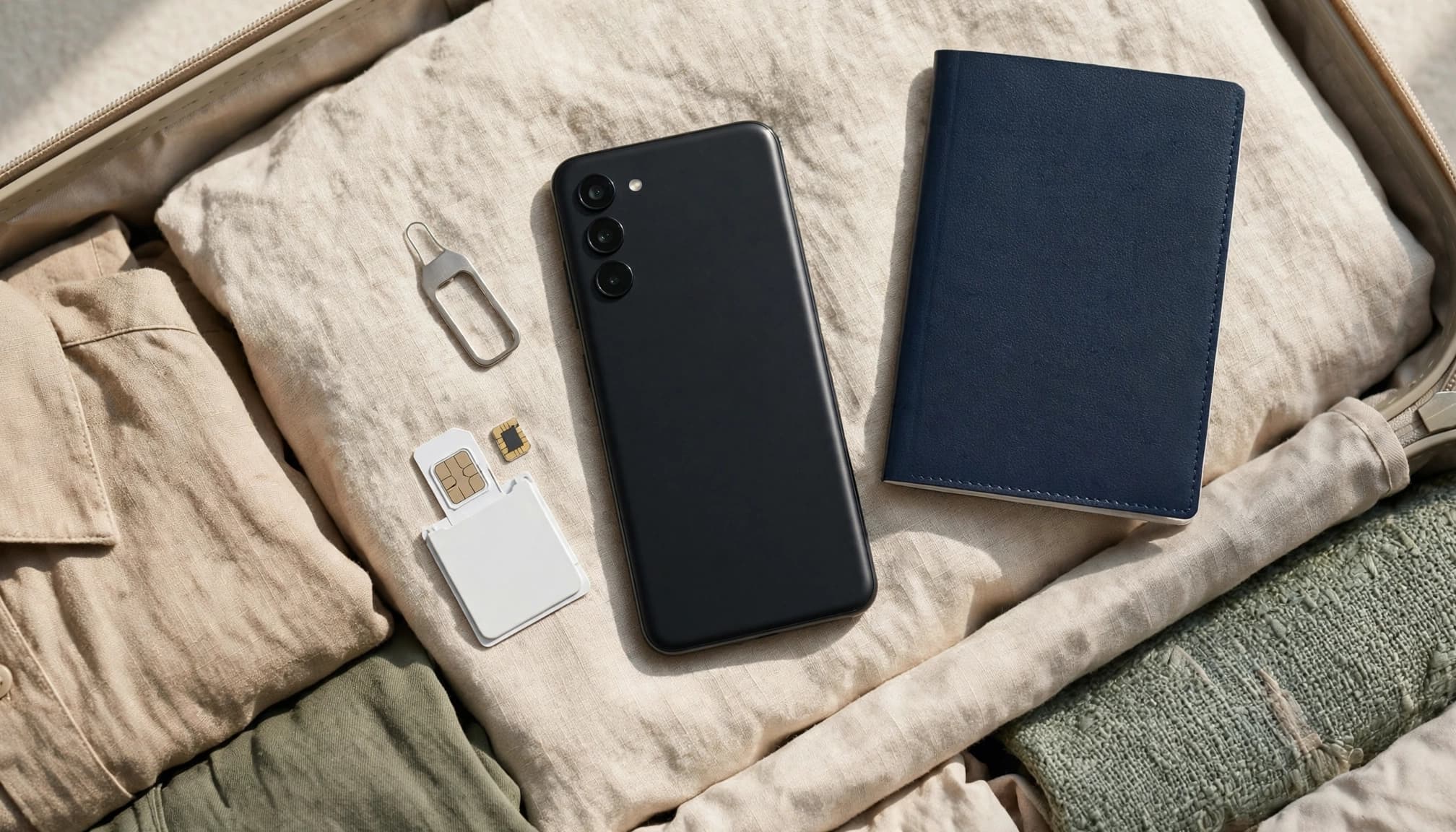
An Android phone can look ready for eSIM and still lack the required hardware. Support varies by exact model, model year, and regional version, including among some mid-range phones. A name like “Galaxy S” or “Pixel” isn’t enough to confirm compatibility.
Check the manufacturer’s specifications and make sure your carrier supports eSIM for your specific device. You can also dial *#06# and look for an EID, a unique identifier associated with eSIM hardware. The code may not work on every phone, so use it as an extra check, not a replacement for official device details. For another quick reference, see this eSIM-compatible phone list.
Ignoring Carrier Locks and Regional Model Limits
An eSIM-capable phone can still reject a travel profile if a carrier lock blocks other networks. Before you buy a plan, ask your home carrier to confirm the phone is unlocked. Don’t assume the lock expires automatically when you finish paying for the device.
Then check that your exact model supports the plan in your destination. Regional versions of the same phone can differ, and carrier support can vary, too. The phone may install a profile but fail to register with a local partner network. Verify the model and unlock status before departure, while you still have time to sort out any restrictions.
Choosing an “Unlimited” Plan Without Checking Its Speed Limits
“Unlimited” doesn’t always mean unlimited high-speed data. A plan may include a daily high-speed cap or reduce speeds after you use a set allowance under its fair-use policy. That can make maps and messages usable while video calls, uploads, and hotspot use become frustratingly slow.
Compare each plan’s high-speed allowance, reduced speeds, coverage, validity period, hotspot rules, and total price. Cost per gigabyte is useful only when you know how much data stays at full speed. If you’re comparing options, start with travel eSIM plans for international trips and match the details to your itinerary and data habits.
Leaving Data Roaming Off on the Travel eSIM
Installing an eSIM profile doesn’t always connect it to a local network. Some travel eSIMs need Data Roaming enabled to connect through partner carriers. Follow your provider’s instructions, then turn roaming on for the travel profile only.
The setting’s location depends on your phone. Samsung users can check SIM Manager, while Pixel users may find it under Network & Internet. Make sure you select the travel eSIM before changing the setting. Turning roaming on for your home line by mistake can expose you to extra charges.
Waiting Until the Airport to Download the eSIM
Airport Wi-Fi can be slow or unstable, and a connection drop may interrupt the QR-code download or profile activation. Install the eSIM at home on stable Wi-Fi, then check your provider’s instructions for when the plan’s validity starts. Some plans begin when you install the profile, while others start when the eSIM first connects to a supported network.
Keep the QR code or manual setup details accessible in case you need them during installation. Once the profile is installed, don’t delete it unless your provider advises you to. Deleting it may leave you without an easy way to reinstall the plan.
Keeping the Home SIM as the Default Data Line
Your phone may keep using your home SIM for mobile data even after you install a travel eSIM. Background app updates, photo backups, and email sync can use data without an obvious prompt, which may lead to home-carrier roaming charges.
In your SIM settings, choose the travel eSIM as the default line for mobile data. Turn off Data Roaming on your home line, then check the selection again after landing. You may be able to keep your primary SIM active for calls or texts, but confirm your carrier and plan allow it.
Install and Configure Your Android Travel eSIM Before You Fly
A smooth Android eSIM setup starts at home, not in a crowded airport terminal. Install the profile over stable Wi-Fi, then connect it to a local network after you arrive. Before you begin, check the phone, plan, and provider instructions so you know exactly when to turn the travel line on.

Check the EID, Carrier Lock, and Plan Details
Open your phone dialer and enter *#06#. If an EID appears, your phone has eSIM hardware, but you still need to confirm support for your exact model and regional version. Check the manufacturer’s specifications or ask your carrier. Also ask whether the phone is unlocked, since a carrier lock can prevent you from using another provider’s eSIM.
Before buying, verify the plan’s destination coverage, data allowance, and validity period. Check whether validity starts at installation, when you switch on the line, or when it first connects abroad. Review the activation rules, too. Some providers expect installation before departure, while others advise waiting until arrival. For a model-specific walkthrough, see how to set up an eSIM on Google Pixel.
Add the eSIM Over a Stable Wi-Fi Connection
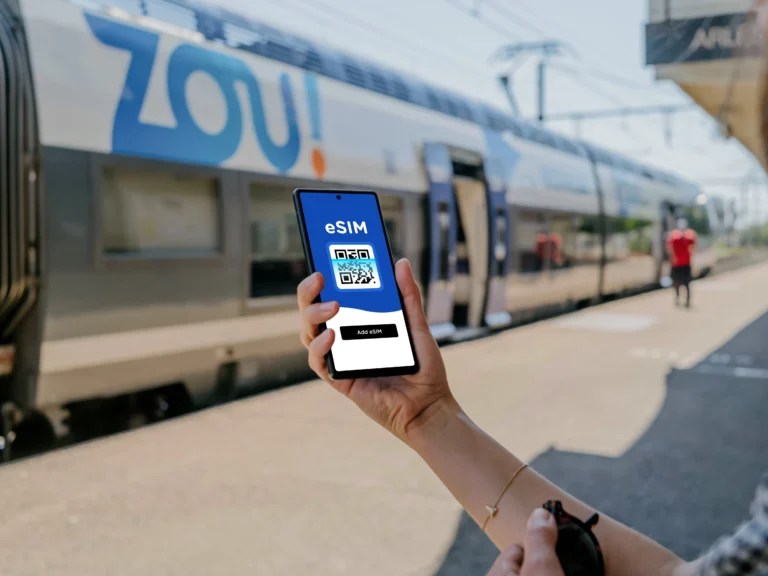
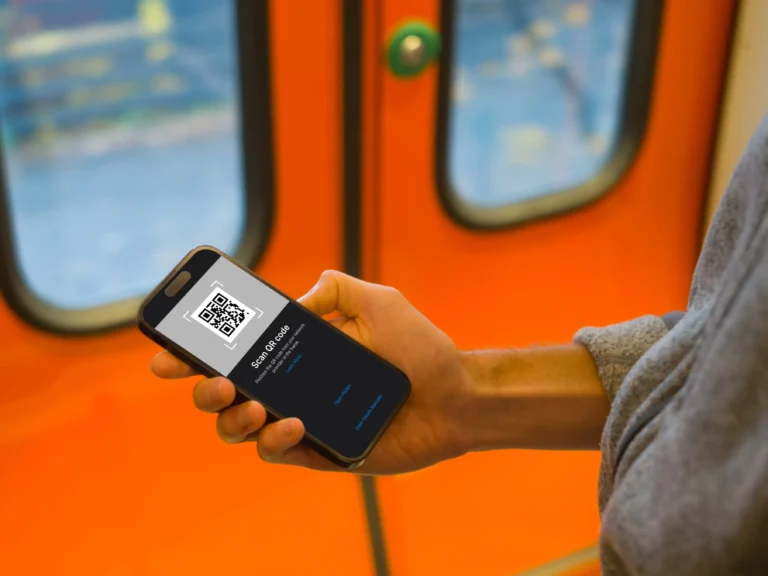
Connect to reliable Wi-Fi, then open Settings. Choose Connections or Network & Internet, and look for SIM Manager, SIMs, or a similar menu. Tap Add eSIM and scan the provider’s QR code.
Android menu labels vary by brand and software version, so follow the steps for your device. Some providers use an app or manual activation details instead. This standard QR-code process is explained in Google’s Android eSIM setup guide.
Keep your phone online until it finishes downloading the profile. Installing the profile adds the eSIM to your phone; it doesn’t necessarily connect you to a local network yet. Follow your provider’s exact instructions, and don’t delete the profile after installation unless the provider tells you to. For more setup details, see how to pick a travel eSIM.
Set the Travel Line for Data and Enable Roaming When Needed
Once the profile is installed, find it in your SIM settings and select it as the line for mobile data. Check the provider’s activation timing before switching on the line. If the plan requires Data Roaming, enable it for the travel eSIM when instructed. Some travel plans need that setting to connect through a local partner network. You can review when to enable roaming on your eSIM.
Turn off Data Roaming on your home SIM to avoid unwanted charges. Keep that line active for calls or texts only if your carrier and plan allow it. After you land, the travel eSIM can connect to a supported local network; installation alone doesn’t guarantee that connection. If it doesn’t connect, check that the travel profile is on, selected for data, and configured as your provider recommends.
Use This Pre-Flight Checklist to Prevent Extra Charges
Before you leave, give your Android eSIM setup one final check. A few minutes in your settings can save you from a rejected profile, no data abroad, or an unexpected roaming bill.
Your Final eSIM Checks
| Check | Before you leave |
|---|---|
| Model and EID | Confirm your exact Android model supports eSIM. Dial *#06# and check that an EID appears. |
| Carrier unlock | Ask your home carrier to confirm your phone is unlocked. |
| Plan details | Review destination coverage, data limits, validity, speed rules, and hotspot support. If you’re still comparing options, how to pick a travel eSIM is a useful place to start. |
| Profile installation | Install the eSIM over stable Wi-Fi and keep the profile on your phone. For more setup requirements, check what you need before installing an eSIM. |
| Default data line | Select the travel eSIM for mobile data. Double-check the selection before boarding. |
| Roaming settings | Keep Data Roaming off for your home SIM. Turn it on for the travel eSIM only if your provider requires it, usually after arrival. |
After installation, check that the profile appears in your SIM settings and is switched on when your provider’s instructions call for it. You can confirm it’s ready on your phone, but don’t expect a network connection until you reach a supported destination network.
Before takeoff: The travel eSIM should handle mobile data, while your home SIM’s data roaming stays off.
Troubleshoot Your Android eSIM If It Will Not Connect
If your Android eSIM shows “No Service” or won’t load data, check the basics before changing advanced settings. Work through these steps in order. Your plan may need a few minutes to connect after you arrive.
Check the eSIM and connection settings
- Open your SIM settings and confirm the travel eSIM is enabled and selected for mobile data.
- Check the provider’s instructions for Data Roaming. If the plan requires it, turn it on for the travel eSIM only.
- Turn airplane mode on for about 10 seconds, then turn it off. This can prompt your phone to reconnect to a mobile network. If the eSIM still doesn’t connect, check the network selection, mobile data settings, and APN details provided with your plan.
- Restart your phone if it still won’t connect.
Check coverage and provider instructions
If you still see “No Service,” check that your plan covers your current location. Then try manual network selection in your mobile network settings, choosing a carrier supported by your plan. Availability can vary by destination, so consult your provider’s coverage and activation instructions.
If you have signal bars but no internet, your plan may need a specific APN. Follow the provider’s instructions rather than guessing, or use this guide to troubleshoot Android eSIM APN settings.
Don’t delete the eSIM profile as your first fix. Reinstalling may require a new activation code. If these steps don’t work, contact your eSIM provider or home carrier for plan-specific help.
Conclusion
A dependable Android eSIM setup starts before you leave: verify your exact phone model is supported and unlocked, then choose a plan with clear speed limits and coverage for your trip. Install the profile over stable Wi-Fi, and check when its validity begins so you don’t start the clock too soon.
After landing, set the travel eSIM as your mobile data line and enable roaming only for that profile if your provider requires it. Keep data roaming off on your home SIM to avoid unwanted charges. For help comparing plans, see how to pick a travel eSIM.
Before departure, run through the checklist once more. A few minutes of checking beats troubleshooting “No Service” at the airport.