Thailand eSIM for iPhone: Compatibility & Setup Guide
Thailand eSIM for iPhone: Compatibility & Setup Guide
You buy a Thailand eSIM, scan the QR code, and discover your iPhone can’t use it. Frustrating, but the answer is straightforward: your iPhone must support eSIM, usually iPhone XS, iPhone XR, or newer, and Settings must show “No SIM restrictions.”
Before you buy, check both requirements. Some iPhone models from Mainland China, Hong Kong, and Macau use two physical SIM cards instead of eSIM, so they can’t install a digital travel plan. We’ll check your model, confirm its compatibility, walk through the iOS setup steps, review dual SIM settings, and cover smart pre-trip checks before you fly.
Which iPhone Models Work With a Thailand eSIM?
A Thailand eSIM for iPhone requires two checks: eSIM hardware and an unlocked device. iPhone XS, XR, and newer models usually qualify, but the sales region can change everything.
Use the iPhone Model and Region to Find Your Compatibility Tier
Your iPhone can look new enough and still lack eSIM hardware. Check the exact model region instead of relying only on the iPhone name.
| iPhone model and sales region | Thailand eSIM support | Best travel setup |
|---|---|---|
| iPhone XS, XR, 11, 12, 13, 14, 15, or 16, most global markets | Usually supports one eSIM and one physical nano-SIM | Keep your home SIM active and use the Thailand eSIM for data |
| iPhone 14, 15, or 16, US models | eSIM only, with no physical SIM tray | Install the Thailand profile over Wi-Fi before departure |
| iPhone XS through 16, Mainland China, Hong Kong, or Macau versions | Some regional models use two physical SIMs and have no eSIM hardware | Use a physical travel SIM instead |
| Any supported model with carrier lock | Blocked until the original carrier unlocks it | Request an official unlock before buying a Thailand eSIM |
Global iPhones make dual SIM travel easy. You can leave your home line active for calls and banking texts, while the Thailand line handles mobile data.
US eSIM-only models need Wi-Fi during profile installation. If the installation fails, you can’t fall back to a physical travel SIM because the phone has no SIM tray. If you want to verify the hardware first, follow this QR code eSIM setup guide.
Why an Unlocked iPhone Matters More Than Its Model Number
A compatible iPhone still won’t accept a Thailand eSIM if your original carrier locked it. Open Settings > General > About, then find Carrier Lock.
The correct status says “No SIM restrictions.” Any other message means the phone remains restricted to its original carrier. Contact that carrier and request an official unlock, ideally about two weeks before departure.
An unlock removes the carrier restriction, but it doesn’t guarantee coverage or data speed. Your Thailand eSIM still needs local network access, and your iPhone must support the available network bands.
Run This Four Step iPhone eSIM Compatibility Check
Before buying a Thailand eSIM for iPhone, run this quick diagnostic. It checks the lock status, eSIM hardware, sales region, and Thai network compatibility.
Confirm “No SIM Restrictions” in iOS Settings
- Open Settings, tap General, select About, then find Carrier Lock. Continue only when the screen says “No SIM restrictions.” Apple confirms this status means your iPhone is unlocked for another carrier.
A locked phone may reject the eSIM QR code or stop the Thailand profile from connecting. If the status shows anything else, contact your original carrier and request an official unlock.
Carrier unlocking and data roaming are different things. Unlocking allows your iPhone to accept another carrier’s SIM or eSIM. It doesn’t activate roaming, improve coverage, or guarantee mobile data abroad. You can also review Apple’s iPhone carrier unlock instructions before contacting your provider.
Find the EID Before You Scan a QR Code
- Open the Phone app and dial
*#06#. Look for an EID, usually shown alongside a barcode number. You can also find it in Settings > General > About.
The EID is the unique identifier for your iPhone’s built-in eSIM chip. An EID usually confirms that the device has eSIM hardware. An IMEI alone doesn’t prove eSIM support, so don’t rely on that number by itself.
Don’t buy a digital profile until your iPhone shows an EID or clear eSIM information. Some Mainland China, Hong Kong, and Macau models use two physical SIM cards instead.
Check the Sales Region and Thai Network Bands
- In Settings > General > About, review the Model Number. Tap it if necessary to switch between the part number and model identifier. Compare that information with the phone’s purchase region.
Regional hardware can differ, even when two iPhones share the same model name. A phone from Mainland China, Hong Kong, or Macau may lack eSIM support because it uses two physical SIM slots.
Verify Thai 4G LTE and 5G Support
- Check your unlocked iPhone against the Thailand plan’s supported network bands. Look for common low-band 4G LTE support, including 700 MHz, 800 MHz, or 900 MHz ranges, plus the 5G bands listed by the plan.
Band support affects service quality, especially outside Bangkok and other major cities. It doesn’t promise a certain speed or coverage result. Check the plan’s network details before purchase, then continue with your travel eSIM setup guide once every check passes.
Avoid These Three Thailand eSIM Problems on iPhone
Most Thailand eSIM failures come from three avoidable mistakes: unsupported regional hardware, carrier locks, or confusing dual SIM settings. Check these points before departure, while you still have Wi-Fi and time to fix the problem.
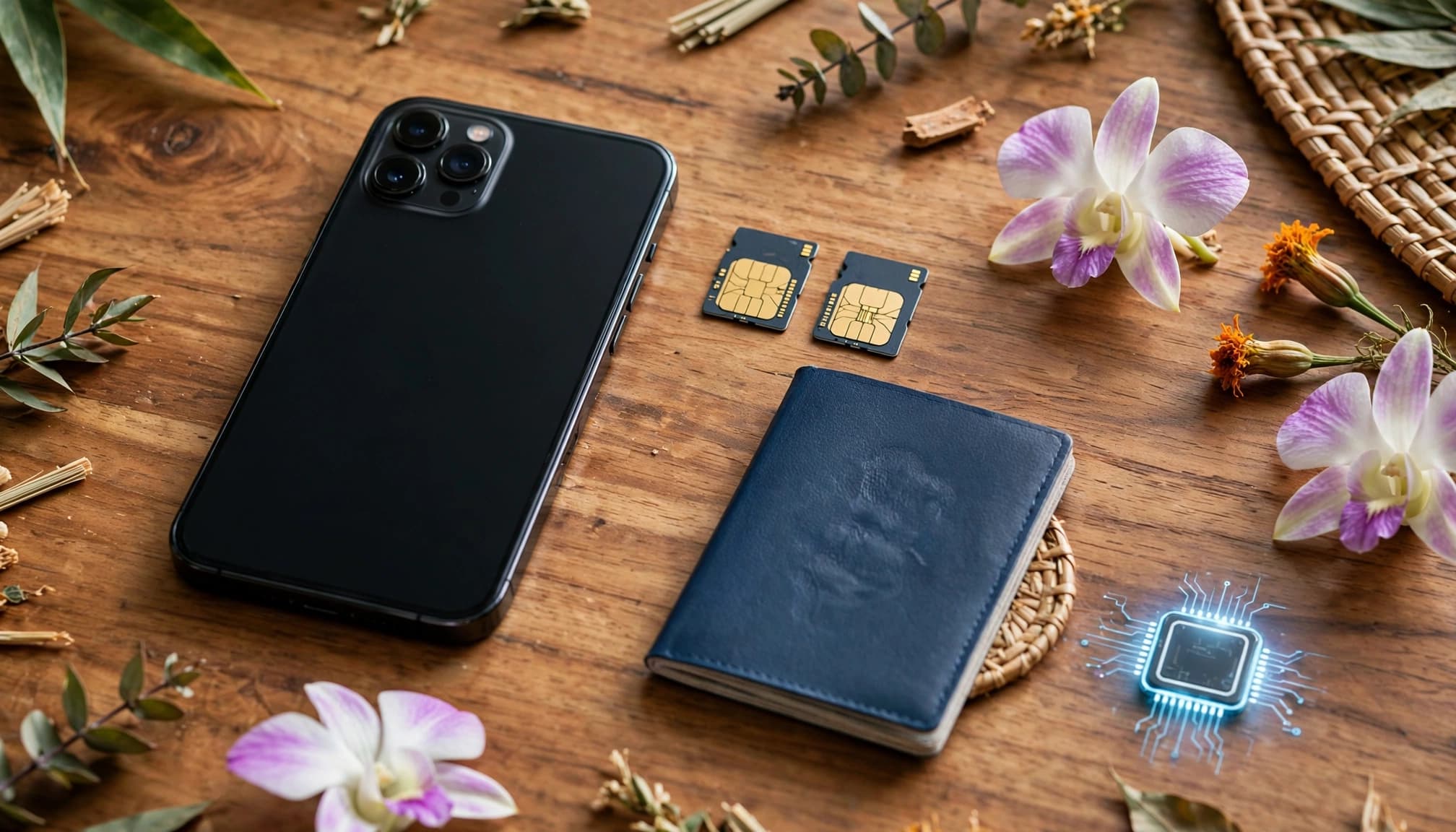
Do Not Assume Every Dual SIM iPhone Supports eSIM
Two physical SIM slots don’t mean your iPhone supports a digital SIM profile. Certain iPhones sold in Mainland China, Hong Kong, and Macau use two nano-SIM cards instead of built-in eSIM hardware.
You may scan a Thailand travel QR code and receive an activation error immediately. The phone has nowhere to store the digital profile, even though it supports two active physical lines.
Check Settings > General > About for an EID before buying. An EID identifies the built-in eSIM chip, while an IMEI alone doesn’t prove support. Apple also lists the regional differences in its guide to setting up eSIM on iPhone.
If your iPhone has no EID, buy a physical travel SIM instead. It’s the cleanest fix, especially for a Thailand eSIM iPhone setup involving a regional model.
Do Not Install a Thailand Profile on a Locked Phone
A carrier lock can block a foreign eSIM, even when your iPhone model supports digital profiles. iOS checks the original carrier restriction before it allows another provider’s cellular plan to connect.
Look under Settings > General > About > Carrier Lock. The status must say “No SIM restrictions.” If it shows anything else, request an official unlock from your carrier before the flight.
Don’t use bypass tools or unofficial unlocking services. They can create security problems and may leave the phone unable to receive reliable support.
After the carrier confirms the unlock, connect to Wi-Fi and test the Thailand profile before traveling. If the installation fails, review these eSIM troubleshooting fixes while you still have access to your home network.
Label Home and Thailand Lines Clearly
US iPhone 14, 15, and 16 models use eSIM only, so you manage every line inside iOS. That makes clear labels even more important when your home and Thailand plans both exist digitally.
Open Settings > Cellular, select each plan, and label them “Home” and “Thailand Data.” iOS can store multiple eSIM profiles, but only the selected lines connect at one time.
Before landing, review Cellular Data and choose “Thailand Data” as the default. Otherwise, your iPhone may send data through your home line and trigger roaming charges.
Keep the home line active for banking texts if needed, but turn off its data roaming. For a final device reference, check this guide to a travel eSIM for Thailand before you leave.
Set Up Your Thailand eSIM on an iPhone Before You Fly
Install your Thailand eSIM at home, while you have stable Wi-Fi and enough time to fix problems. The profile can download before it connects to a Thai network, so installation and activation are two separate steps.
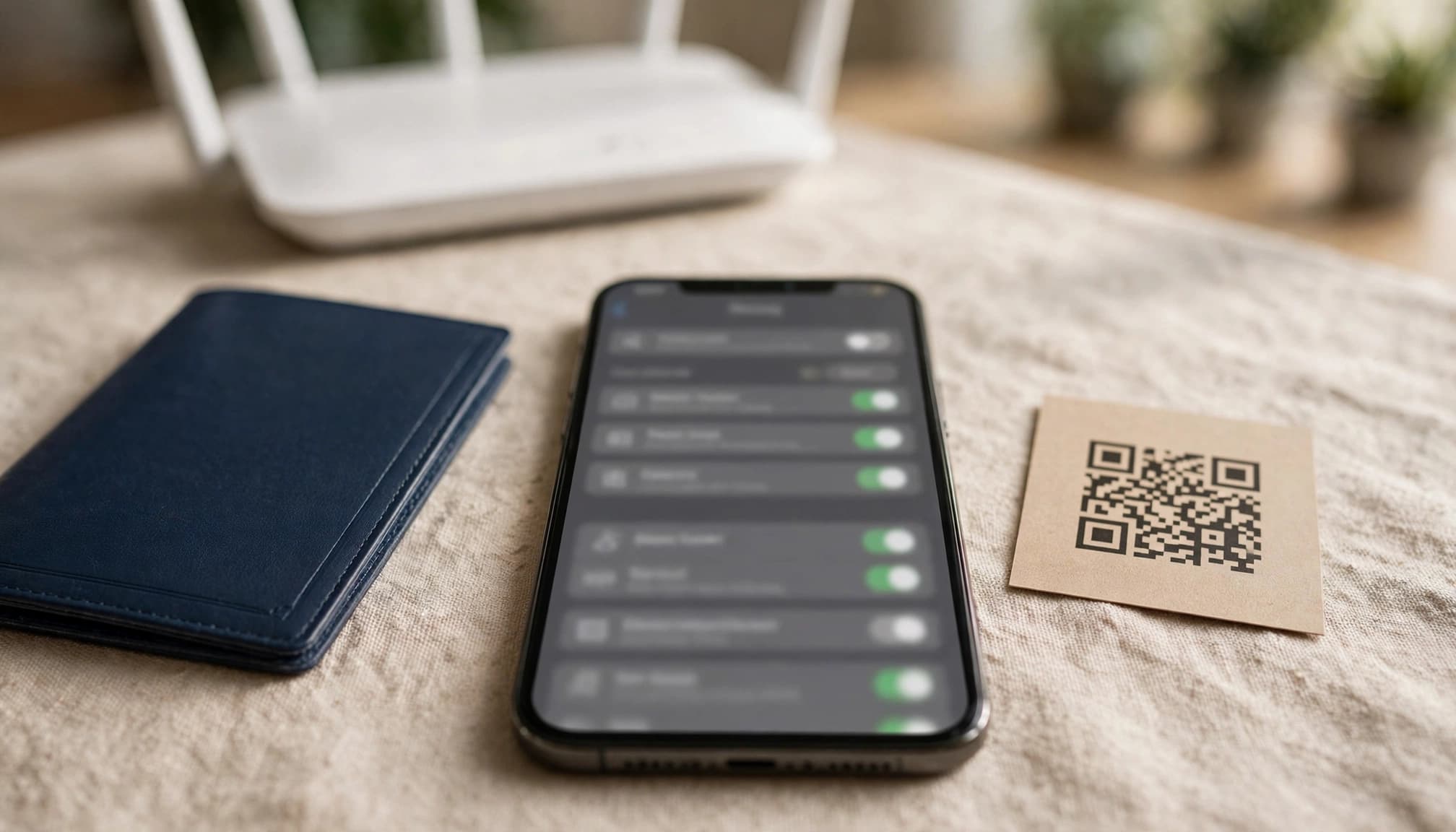
Install the eSIM Over Reliable Wi-Fi at Home
Complete the setup several hours before departure, or even the day before. Airport Wi-Fi can be crowded, unreliable, and painfully slow when you need a connection most.
- Open Settings, tap Cellular, then choose Add eSIM.
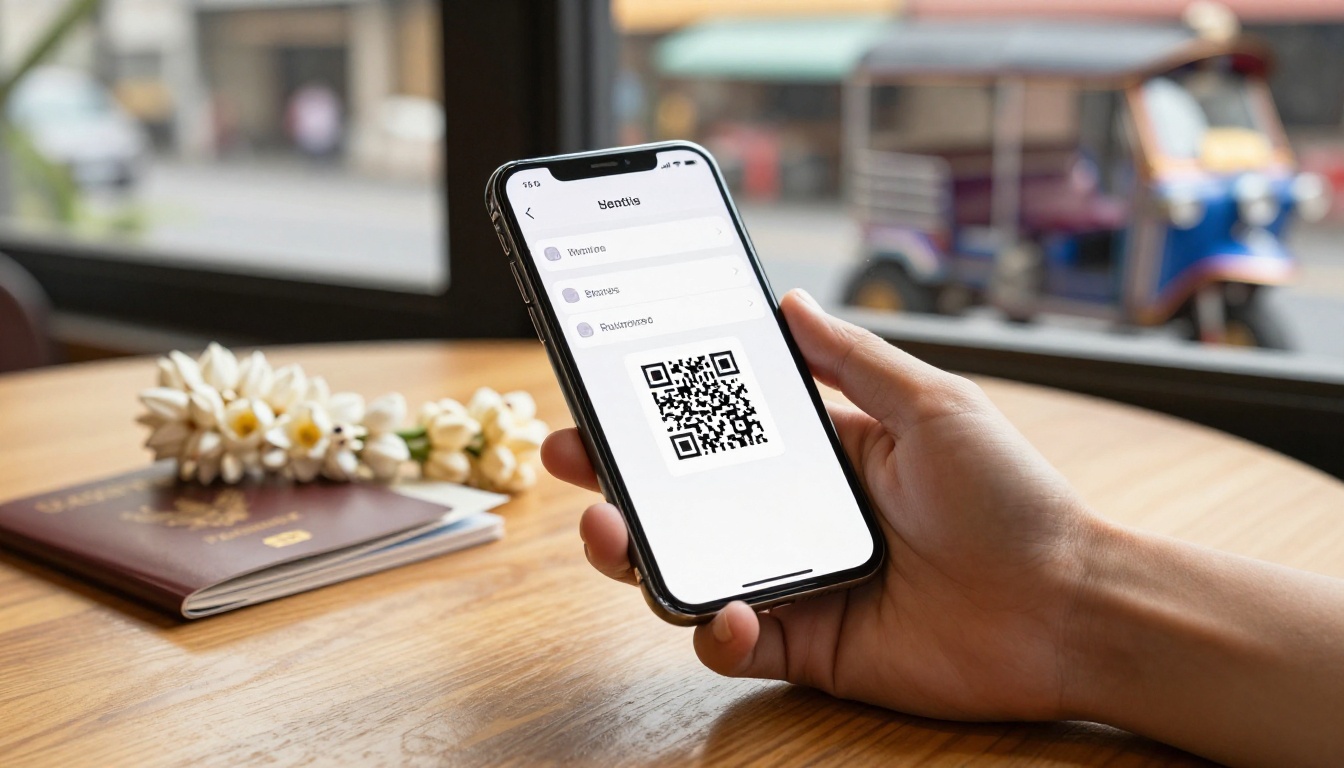
- Select Use QR Code and scan the code from your provider.
- Follow the prompts until iOS adds the new cellular plan.
- Label the line Thailand or Thailand Data when iOS asks.
Some providers supply manual activation details instead. Choose the manual entry option, then copy the SM-DP+ address and activation code exactly as provided. Apple’s eSIM setup instructions cover the same basic process.
Keep your QR code private. It may contain information that allows the profile to install, and many codes work only once. After installation, don’t delete the eSIM profile unless your provider tells you to remove it.
If the code won’t scan, check the camera lens, increase the screen brightness, and confirm your iPhone remains connected to Wi-Fi. Ask the provider whether the QR code has already been used or expired. Never keep rescanning a code that already installed successfully.
Choose the Thailand Line for Mobile Data
After installation, open Settings > Cellular > Cellular Data and select your Thailand profile. This tells your iPhone to use the travel plan for apps, maps, messages, and browsing after you arrive.
Turn off Allow Cellular Data Switching if you want to stop iOS from using your home line when the Thailand eSIM has weak coverage. Apple explains that this feature can switch data between plans based on coverage. The eSIM data troubleshooting guide can help if the Thailand line shows no internet service.
Keep data roaming off for your home line unless you knowingly accept its roaming charges. Your Thailand profile may need data roaming enabled, depending on the provider’s network arrangement. Check the provider’s instructions before changing that setting.
The Thailand line may remain inactive at home. That’s normal. It can install successfully, then connect only after your iPhone reaches a supported Thai network.
Keep Your Home Line Active for Important Text Messages
A dual SIM iPhone can keep your home line active for calls and SMS while the Thailand eSIM handles mobile data. Open Settings > Cellular, select your home line, and leave Turn On This Line enabled.
Receiving SMS often works without data roaming, which helps with banking codes and login verification. Voice calls, outgoing texts, and voicemail can still create charges, though. Check your home carrier’s international roaming terms before you fly.
Wi-Fi calling may reduce those charges, but only when your carrier supports it. Test the feature at home, then confirm that your banking codes and important contacts reach the correct line. Apple’s Dual SIM guidance explains how iPhone handles two active plans.
Choose a Thailand Data Plan That Fits Your iPhone and Trip
Once your iPhone passes the compatibility checks, choose a plan around your actual travel habits. Trip length, daily data use, hotspot access, coverage, and activation rules all matter.
Match Data Allowance to Your Daily Travel Habits
Light users can usually choose a smaller data allowance for maps, translation tools, messaging, and occasional ride apps. Hotel Wi-Fi can cover browsing and uploads, which helps your mobile data last longer.
Medium use includes regular social media, photo uploads, ride apps, navigation, and frequent translation. This tier suits most travelers who stay connected throughout the day but use hotel Wi-Fi at night.
High-use travelers need more capacity for video calls, streaming, remote work, and laptop hotspot sharing. Island travel can also require more data because you may spend longer away from reliable hotel Wi-Fi.
Unlimited plans sound simple, but read the terms before paying. Some providers reduce speeds after a daily threshold or apply fair use rules. A plan may stay connected while becoming too slow for video calls or hotspot work.
Your plan type matters, too. A data-only profile supports internet access but usually provides no Thai phone number, calls, or SMS. A plan with a Thai number may support local calls and texts, which helps if a business, hotel, or driver needs to contact you.
For wider regional trips, compare Asia eSIM data plans before choosing a Thailand-only profile.
Check Validity, Activation Rules, Hotspot Access, and Coverage
Check the plan’s validity period against your full itinerary. A seven-day plan may begin when you install it, while another starts when your iPhone first connects to a Thai network.
That activation difference can waste travel days. Confirm the activation window before scanning the QR code, especially if you plan to install your Thailand eSIM at home.
Also check whether the plan allows:
- Personal Hotspot use with a laptop or tablet.
- 5G access, rather than only 4G LTE.
- Service in Bangkok, Chiang Mai, Phuket, and smaller islands.
- Calls or SMS, if you need a Thai phone number.
- Manual APN settings for hotspot or mobile data.
Coverage can vary outside major cities, so read the listed network details for island trips and remote work. Save the activation instructions offline before leaving home. If the connection needs manual settings, keep the provider’s APN details available even when you have no Wi-Fi.
Troubleshoot iPhone eSIM Setup After You Land in Thailand
A Thailand eSIM for iPhone may install correctly but fail to connect after landing. Start with the simple iOS settings before assuming the profile or phone has a serious fault.
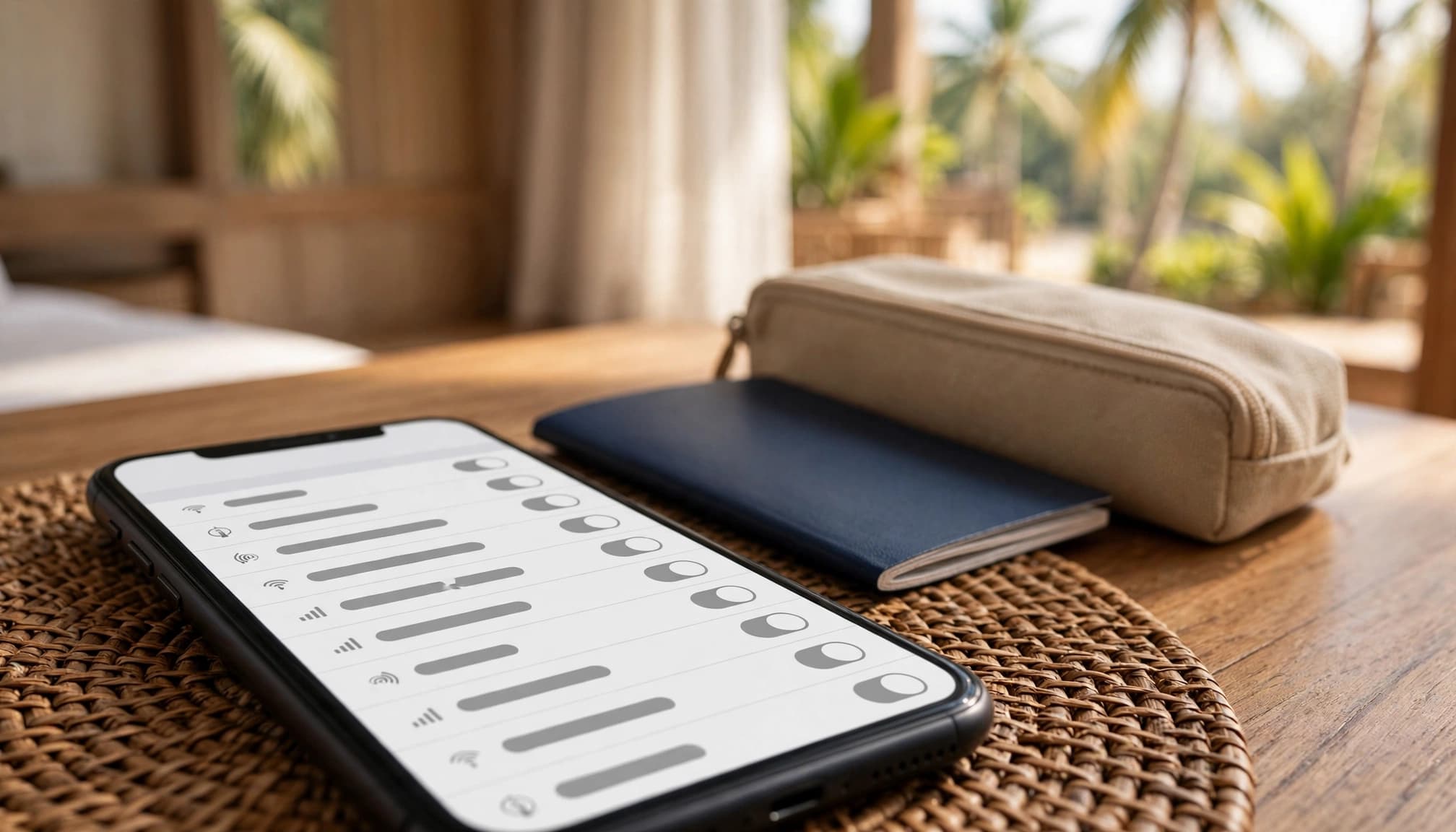
Check Cellular Settings Before Contacting Support
Open Settings > Cellular and check these items:
- Confirm the Thailand line is turned on.
- Select the Thailand line under Cellular Data.
- Enable data roaming for the Thailand plan if the provider requires it.
- Turn Airplane Mode on for 30 seconds, then turn it off.
- Open Network Selection and return it to Automatic.
- Check whether the signal indicator shows a local network connection.
Turn Wi-Fi off before testing. Wi-Fi can hide a mobile data problem, making the eSIM look active when cellular data still fails. Open a simple webpage or send a message through your preferred messaging app.
If the provider gives APN instructions, follow them exactly. Don’t add random APN details or change working settings without a reason. This guide to travel eSIM APN settings can help when manual configuration is required.
Know When the Problem Comes From Hardware or the Plan
Review your original compatibility checks before changing more settings. An unsupported regional model, carrier lock, missing EID, expired profile, or incorrect activation timing can stop a Thailand eSIM from registering.
Weak local coverage can also cause trouble, especially in remote areas or on smaller islands. If your iPhone passes the EID and “No SIM restrictions” checks, but the installed profile never registers, contact the eSIM provider.
Send support your EID, IMEI, exact error message, and installation time. Keep screenshots of every error. Avoid repeated QR scans, since many activation codes work once.
Don’t delete a working or partially activated profile unless support tells you to. Removing it can make recovery harder and may require a new activation code.
Conclusion
A reliable Thailand eSIM for iPhone starts with a few checks before you leave home. Confirm your iPhone model and sales region, look for an EID, and verify that Carrier Lock says “No SIM restrictions.” Mainland China, Hong Kong, and Macau models may need a physical SIM instead. US eSIM-only models require careful digital line management.
Install the Thailand profile over home Wi-Fi, label your lines clearly, and select the Thailand line for mobile data. Keep your home line active for important messages, but avoid sending data through it by mistake.
Before departure, verify your device settings, review the travel eSIM for Thailand device guide, and secure a compatible plan. A few minutes of preparation can save you from troubleshooting your connection after landing.