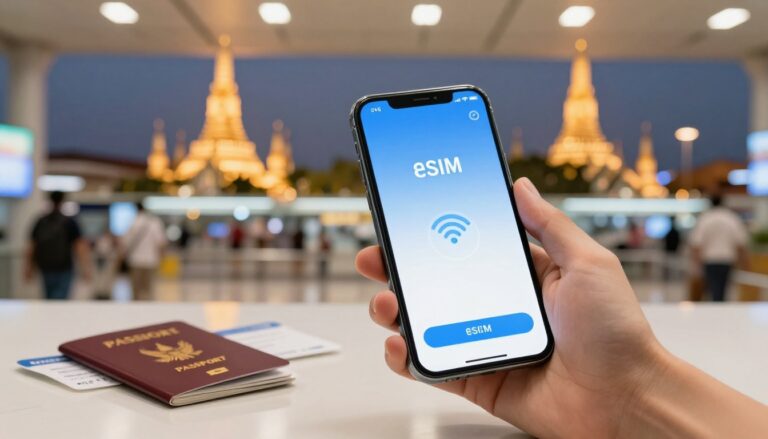
How Much Is an eSIM in Thailand? Pricing and Setup Guide
Wondering how much an eSIM in Thailand costs, or worried about installation, activation, and surprise roaming charges? Travel data prices vary by plan size and validity, with Southeast Asian eSIM rates often reaching well below $1 per GB, while smaller plans can cost more.
Install your eSIM on stable home Wi-Fi before departure, then select it for cellular data after landing. Keep roaming off on your home line, turn it on for the travel line, and use this travel eSIM installation guide before we break down pricing, setup steps, and common fixes.
How Much Is an eSIM in Thailand? Compare Plans by Trip Length
How much an eSIM in Thailand costs depends on your data needs, trip length, and plan rules. A light user may need only 3GB to 5GB, while frequent navigation and social media use can require 10GB or more.

| Plan size and validity | Typical price | Estimated cost per GB | Best for |
|---|---|---|---|
| 5GB for 7 days | $5 to $8 | $1.00 to $1.60 | Short vacations and light use |
| 10GB for 10 days | $9 to $14 | $0.90 to $1.40 | Standard holidays and frequent navigation |
| 30GB for 30 days | $18 to $25 | $0.60 to $0.80 | Longer stays, work, and heavy use |
Longer plans usually reduce the cost per gigabyte because providers sell data in larger bundles. Still, don’t judge a plan by its total data alone. Check the expiry date, supported Thai networks, activation timing, hotspot access, and whether unused data disappears when validity ends.
Choose the Right Thailand Data Plan for Your Usage
A five-day beach trip may work perfectly with 3GB to 5GB. That covers maps, messaging, ride-hailing, restaurant searches, and occasional photo uploads.
A standard holiday needs more breathing room. Choose around 10GB for ten days if you will use navigation daily, upload social media photos, join video calls, or browse while traveling between cities.
Business travelers and digital nomads should consider 30GB for 30 days, especially when tethering a laptop. Video calls, cloud files, streaming, and hotspot use can consume data quickly. One HD video stream can use far more data than several hours of maps and messages.
Unlimited plans sound attractive, but read the fine print first. Many apply daily fair use limits, reduce speeds after heavy usage, or restrict hotspot sharing. A fixed data package may feel more predictable when you need reliable work access.
Check What the Price Includes Before You Buy
Most travel eSIMs are data-only, so they provide internet access without a Thai phone number. Plans with local calls or SMS usually cost more and may include separate registration requirements.
Before paying, check whether the listed price includes taxes, top-ups, network switching, and hotspot use. Also review the refund policy, since many plans become nonrefundable after installation or activation.
Your eSIM can provide data without replacing your home number. Keep your physical SIM active for incoming texts, including verification codes, but disable its data roaming. For more pricing context, compare this guide to eSIM cost per gigabyte.
Install Your Thailand eSIM Before You Fly
Set up your Thailand eSIM at home, while you still have stable Wi-Fi and time to fix mistakes. Check the plan’s activation policy first, because some plans start during installation, while others activate after connecting to a Thai network.

Confirm Your Phone Is Unlocked and eSIM Compatible
Your phone needs three things: an unlocked carrier status, eSIM support, and compatible Thai network bands. Dual-SIM phones may also limit how many lines stay active together.
On an iPhone, open Settings, tap General, and select About. Find Carrier Lock, which should show No SIM restrictions. Apple explains this check in its guide to using an iPhone abroad.
Android menus vary by manufacturer and software version. Look under Settings, then Network and internet, Connections, SIM manager, or Mobile network. Look for an option to add an eSIM or download a SIM.
Before purchasing, confirm your exact phone model supports eSIMs and the frequency bands used by the plan’s Thai partner networks. Regional versions can differ, even when two phones share the same name.
Scan the QR Code on Reliable Wi-Fi
Keep your activation email open before you begin. Complete these steps on stable home Wi-Fi, not airport Wi-Fi that may drop during installation.
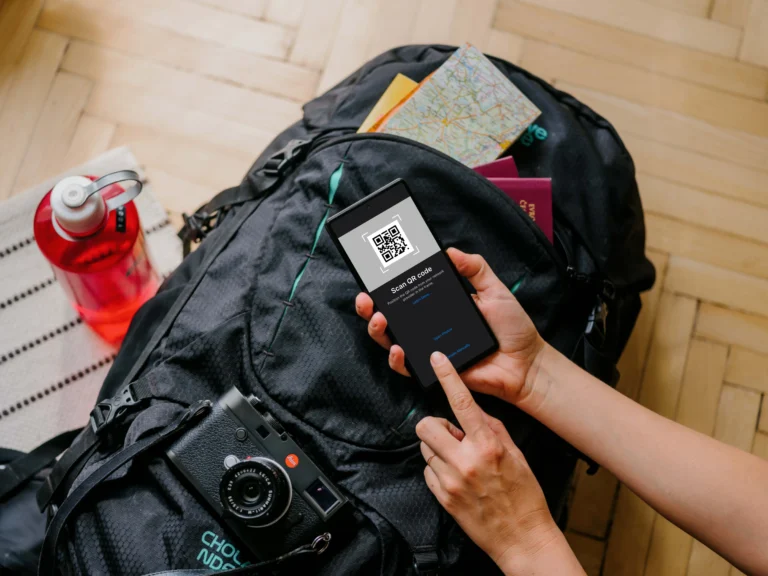
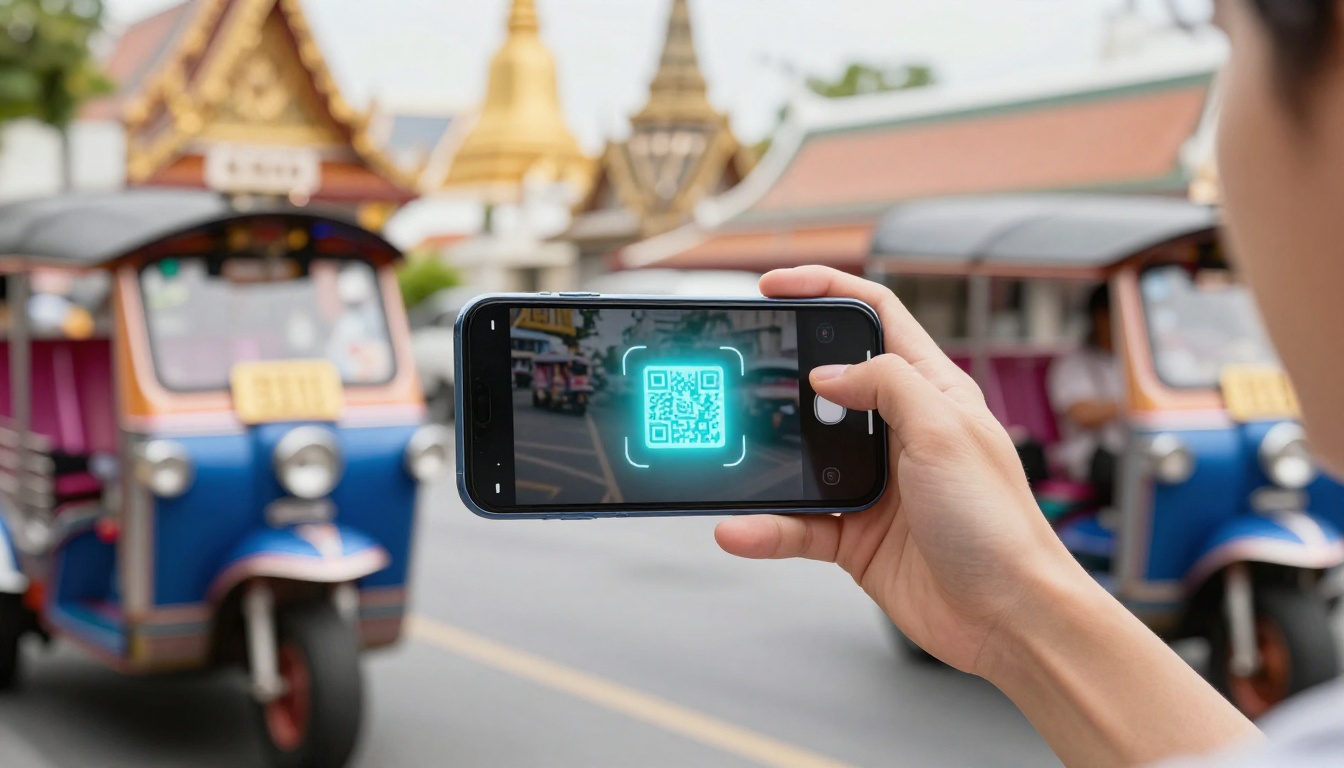
On an iPhone, open Settings, tap Cellular or Mobile Service, and select Add eSIM. Choose Use QR Code, then scan the code from your provider.
On Android, open Settings, choose Network and internet or Connections, tap SIMs, and select Add eSIM. Follow the prompts to scan your activation code. Menu names can differ across Samsung, Google Pixel, Motorola, and other devices.
If the camera cannot read the code, choose manual activation. Enter the provider’s SM-DP+ address and activation code from the email. Don’t scan repeatedly if the provider allows only one installation.
For more detailed steps, follow this QR code eSIM setup guide.
Label the Lines and Set the Correct Data Profile
Give each line a clear label, such as Home and Thailand Data. This small step prevents confusion when your phone asks which line should handle calls, texts, or data.
Set Thailand Data as your default cellular data line after installation. Keep your Home line available for calls and SMS, especially if you need bank verification codes.
Turn off Allow Cellular Data Switching on iPhone, or the similar automatic switching option on Android. Otherwise, your phone may move data back to the Home line when the travel eSIM signal weakens. That can trigger expensive roaming charges.
Turn On Travel Roaming After You Land
Many travel eSIMs need data roaming enabled because they connect through a local Thai partner network. Turn on roaming for Thailand Data, but keep data roaming off on your Home line.
After landing, turn on the travel line and restart your phone. Wait several minutes while it registers with a local network. If nothing happens, switch Airplane Mode on for about 30 seconds, then turn it off.
Still no connection? Check the default data line and review the provider’s travel eSIM APN settings. The roaming switch must match the profile, not just the phone’s general cellular settings.
Fix the Most Common Thailand eSIM Installation Errors
Most Thailand eSIM problems come from a missed setting, weak Wi-Fi, or a plan rule. Match the error to its likely cause before deleting anything or requesting a replacement.
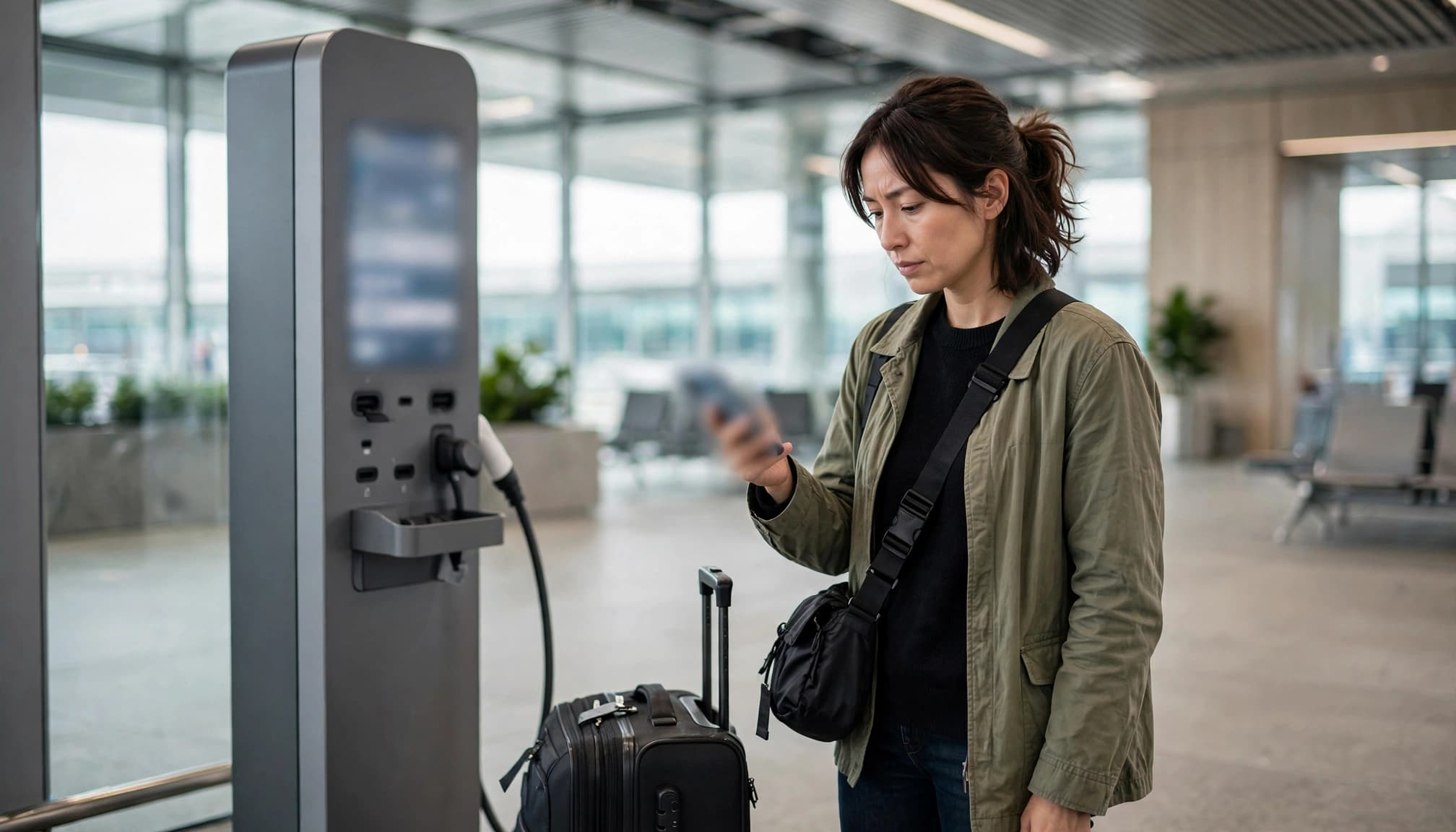
“eSIM Cannot Be Added” or “Code No Longer Valid”
Unstable Wi-Fi can interrupt QR code registration. An already-used QR code, an expired activation window, or an incompatible phone can trigger the same error.
Connect to reliable Wi-Fi, restart your phone, and confirm that your carrier has unlocked it. Then retry the installation once. Repeated scans may not work if the provider limits the code to one installation.
If your provider supplies manual details, choose the manual activation option. Enter the SM-DP+ address and activation code exactly as shown in your email.
Don’t delete the eSIM until you know installation failed. Sometimes the profile installs even when the confirmation screen shows an error. Check your SIM list and cellular settings first. Requesting a replacement too early can leave you with a second code while the original remains active.
You Have Signal Bars but No Internet
Signal bars show network registration, not successful data routing. Your phone may connect to a Thai network while still sending data through the wrong line.
Open Cellular or Mobile Data settings and select your Thailand travel profile as the data line. Turn on data roaming for that profile, then disable automatic data switching. Apple’s dual-SIM guidance explains how data switching can move traffic between lines.
Restart your phone, or switch Airplane Mode on for about 30 seconds. Check the APN only when your plan instructions provide a specific value. You can also review this guide to fix eSIM data connection problems.
Data Works Slowly or Stops After Arrival
Slow data often comes from a daily fair-use limit, exhausted allowance, weak indoor coverage, or local network congestion. Your phone may also select a weaker host network automatically.
Check your remaining data first. Then move outdoors or closer to a window, restart your phone, and refresh the connection with Airplane Mode. If your plan allows manual selection, choose a supported Thai network instead of automatic selection.
Unlimited plans can reduce speeds after a daily threshold. A fixed high-volume plan may suit heavy users better because it offers a clearer allowance without the same speed cap. Check the plan rules before blaming your phone.
Unexpected Roaming Charges on Your Home SIM
Background syncing, app updates, cloud backups, and automatic data switching can use your home line without warning. A few minutes of background activity may create roaming charges after landing.
Set the Thailand eSIM as your cellular data line. Turn off data roaming on your home SIM, disable automatic data switching, and review your carrier’s international roaming controls. Apple’s guidance on cellular data roaming shows where to find these settings.
You can keep your home SIM active for incoming SMS and bank verification codes. Confirm your carrier’s fees first, because receiving texts or using calls may still incur charges. Keep the travel profile responsible for mobile data throughout your trip.
Run This Thailand eSIM Check Before Leaving Home
A quick pre-flight check can prevent most Thailand eSIM problems. Prepare everything at home, then make only a few settings changes after landing.
What to Pack for a Smooth Mobile Setup
Save your QR code, SM-DP+ address, activation code, purchase receipt, and support instructions in an offline note. Take screenshots too, especially if your provider sends the details by email.
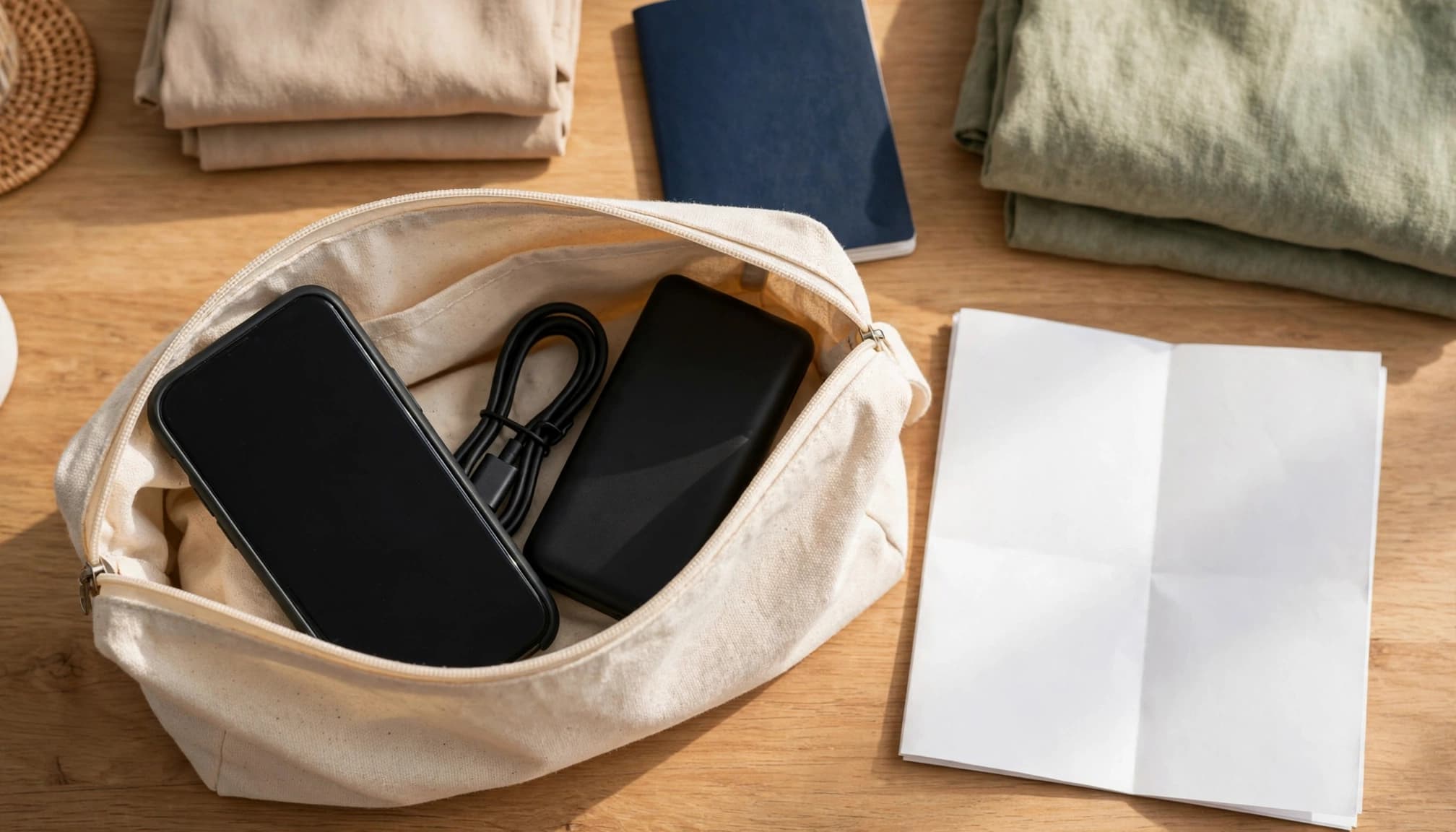
Airport Wi-Fi may require a login, run slowly, or fail completely. Screenshots give you access to the information without mobile service, email, or a working browser.
Use this compact checklist before leaving home:
| Pre-flight check | Recommended setting or action |
|---|---|
| Carrier lock | Confirm No SIM restrictions |
| Phone compatibility | Confirm eSIM support for your exact model |
| Activation details | Save the QR code and manual details offline |
| Line labels | Label the profile Thailand Data |
| Installation | Install the travel eSIM on trusted home Wi-Fi |
| Home line | Keep data roaming off |
| Travel line | Prepare to turn roaming on after landing |
| Automatic switching | Turn automatic data switching off |
| Cellular data | Select the travel profile |
Bring a fully charged phone and a power bank. Install the eSIM while your phone has plenty of battery and stable Wi-Fi, not while you stand beside the baggage carousel.
The First Five Minutes After Landing
Follow the landing routine in order. Avoid changing several settings at once, because one change makes troubleshooting much easier.
- Turn off Airplane Mode.
- Enable the Thailand Data line.
- Select it as your cellular data line.
- Turn on data roaming for the travel line.
- Keep roaming off on your home line.
- Wait for network registration.
- Restart your phone or refresh the connection.
- Test Maps or open a simple webpage.
Give the phone a few minutes to connect with a local network. If data fails, check the selected data line first, then review roaming and network settings. One careful adjustment beats changing everything and losing track of the problem.
Conclusion
Thailand eSIM prices commonly range from about $1 to $2 per GB, but the best value depends on your trip length, data use, speed limits, and activation rules. The most important setup step is preparing your phone before departure, not troubleshooting it at the airport.
Confirm your phone is unlocked, install the profile on stable home Wi-Fi, label your lines, and select the travel eSIM for cellular data. Keep roaming off on your home SIM, and use these travel eSIM activation and connectivity fixes if the connection fails.
Before you leave, review your plan details and set up your travel eSIM for Thailand. A few careful checks at home can give you reliable data as soon as you land.