Does iPhone SE Have eSIM? 5 Travel Mistakes to Avoid
There’s nothing worse than landing abroad, checking your iPhone SE, and seeing “No Service.” Yes, the 2020 and 2022 iPhone SE support eSIM, but the original 2016 model doesn’t.
Before you buy a travel plan, check your model and carrier lock, then set up the eSIM on Wi-Fi and choose the right data settings. These details matter, so let’s start with the five travel mistakes that can leave you without a connection or using the wrong line.
Does iPhone SE Have eSIM? Check Your Model First
Yes, the 2020 and 2022 iPhone SE support eSIM. The 2016 model doesn’t, and eSIM availability can also depend on where your phone was sold. Check the exact model before you buy a travel plan, or you could arrive with a QR code your phone can’t use.
Compare iPhone SE models
| iPhone SE model | eSIM support | What to know before traveling |
|---|---|---|
| 2016, 1st generation | No | Use a physical SIM for mobile data. |
| 2020, 2nd generation | Yes, in supported regions | Use one physical SIM and one eSIM at the same time. |
| 2022, 3rd generation | Yes, in supported regions | Use one physical SIM and one eSIM at the same time. |
| Some regional versions | May have two physical SIM slots instead | Check the exact model; a dual-SIM tray doesn’t mean eSIM support. |
The 2020 and 2022 models support a physical SIM and an eSIM together. Don’t assume either model can use two active eSIMs at once. Some iPhones sold in mainland China, Hong Kong, and Macao use two physical nano-SIM cards instead. Apple explains these regional dual-SIM configurations.
Find your model and check for an EID
On your iPhone, open Settings > General > About. Check the model name and model number, then look for an EID. Seeing an EID is a quick sign that your phone has eSIM hardware; no EID may mean your model or regional version doesn’t support it.
Before purchasing, also check Carrier Lock on the same screen. It should say No SIM restrictions if you plan to use a travel eSIM from another provider. Once you’ve confirmed compatibility, follow this guide to activate a travel eSIM.
Five iPhone SE Travel Mistakes That Can Cost You Time or Money
A compatible phone is only the starting point. Your plan, setup timing, and cellular settings can all affect whether you connect quickly or get an unexpected bill.
Buying an eSIM Before Checking Your iPhone SE Generation
The first-generation iPhone SE from 2016 has no eSIM hardware. The 2020 and 2022 models support eSIM in most regions, but some region-specific versions use two physical SIMs instead. A digital plan won’t work if your particular phone lacks eSIM support.
Before you buy, open Settings > General > About and check the model details. Look for an EID, which identifies eSIM hardware, and confirm your exact model with the plan provider if anything looks unclear. This small check can save you from paying for a plan you can’t install.
Choosing an “Unlimited” Plan Without Checking Its Speed Rules
“Unlimited” doesn’t always mean unlimited high-speed data. Some plans give you a set amount of fast data, then slow your connection sharply under a fair-use policy. That might be fine for occasional messages, but it can make maps lag, video calls freeze, and photo uploads drag.
Compare the high-speed data allowance, coverage, validity period, hotspot rules, and total cost per gigabyte. Don’t judge a plan by its headline price alone. A cheap plan with a tiny fast-data allowance may cost more in frustration than a plan with a clearer, more generous limit. If you’re weighing options, use this guide on how to pick a travel eSIM to focus on what you’ll actually need during the trip.
Waiting Until Airport Wi-Fi to Install Your Travel eSIM
Airport Wi-Fi can be crowded, unreliable, or both, especially when a flight has just arrived. If the connection drops during a profile download or activation, you may lose time troubleshooting while you’re trying to find transport or meet someone.
Install the profile at home on a stable Wi-Fi connection before departure, and follow the provider’s instructions on when to activate it. Some plans start their validity period as soon as you install them, so check the timing first. Apple’s iPhone eSIM setup instructions explain the standard setup process. If an installation stalls, don’t delete the profile right away; check with your provider before trying again.
Trying to Use a Travel eSIM on a Carrier-Locked Phone
An iPhone can support eSIM and still reject a travel plan from another carrier. If your phone is carrier-locked, it may not accept a second provider’s eSIM, even when the device itself has the right hardware.
Check Settings > General > About and find Carrier Lock. You want to see No SIM restrictions. If the phone shows a carrier name or another restriction, contact your carrier before you buy a plan. Ask whether they can unlock the phone and how long the request will take. You can also follow this carrier lock check for iPhone before you set up a QR-code plan.
Leaving Cellular Data Switching On and Risking Roaming Charges
When you use two lines, Allow Cellular Data Switching can let your iPhone use the other line for data in some situations. If that line is your home SIM, background use could trigger roaming charges, even when you chose the travel eSIM for data.
Go to Settings > Cellular > Cellular Data, select the travel eSIM, then turn off Allow Cellular Data Switching. You can usually keep your home line available for calls and texts while routing mobile data through the travel plan. Turn off data roaming on the home line if you want to reduce the risk further, and check your carrier’s fees first. Apple also explains using Dual SIM on iPhone, including how the two lines work together.
Set Up Your iPhone SE for Travel Before Takeoff
A few quick checks at home can save you from sorting out cellular settings after you land. Set up your iPhone SE on reliable Wi-Fi, then confirm the travel line handles data before you leave.
Follow these four setup steps
- Check that your iPhone is unlocked. Open Settings > General > About and find Carrier Lock. You need to see No SIM restrictions to use an eSIM from another provider. If the phone is locked, contact your carrier before buying a travel plan.
- Confirm your iPhone has eSIM hardware. In Settings > General > About, look for an EID. You can also dial
*#06#in the Phone app and check whether an EID appears. No EID? Recheck your exact model and regional version before purchasing, since not every iPhone SE supports eSIM. - Install the travel eSIM over reliable Wi-Fi. Follow the provider’s instructions, which may ask you to scan a QR code or enter details manually. On current iOS versions, start at Settings > Cellular > Add eSIM. Check when the plan’s validity begins before installing, since some plans start the clock during setup. Apple’s iPhone eSIM setup guide covers the available installation options.
- Choose the travel line for mobile data. Go to Settings > Cellular > Cellular Data and select your travel eSIM. If you want to keep your home number available for calls or texts, leave that line on, but turn off Allow Cellular Data Switching to avoid unexpected data use on the wrong line. You can manage and switch your eSIM profiles if you need to change lines later.
Check roaming instructions before departure
Data roaming settings depend on the travel plan. Some providers require roaming on for the travel eSIM to connect, while others give different instructions. Check the plan’s setup steps and adjust roaming on that specific line, rather than assuming one setting works for every eSIM.
Keep your home line’s data roaming off if you want to reduce the risk of roaming charges, and check your carrier’s fees. Before choosing a plan, compare coverage, data limits, and validity with this guide on how to pick a travel eSIM.
Use This Preflight Checklist to Protect Your Data Budget
Before you leave, check which line handles data and what your plan actually includes. A few minutes in Settings can help prevent accidental home-line roaming and keep you from buying more data than your trip requires.
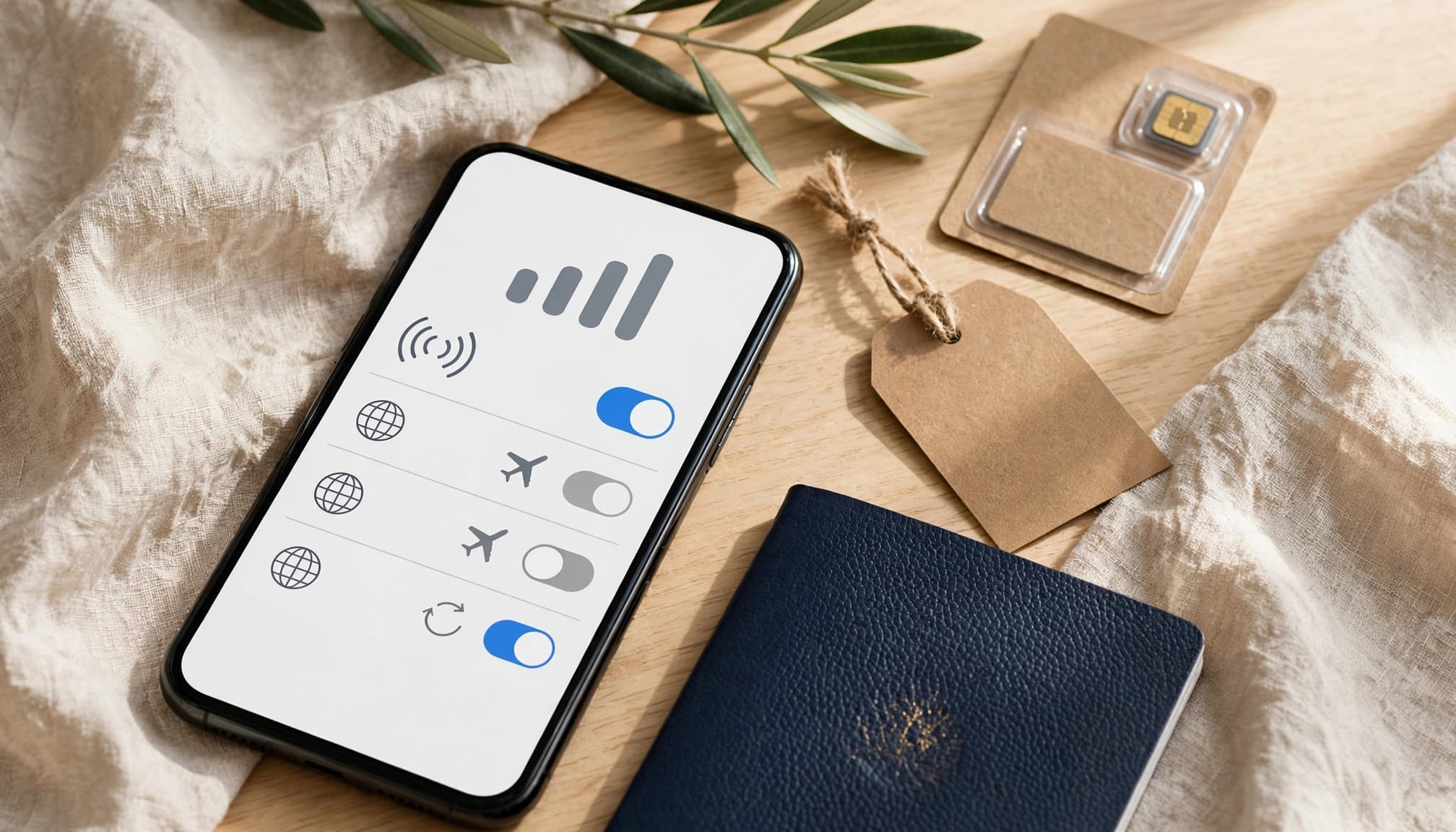
Check these cellular settings
| iPhone setting | Before departure |
|---|---|
| Cellular Data | Select your travel eSIM. |
| Allow Cellular Data Switching | Turn it off to prevent your iPhone from switching lines for data. |
| Home-line Data Roaming | Turn it off unless you need roaming on that line. |
| Travel eSIM Data Roaming | Follow your plan provider’s instructions. Some plans require it turned on. |
Apple explains how Dual SIM and data switching work. Keep your home line available for calls or texts if you need it, but double-check which line your iPhone uses for mobile data.
Choose a plan that fits your trip
Check that the plan covers every destination on your itinerary, especially if you’ll cross borders. Compare the high-speed data allowance, plan validity, hotspot support, and total price. A low upfront cost may not be a bargain if the plan expires too soon or sharply reduces speeds after a small high-speed allowance.
Not sure how much data you’ll use? Estimate your travel data needs before you buy, then compare options with this guide on how to pick a travel eSIM.
Before departure, check your iPhone’s cellular settings and read the plan’s roaming and coverage details.
Conclusion
So, does iPhone SE have eSIM? The 2020 and 2022 models support it in most regions, but the 2016 model doesn’t. Check your exact model and carrier lock status before buying a travel plan, then install the profile before departure and set your data line carefully.
A few minutes of preparation can save you from setup delays and roaming surprises. For the right plan, see how to pick a travel eSIM.