iPhone Data Usage: Compare Plans by Price per GB and Coverage
Background apps can eat through a travel data pass before you even notice, especially when updates and syncing keep running. To check your iPhone’s data use, open Settings, tap Cellular (or Mobile Data), then review the usage listed for each app.
Reset the statistics when your trip starts for a clearer picture of what each app uses. That makes it easier to compare plans by price per GB, setup, and destination coverage, and to check data usage on iPhone before choosing how much data to buy.
iPhone Data Usage: Compare Plans by Price & Coverage
Your iPhone’s cellular settings can show how much data your apps use, but they can’t tell you whether a travel plan has reliable coverage. Use these tools to estimate the data you need and compare plan prices, then check the provider’s coverage for your destinations.
| iPhone tool | What it helps you check | How it informs your plan choice |
|---|---|---|
| Cellular App Statistics | Data used by each app | Spot heavy-use apps and estimate how much data to buy |
| Reset Statistics | Usage since the last reset | Measure your data use during a trip |
| Low Data Mode | Background activity and automatic updates | Help keep apps from using data when you don’t need them to |
| System Services | Data used by iOS services | See whether system activity adds to your usage |
Use iPhone tracking to compare plan prices
Open Settings, then Cellular or Mobile Data to see app-by-app usage. Reset the statistics when your trip begins, and check them as you go. This gives you a more useful estimate than relying on old usage totals, especially if your travel routine differs from your usual one.
Once you have a reasonable estimate, compare plans by the amount of high-speed data included, not just the advertised total price. Divide the plan price by its included gigabytes to compare cost per GB. If you’re still working out your allowance, use this guide to estimate how much data you need for a trip, then compare eSIM plans by cost per GB.
Check coverage separately
Data tracking helps you choose a plan size, but it doesn’t measure network coverage. Low Data Mode can limit background activity, but it can’t improve a weak signal or confirm which local networks a travel plan uses.
Before buying, check the plan’s listed coverage for every destination on your itinerary. Apple’s guide explains where to view cellular usage and change iPhone cellular data settings, including Low Data Mode. For trip-by-trip usage details, see Apple’s instructions for checking cellular data on iPhone.
How to Check Data Usage on iPhone and Reset It for Your Trip
Your iPhone can show which apps use cellular data, but the totals may cover the period since your last reset, not your carrier’s monthly billing cycle. Check the numbers before you travel, then reset them when your trip begins for a clean baseline.
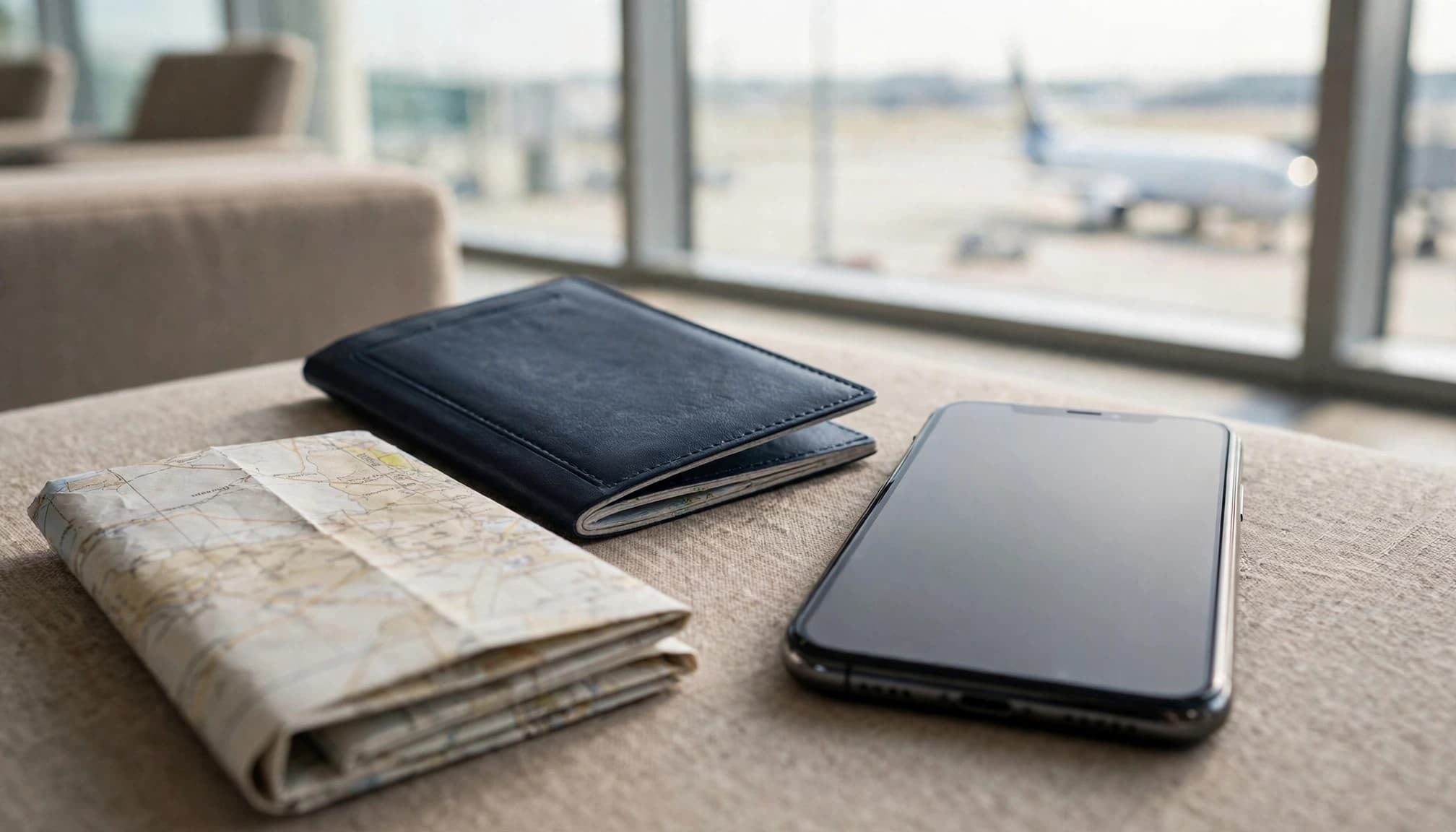
Find the data each app has used
- Open Settings and tap Cellular or Mobile Data.
- Scroll down to the app list and review the data shown beside each app.
The list makes it easy to spot data-heavy habits. Streaming video, social apps, navigation, and cloud services can use more than messaging or email, especially when you use them away from Wi-Fi. Check the figures against your travel routine, not just your usual week at home. A long day of maps and video uploads can change your data needs fast.
For a closer look at how to check data usage on iPhone, use Apple’s cellular data usage instructions. If you’re using an eSIM, make sure your iPhone selects it for cellular data. Here’s how to choose which line your iPhone uses for data.
Check System Services and reset the counter
Scroll to the bottom of the usage list and tap System Services. This view breaks out cellular activity from iOS features, so you can see whether system tasks contribute to your total. It won’t identify every individual background action, but it helps explain usage that doesn’t appear under a specific app.
To track only your trip, return to the main Cellular or Mobile Data screen and scroll to the bottom. Tap Reset Statistics when you arrive, ideally before you start using your travel plan. Your app and system totals will start fresh, making it much easier to check how quickly your data allowance is going.
Resetting the iPhone counter doesn’t change your carrier’s billing records or plan allowance. It only gives you a clearer personal tally, so check your provider’s app too if you need an account-level total.
Compare travel data plans by cost, setup, and coverage
Your iPhone’s usage history gives you a practical starting point for comparing travel data plans. Check what your apps used on a similar trip, then compare plans by full-speed data, validity period, installation steps, and local network access.
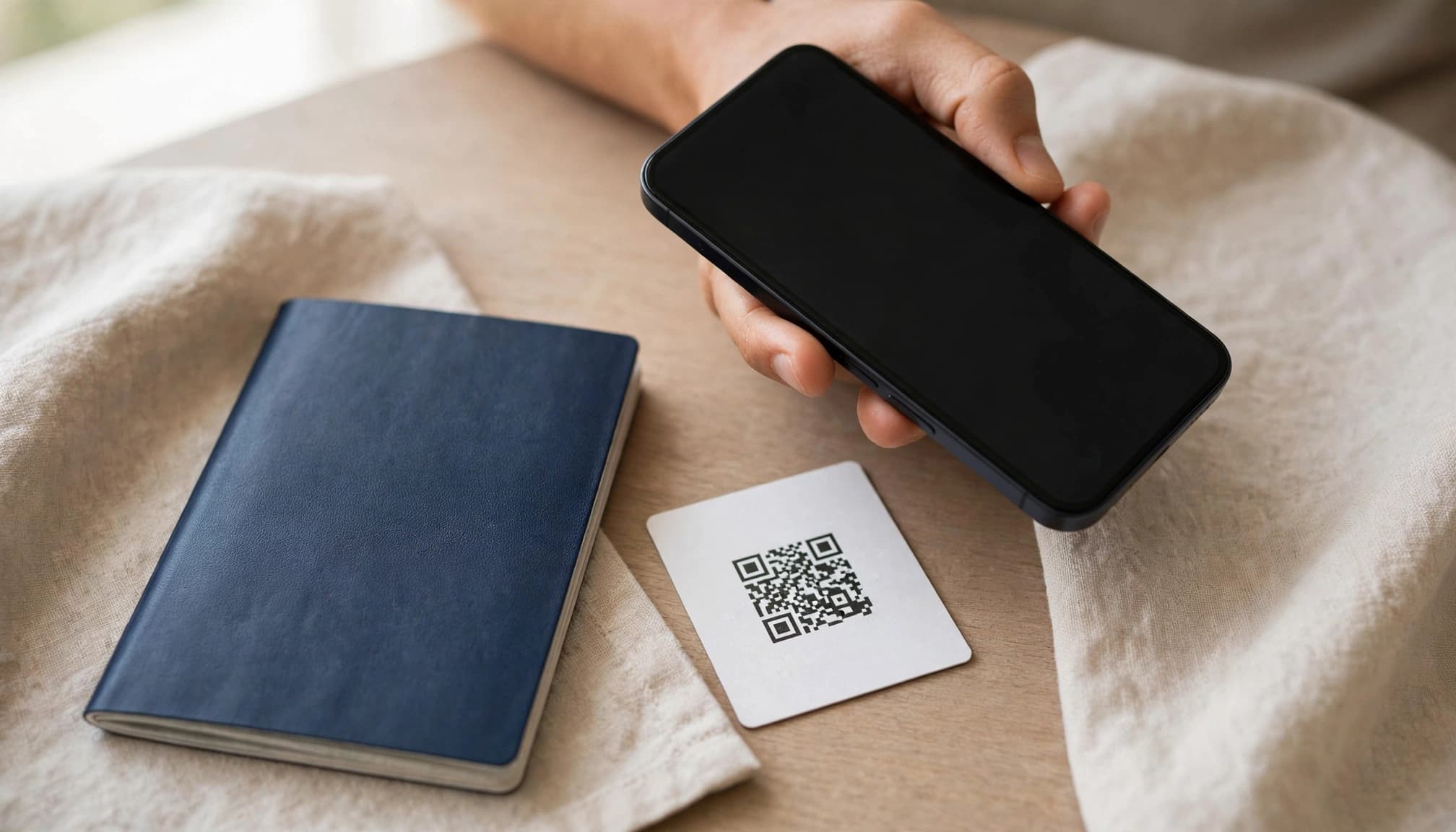
Calculate the real price per gigabyte
For a fixed-data plan, divide the plan price by its included high-speed data. A $18 plan with 6 GB of full-speed data costs $3 per GB. Compare plans with the same trip length and data terms, or the calculation can give you a misleading bargain.
Use your iPhone’s trip statistics to estimate how much data you actually need. If you used 4 GB during a week of navigation, messaging, and occasional video, a 5 GB plan may fit better than a much larger package. You can check data usage on iPhone and use those app-by-app totals as a baseline.
Unlimited plans need a closer look. Some reduce speeds after a daily or total high-speed allowance, even though data remains available. Compare the price against the amount of data you can use at full speed, and check whether any reduced-speed limit suits your habits. Under $1.50 per GB can be a useful comparison target, not a universal rule or promise of good value.
Also check the plan’s validity period. A low price won’t help if the package expires before your trip ends, or starts counting down earlier than you expect.
Check installation steps and activation timing
Travel eSIM setup can involve a QR code, a provider app, or manual instructions. Before buying, confirm that your iPhone supports eSIM and meets the provider’s device requirements. Apple’s international eSIM guidance for iPhone explains common activation options and what to confirm with the provider.
When allowed, install the eSIM on home Wi-Fi before departure. It’s a lot less stressful than troubleshooting a QR code at the airport, but installation and activation aren’t always the same thing. Check whether the plan starts when you install it, when it first connects to a local network, or on a date you select.
Follow the provider’s setup instructions and save them somewhere accessible offline. If you want a step-by-step walkthrough, use this guide to install and activate a travel eSIM. Before you leave, confirm which line your iPhone will use for cellular data.
Verify local coverage and speed limits
Check the plan’s named local network partners for every destination on your itinerary. Don’t stop at a country name on a coverage list if your trip includes rural areas, islands, or long train and road routes. Look for coverage details along those routes, too.
Signal strength and speed vary by location, your iPhone model, and network conditions. A plan may connect well in a city but perform differently outside it, and no provider can guarantee the same speeds everywhere. Check for stated speed caps, hotspot limits, and fair-use rules before you buy.
The best fit is the plan that covers where you’ll actually go, provides enough full-speed data for your routine, and stays active for your trip. A low price per GB matters, but only when the data, setup, and coverage match your plans.
Stop background apps from draining travel data
A few iPhone settings can help protect your travel allowance, but they won’t block every app or replace checking your usage. Keep cellular access on for essentials like maps, messaging, and travel documents, then limit the apps that can quietly use data in the background.
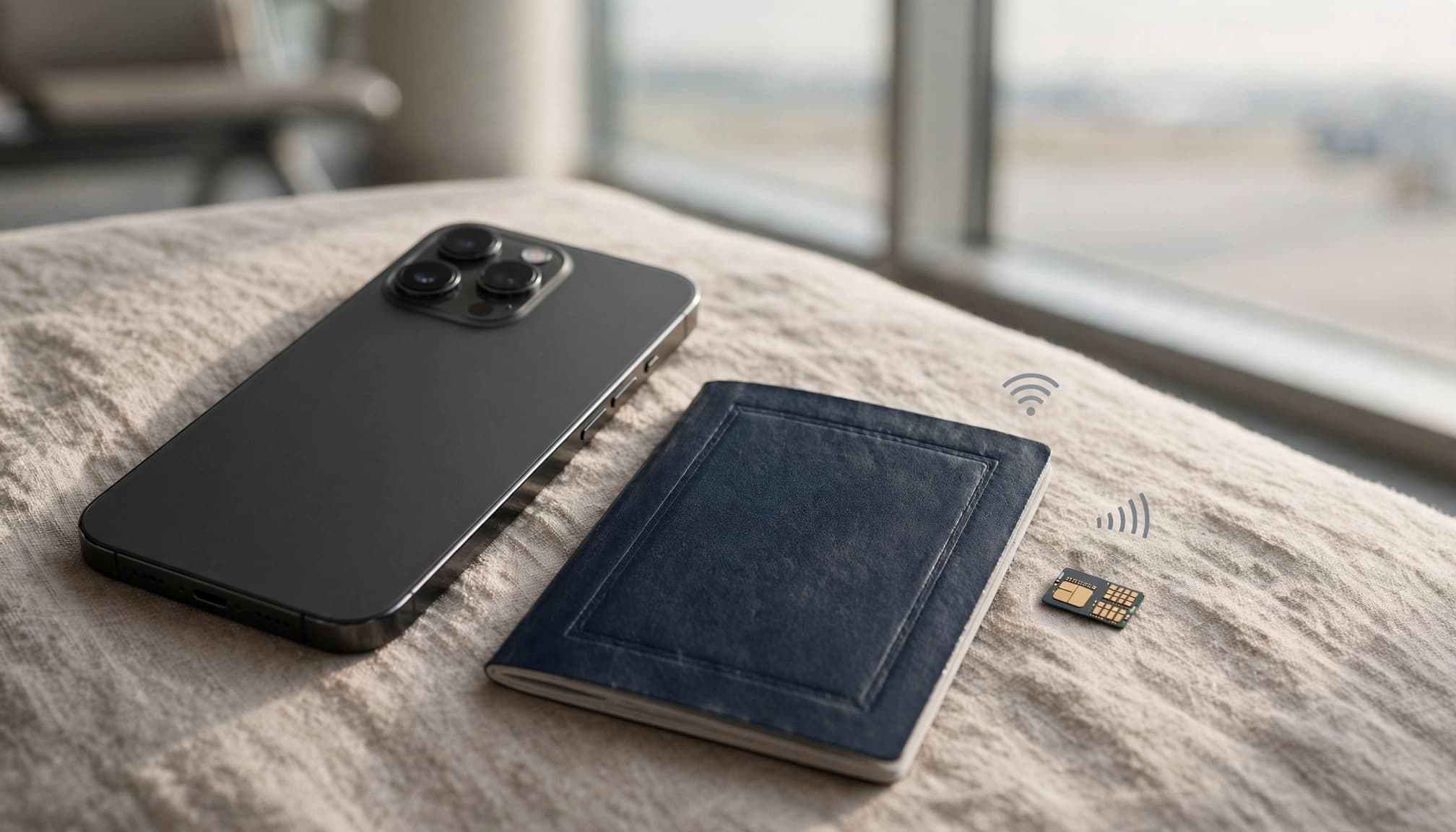
Turn on Low Data Mode for the travel line
Open Settings, tap Cellular or Mobile Data, then select your travel line. Tap Cellular Data Options (or Mobile Data Options), choose Data Mode, and turn on Low Data Mode. On some iPhone models or iOS versions, the setting may appear directly under the selected line’s options.
Low Data Mode can limit background app refreshes, automatic downloads, and other background tasks. It’s a handy way to reduce surprise usage, but it doesn’t stop every app from using cellular data. Keep essential apps available, and review Apple’s Low Data Mode settings if your menu looks different.
Turn off Wi-Fi Assist and review app access
Wi-Fi Assist can use cellular data when your Wi-Fi connection performs poorly. To disable it, open Settings, tap Cellular or Mobile Data, then scroll to the bottom of the screen and turn Wi-Fi Assist off. This is a cellular-data control, separate from your Wi-Fi connection settings.
While you’re there, review the app list and switch off cellular access for apps you don’t need on the go. Video streaming and automatic cloud backups are common candidates. You can still use those apps over Wi-Fi, while keeping cellular access on for maps, messaging, and boarding passes.
Prevent accidental use of your home line
If your iPhone has both your home line and a travel eSIM, check which line is selected under Settings > Cellular > Cellular Data. Turn Allow Cellular Data Switching off if you don’t want your iPhone to switch data lines automatically. It’s also worth confirming your home line’s roaming settings before departure.
A travel eSIM doesn’t automatically disable roaming charges on your home line. Check your home carrier’s international roaming terms, then follow the travel plan’s instructions for its own data roaming setting. For more detail, see when to turn iPhone data roaming on or off.
Use this iPhone checklist before you leave
A quick settings check before departure can save you from setup trouble and unexpected roaming charges. Take a few minutes on home Wi-Fi, then reset your usage statistics after you arrive.
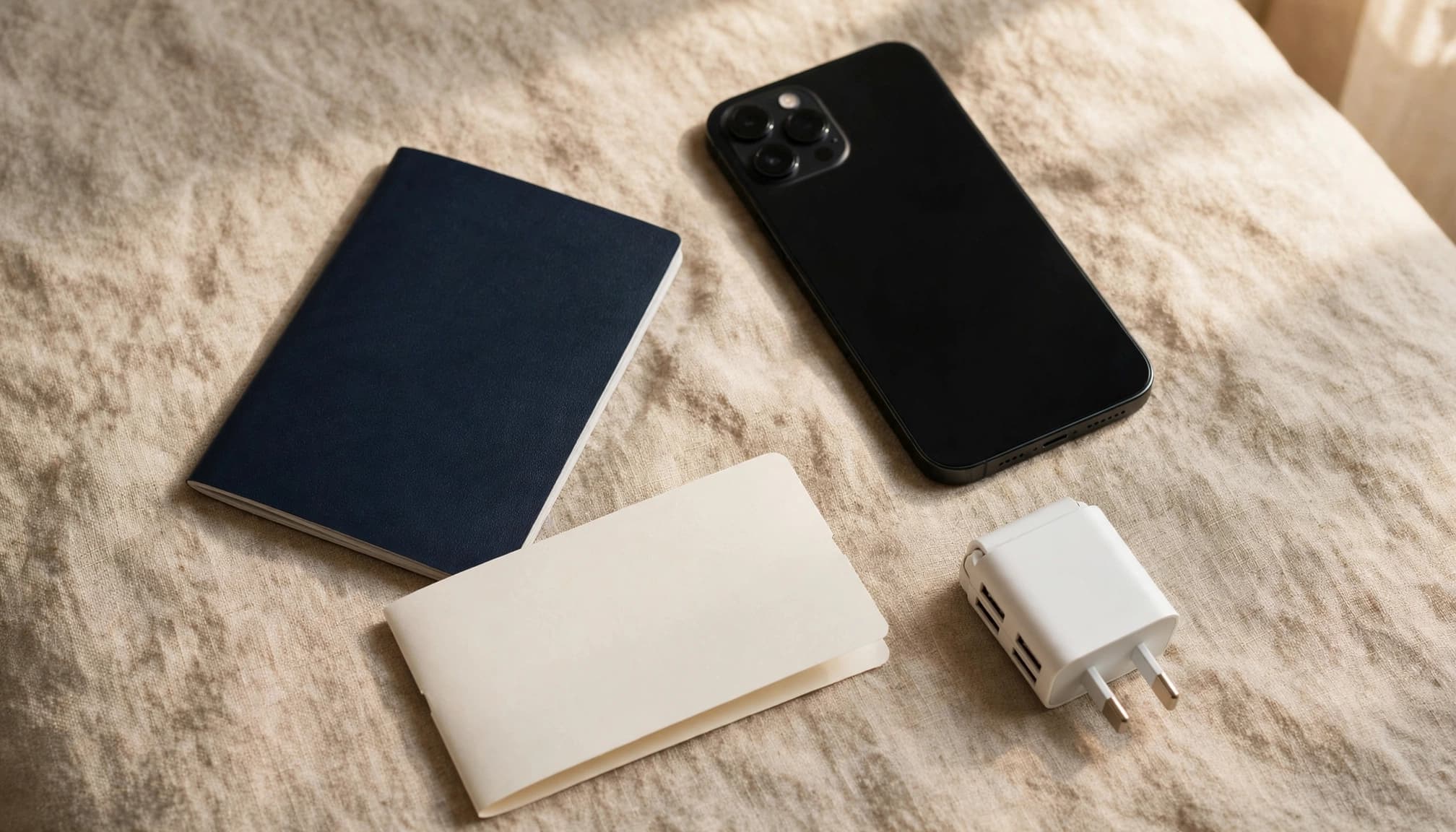
Before you head to the airport
Work through this checklist before you rely on your travel data plan:
- Confirm your iPhone supports eSIM and is carrier-unlocked. Check your model against this eSIM-compatible phone list.
- Install the travel eSIM while connected to Wi-Fi. Keep the provider’s instructions available offline, just in case.
- Check when the plan activates. Some plans start at installation, while others begin when they connect to a supported network.
- In Settings > Cellular or Mobile Data, select the travel eSIM under Cellular Data.
- Turn Allow Cellular Data Switching off if you don’t want your iPhone to switch to another line automatically.
- Turn on Low Data Mode for the travel line to limit background activity and automatic downloads.
- Turn Wi-Fi Assist off to avoid cellular use when Wi-Fi performs poorly.
- Review app permissions under Cellular or Mobile Data. Disable cellular access for apps you don’t need while traveling.
- After you arrive, open Settings > Cellular and tap Reset Statistics at the bottom. This gives you a fresh count for the trip.
For a step-by-step refresher on how to check data usage on iPhone, review the app totals before your next trip. Apple’s iPhone cellular data settings guide can help if your menu labels differ.
Conclusion
A little iPhone data tracking goes a long way: check how much your apps use, then compare plans by cost per full-speed GB instead of headline price alone. Limit background data with Low Data Mode and app settings, and your allowance is less likely to disappear on tasks you don’t need while traveling.
Price only tells part of the story. Confirm local coverage, activation timing, and speed limits for every destination before you buy. For extra context, compare international travel eSIM plans and coverage and check your trip’s details against the provider’s current terms.