Travel eSIM Activation Time: Why It Takes 20 Minutes
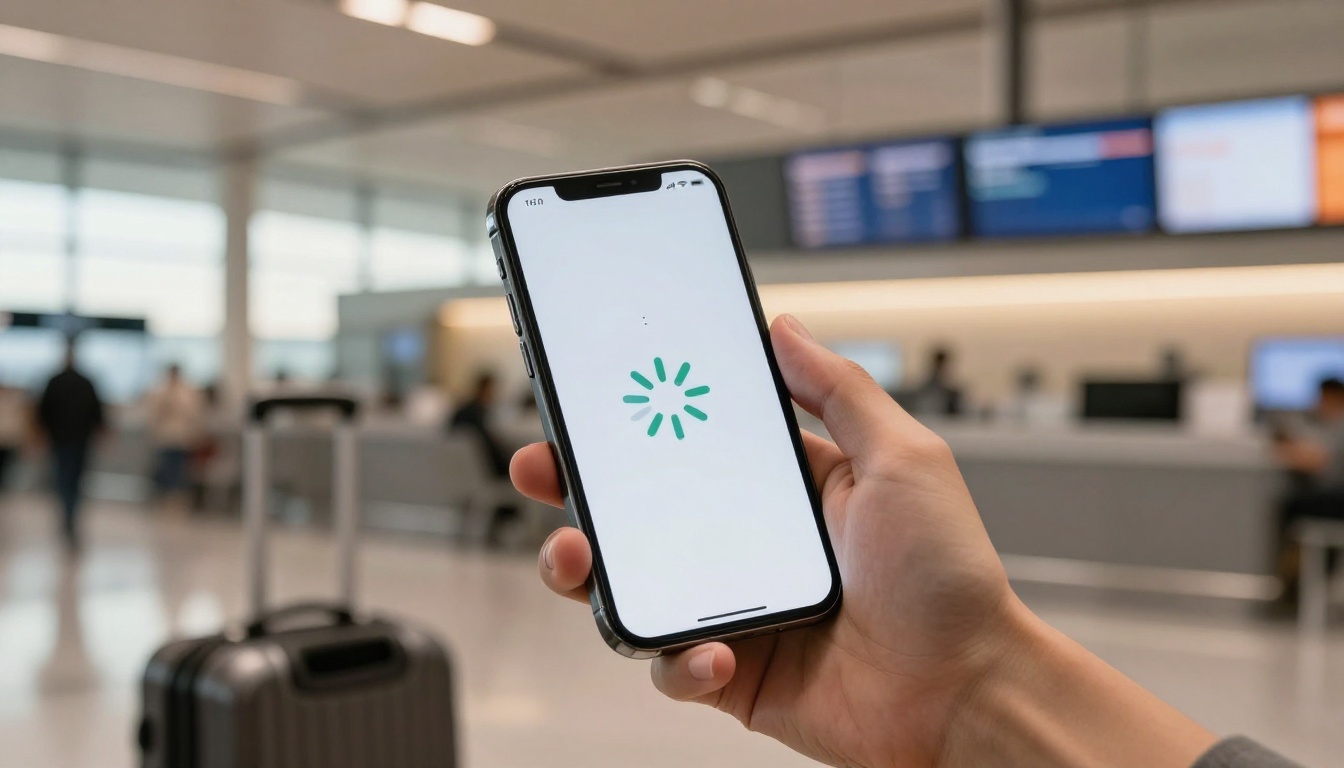
You land, switch off Airplane Mode, and your phone sits there saying “Activating…” while you wait for signal bars. Many travel eSIMs connect within 30 to 90 seconds, but some take 20 minutes because of remote provisioning servers, identity checks, roaming handshakes, or unstable Wi-Fi.
That delay depends on the provider’s network setup, not only your iPhone or Android phone. In this travel eSIM activation guide, you’ll find practical steps for activating your eSIM before departure and fixing delays after landing.
Travel eSIM Activation Time: Why 20 Minutes Can Happen
Your travel eSIM activation time depends on the profile’s network architecture. A local profile usually connects faster, while roaming profiles may complete extra checks before mobile data works.
First, separate three steps that travelers often mix together:
- Downloading saves the eSIM profile to your phone.
- Activating registers the line with its provider.
- Connecting gives you working mobile data through a local network.
These steps can finish at different times. The following ranges show what you may experience after landing.
| Profile type | Average activation speed | Connection process | Real arrival experience |
|---|---|---|---|
| Direct Tier 1 local profile | 30 to 90 seconds | Connects directly with a local host network | Data usually works soon after reaching a supported tower |
| Regional roaming pass | 3 to 5 minutes | Routes authentication through regional systems | You may wait briefly while the profile clears roaming checks |
| Budget proxy pass with eKYC | 15 to 20 minutes | Combines identity checks with distant server routing | Setup may require stable Wi-Fi and several retry attempts |
These are realistic ranges, not guarantees. Your destination, provider, device, network traffic, and pre-flight setup can change the result.
Direct local profiles usually connect the fastest
A profile backed by a local host network has fewer routing steps between your phone and the destination carrier. Once your phone reaches a supported tower, registration can feel like quick service at a quiet airport counter.
That does not guarantee instant data every time. Your phone still needs the correct profile selected, data roaming enabled, and enough local coverage. Airport congestion can slow the first connection, too. For smoother preparation, follow this QR code eSIM setup guide before leaving home.
Budget roaming profiles may need extra network handshakes
A roaming profile can send authentication through regional hubs or distant provider systems. Your phone may exchange several requests before the network approves the line and opens data access.
That extra routing can add several minutes, especially when the provider also requires passport verification. A lower price does not automatically mean poor service. It often means you trade some activation speed for cheaper roaming access, so plan around the delay instead of expecting instant data.
The Four Technical Reasons an eSIM Can Stay on “Activating”
A travel eSIM can stay on “Activating” for several different reasons. Your phone may show the same message during a server delay, identity review, APN error, or weak connection.
That makes diagnosis more useful than repeatedly deleting the profile. Here are the four technical causes behind a delayed travel eSIM activation time.
A distant SM-DP+ server can slow profile provisioning
The SM-DP+ server is the system that securely delivers an eSIM profile to your phone. It sends the carrier information your device needs before the line can register and access mobile data.
Your phone may complete several security checks with this remote server first. It confirms the profile, validates the device request, and prepares the line for network access. Until those checks finish, the screen may continue to show “Activating.”
Physical distance can add latency, especially when your destination sits far from the provider’s infrastructure. Server traffic and provider routing can add more delay, too. A busy server may process thousands of activation requests during popular travel periods.
Server location alone doesn’t guarantee a fast setup. Reliable infrastructure, sensible routing, and clear instructions matter just as much. In my book, the best providers explain when to install the profile, which network to select, and whether activation requires Wi-Fi.
Real-time identity checks can take 10 to 20 minutes
Some destinations and plans require eKYC, which means an electronic identity check. The provider may ask for your passport image, personal details, or another document before service begins.
Automated systems compare your information with the submitted document. That review can take 10 to 20 minutes during busy travel periods. A blurry passport photo, glare, poor lighting, or cropped document can also cause the check to fail.
Don’t wait until you reach the airport gate if your plan requires verification. Complete the identity check at home, where you have stable Wi-Fi and better lighting. Use a clear, full photo of your document, and make sure every detail remains visible.
If the provider requests a second upload, follow that instruction instead of deleting the eSIM. The profile may already sit correctly on your phone. Only the identity review remains unfinished.
APN settings and roaming tunnels can delay data service
After the profile downloads, your phone still needs to attach to a local network. It must identify the correct data service and, in some cases, route your traffic through a foreign gateway.
The APN, or Access Point Name, tells your phone how to reach mobile data. If the APN is missing or incorrect, your phone may show signal bars without loading websites or messages. Some roaming plans configure this automatically, while others require manual entry.
Follow the provider’s travel eSIM APN settings exactly. Enable Data Roaming for the travel line when the instructions require it. Keep roaming data turned off for your home line, unless your carrier tells you otherwise.
Avoid changing unrelated network settings without guidance. Random resets, manual carrier changes, and edits to your home line can create fresh problems. If the profile shows service but data fails, check the APN and data line first.
Airport Wi-Fi can interrupt the download and activation loop
Airport Wi-Fi looks convenient, but it often creates a poor setup environment. Weak signals, crowded access points, login pages, and dropped connections can interrupt the eSIM download.
An interrupted profile download may force your phone to retry the activation loop. The device can display “Activating” even though the real problem is a broken Wi-Fi session. Some airport networks also block downloads until you accept their terms in a browser.

Install the profile and complete required checks on trusted home Wi-Fi before departure. You can then land with the eSIM already stored on your phone, instead of depending on an overloaded airport network.
If a profile partially works, don’t delete it immediately. Check the provider’s instructions first, then contact support if the activation status remains unclear. Deleting a partially working profile can remove the information support staff need to diagnose the problem.
How to Activate Your Travel eSIM Before You Leave Home
A smooth arrival starts at home, not at the airport gate. Complete the setup while your phone has stable Wi-Fi, full battery power, and enough time for troubleshooting.
Use this pre-trip process:
- Buy a plan that covers your destination and travel dates.
- Confirm your phone supports the required bands and has no carrier lock.
- Install the eSIM profile several hours before departure.
- Label each line and select the travel profile for cellular data.
- Test the setup without triggering unwanted roaming charges.

Check that your phone supports eSIM and has no carrier lock
Before purchasing, confirm that your phone supports eSIM technology and the network bands used at your destination. Also check the plan’s coverage area, validity period, and activation rules.
On an iPhone, open Settings > General > About. Find Carrier Lock, which should show “No SIM restrictions.” If another message appears, contact your carrier before buying a travel plan.
Android menu names vary by manufacturer. Look under Settings > Connections, Network & internet, or SIM manager. Search for an option to add an eSIM or mobile plan.
A locked phone may reject the profile completely. For more help, see this guide to checking whether your phone is carrier-unlocked.
Install the profile on stable home Wi-Fi
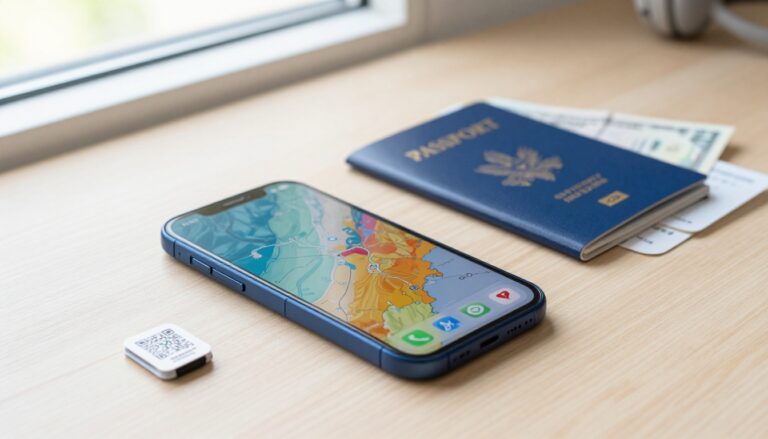
Scan the provider’s QR code or use its app several hours before your flight. Home Wi-Fi gives the download a stable connection, unlike crowded airport networks with login pages and weak signals.
Charge your phone before installation, then save the QR code, activation code, and provider instructions securely. A password manager or encrypted note works well.
Remember, installation and activation can happen at different times. Some plans begin when you install the profile, while others start when the eSIM connects to a supported network. Check the plan’s start policy before installing early.
Label the lines and choose the correct data profile
Give each line a clear label, such as “Home” and “Travel Data.” Clear labels prevent mistakes when you switch cellular settings after landing.
Keep your primary line available for calls and SMS, especially banking codes and account alerts. Select the travel line for cellular data instead.
Your primary line can often remain active without using its roaming data. Turn off data roaming for that line, then select the travel eSIM as your data line. Settings vary by phone and carrier, so check both lines before departure.
Test the travel line without risking unwanted roaming charges
If the plan supports service in your home country, test the travel line before leaving. Open a webpage or send a message using the travel profile, then confirm that the connection works.
If local testing isn’t supported, confirm that the profile appears under your SIM or cellular settings. Don’t force a connection by changing random carrier settings.
Turn off Cellular Data Switching or its Android equivalent. Review roaming settings for both lines, and enable roaming only for the travel profile when required.
Take screenshots of the working settings before departure. Those screenshots give you a quick reference when airport stress, low battery, or unfamiliar menus slow you down.
What to Do When Your eSIM Still Has No Service After Landing
A delayed connection does not always mean your travel eSIM failed. Start with simple checks, then move to network settings only when necessary.

Refresh the network connection with basic phone checks
First, confirm that Airplane Mode is off. Open your SIM or cellular settings, then check that the travel line is turned on and selected for cellular data.
Next, turn Airplane Mode on for about 30 seconds. Turn it off, then give your phone a few minutes to search for a local partner network. If nothing changes, restart the phone and check again.
Move outdoors or stand near a window if you are inside an airport terminal. Thick walls, underground arrival areas, and crowded airport towers can weaken the first connection.
Your phone may need several minutes to register with a local partner network. This registration happens after installation, so the travel eSIM activation time can extend beyond the moment you scan the QR code.
Do not judge the eSIM by signal bars alone. You need the travel line selected for data before mobile internet can work.
Check data roaming, APN details, and network selection
Many roaming eSIMs require Data Roaming on for the travel line. Open the travel profile settings and enable it there, but keep roaming data off for your home line.
Then compare the APN with your provider’s instructions. A missing or incorrect APN can leave you with signal bars but no working data. Enter only the details supplied by the provider, because random APN values can create another connection problem.
Leave network selection on automatic first. If your phone cannot connect after several minutes, turn automatic selection off and wait for the available networks to appear. Choose a partner network listed by your eSIM provider.
For more device-specific steps, use this guide to fix eSIM data not working. Avoid changing your home line’s network settings unless support tells you to do so.
Know when the delay points to a provider problem
Contact the provider when basic checks fail or the account shows a clear setup issue. Warning signs include:
- Your identity check remains pending after the expected review time.
- The activation link has expired.
- Your destination is not supported by the plan.
- Your account shows payment, but no eSIM profile has been assigned.
- The same error appears after a restart and network refresh.
Send support your order number, phone model, screenshots, and the exact error message. Include your destination and the time you first installed the profile.
Do not delete the eSIM while troubleshooting. Some QR codes work only once, and removing the profile can make recovery harder. Wait for support instructions unless the provider confirms that it issued a replacement profile.
If the provider reports a server delay or identity review, leave the profile installed and keep the phone connected to Wi-Fi. That gives the activation system time to finish without forcing you to start over.
Choose a Travel eSIM That Connects Quickly and Reliably
The cheapest plan isn’t always the best choice when you need data immediately after landing. Compare network access, activation rules, coverage, data limits, and support before checking the price.
Look for direct network access and clear activation rules
Check which local networks support the plan at your destination. A direct local connection usually needs fewer routing steps than a roaming arrangement.
Read the activation policy before buying. Find out when validity starts, whether installation triggers the plan, and whether the provider requires eKYC. Some plans begin after installation, while others start after the eSIM connects locally.
The provider should also explain its server routing, APN requirements, and network selection process. Clear documentation usually means fewer surprises during setup. In my book, vague activation instructions are a warning sign, especially when you land late or travel beyond major cities.
Use this eSIM cost per GB guide when comparing price against the amount of data you actually need.
Balance speed, coverage, price, and support
The fastest plan may cost more, offer less data, or work on fewer networks. Match the plan to your itinerary instead of chasing the shortest advertised activation time.
City travelers may need only one strong local network. Rural routes need broader coverage, while work calls and hotspot use require stable data and generous limits. Multi-country trips also need regional coverage without manual profile changes at every border.
Responsive support matters when activation fails abroad. Look for live chat or fast email replies, clear troubleshooting steps, and a published refund policy. A provider that explains replacement rules can save you from buying another plan during a stressful arrival.
Before purchasing, check this compact list:
- Your phone is unlocked and eSIM-compatible.
- The plan lists local partner networks.
- Validity starts when you expect.
- eKYC requirements appear before checkout.
- Data limits cover calls, maps, and hotspot use.
- Support explains APN and network selection steps.
- Refund terms cover failed activation or unsupported devices.
For Thailand trips, review the setup instructions for a travel eSIM for Thailand before departure. Correct settings still matter, even with a fast-activating plan.
Conclusion
A 20-minute travel eSIM activation time isn’t a universal standard, and it doesn’t automatically mean your eSIM has failed. Installation, account verification, and network connection can happen separately, so check the provider’s instructions before deleting the profile or starting over.
Before your trip, confirm that your phone is unlocked and install the profile on stable home Wi-Fi. Label your lines clearly, select the travel line for mobile data, and follow the provider’s roaming instructions after landing. These simple checks give you a better starting point when activation takes longer than expected.
If the delay continues, save your order details and screenshots, then contact the provider with your phone model and error message. A clear troubleshooting record is far more useful than repeated profile deletions.