iPhone 13 eSIM Options: Choose by Data, Coverage, and Cost
Finding reliable data abroad without paying for unused capacity or triggering home-carrier roaming charges takes more than picking the cheapest eSIM. The right fit depends on your trip length, data use, destination coverage, price, and whether your specific iPhone 13 model supports eSIM.
Check your phone’s regional compatibility before comparing plans, then weigh the practical details and set up your travel line before departure. Check whether your iPhone 13 supports eSIM before you choose.
iPhone 13 eSIM Options: Match Data to Your Itinerary
Your best iPhone 13 eSIM depends on how long you’re away, how much data you actually use, and where you need a signal. Use this quick comparison to narrow your options before you buy.
| Travel style | Example data range | Example price per usable GB | Prioritize |
|---|---|---|---|
| Short break, 1–5 days | 3–5 GB | About $1.20–$1.80 | Local 4G or 5G coverage and a simple fixed-data plan |
| Standard vacation, 7–14 days | 10–15 GB | About $0.80–$1.30 | Strong coverage across your destinations and easy top-ups |
| Heavy use or remote work | 20–50+ GB, or a high-cap plan | About $0.60–$0.90 when the full allowance is usable | Reliable coverage, hotspot support, and clear speed limits |
These are examples, not market-wide quotes. Your destination, plan length, and provider all affect the final cost.

Match the data to the way you travel
A few days of maps, messaging, and ride-hailing usually call for a small fixed-data plan. For a week or two, 10–15 GB gives many travelers more breathing room for browsing, social posts, and occasional video. Remote work is a different story: video calls, cloud backups, and hotspot use can burn through data quickly, so check the full-speed allowance and any daily cap.
Don’t compare plans by headline price alone. Divide the plan price by the usable, full-speed gigabytes. A low-cost daily plan can become expensive if it slows down after a small allowance.
Check coverage and plan details before paying
A generous data bundle won’t help much if its network struggles where you’re staying. Check coverage in each country and look for the actual local networks the plan uses, especially if your itinerary includes rural areas or several destinations. Also confirm whether hotspot use is allowed and whether the plan supports top-ups.
Apple says iPhone 13 models support Dual SIM with two eSIMs, though regional model and carrier restrictions can apply. For setup details, see Apple’s Dual SIM guidance, then review how to install an eSIM on an iPhone. If you’re still checking eSIM-compatible devices or regional support, visit gohub.com before choosing a plan.
Compare travel eSIMs by real price, setup time, and coverage
The cheapest plan only wins if its data works where you need it, starts when you expect, and lasts through your trip. Compare the terms for your destination before paying, not just the price on a search result.
Compare the price you can actually use
Check the plan’s total price, data allowance, validity period, and any speed cap. Then divide the cost by the full-speed data you expect to use. A plan that slows down after a small daily allowance may cost more per usable gigabyte than its headline price suggests.
Also check what happens when you run out. Some plans allow top-ups, while others require a new purchase. Taxes, currency conversion, and add-on fees can change the amount you pay, so review the checkout total before confirming.
Check setup steps and when the plan starts
Installation time depends on the provider’s process, your connection, and whether you follow its activation instructions. Look for the delivery method, required steps, and any activation deadline before buying. Apple outlines the basic process for using an eSIM while traveling internationally.
When the plan’s terms allow it, install the eSIM at home over Wi-Fi, then follow its instructions for turning the line on. Don’t assume installation starts the validity period. Some plans begin when you install the profile; others start when the eSIM connects to a supported network.
Verify coverage in every destination
Check the provider’s coverage page for each country on your itinerary, then confirm which local networks the plan uses. A country listed as covered doesn’t tell you whether service reaches your hotel, rural stops, or the transit routes you’ll use.
For multi-country trips, check whether one regional plan covers every stop or separate country plans make more sense. Before buying, confirm that your iPhone model and region support eSIM using gohub.com’s iPhone 13 eSIM guide. Coverage and speeds still depend on local network conditions, so treat provider maps as a guide, not a promise.
Is your iPhone 13 one of the eSIM compatible devices?
Most iPhone 13 models support eSIM, but don’t assume every phone sold worldwide has the same hardware. Your exact regional model, carrier lock status, and eSIM provider’s support all matter.
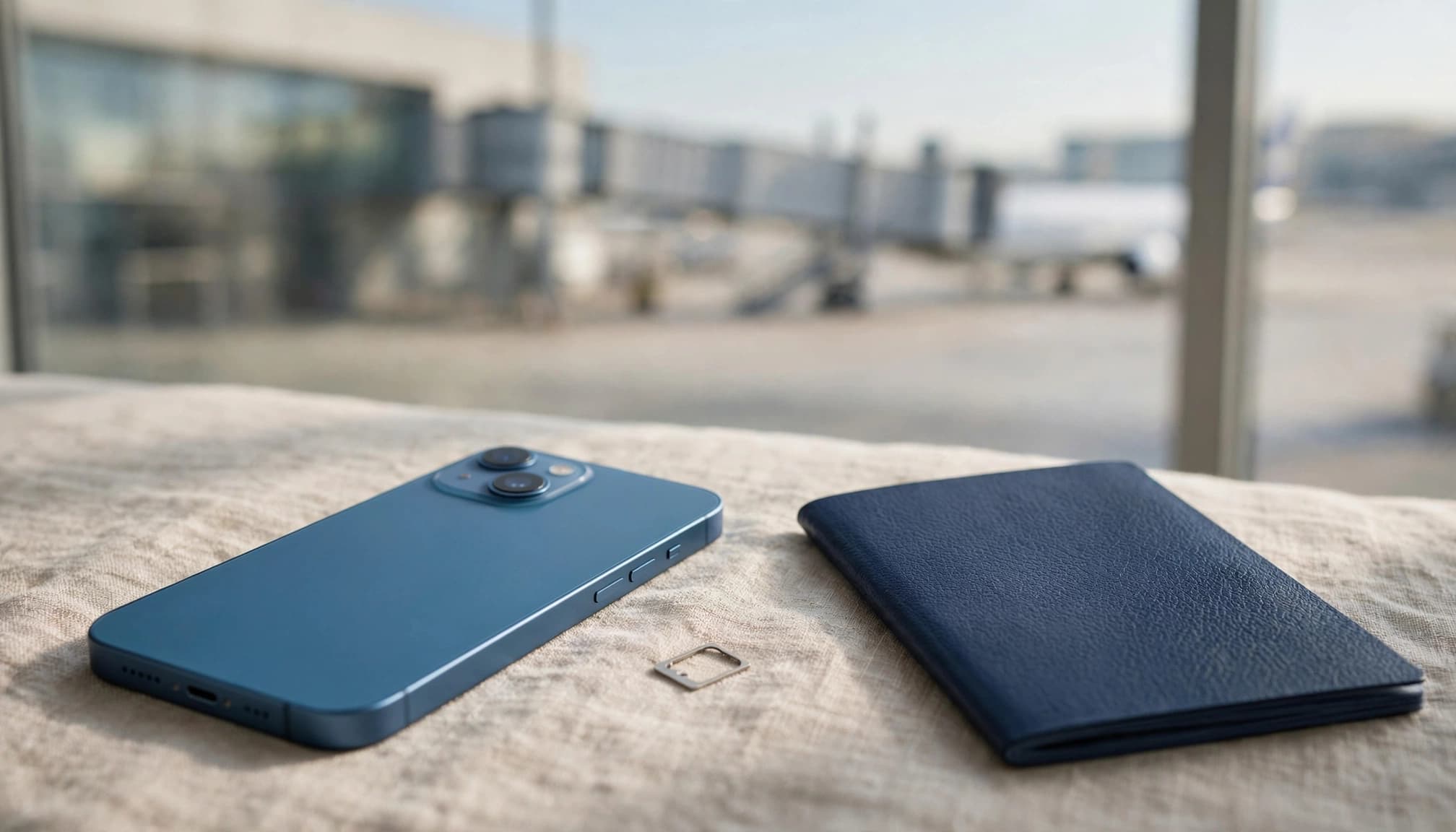
Check your iPhone’s country and model
Regional versions can differ. Some iPhone 13 models sold in mainland China, Hong Kong, or Macao use a different SIM configuration and may not support eSIM. There are model-specific exceptions, so don’t rely on the “iPhone 13” name alone.
Check the model number in Settings > General > About, then compare it with eSIM-compatible iPhone models and regional exceptions. You can also review how your phone’s sales region affects eSIM availability. If you’re unsure, use gohub.com to check your specific iPhone 13.
Confirm the phone is unlocked and your carrier supports eSIM
Even a compatible iPhone can reject a travel eSIM if it’s locked to your home carrier. Go to Settings > General > About and look for Carrier Lock. “No SIM restrictions” means the phone is unlocked; if you see something else, ask your carrier about unlocking it. Here’s more on checking your iPhone’s carrier lock status.
Your eSIM provider and destination carrier must also support the iPhone 13. Check the provider’s device requirements and confirm that its partner networks cover your destinations. Apple maintains a list of wireless carriers that offer eSIM, but availability can vary by country and plan.
If your iPhone’s model supports eSIM, it’s unlocked, and your provider supports it, you’re ready to compare travel plans. Don’t buy based on the model name alone; that quick check can save you from a plan you can’t install.
Install the travel eSIM and set it up for landing
Install your travel eSIM before departure, while you have reliable Wi-Fi and time to troubleshoot. The key detail: follow your plan’s activation instructions, since QR-code and app-based installation can work differently, and installation may not be the same as activation.
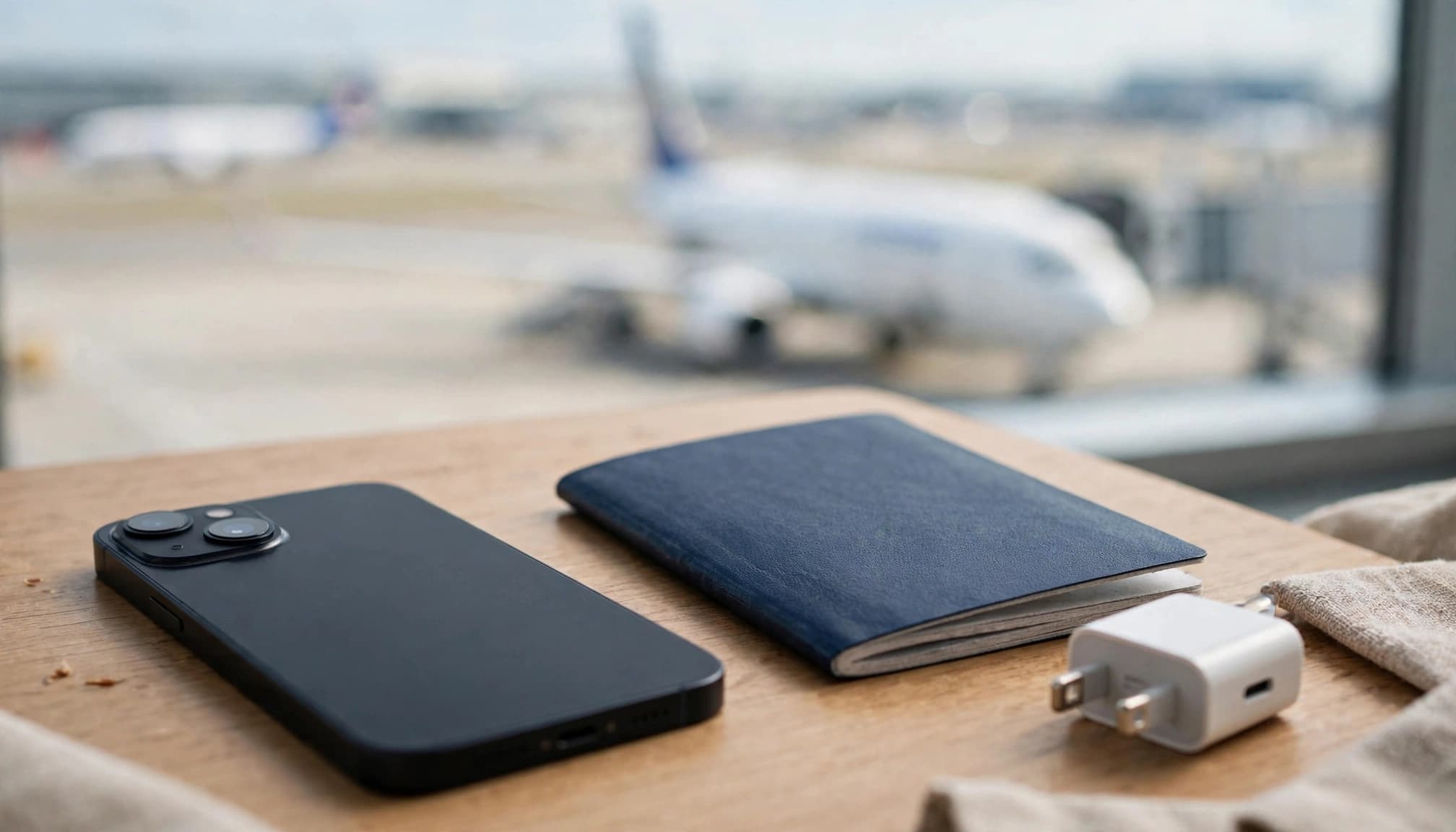
Set up your eSIM before you fly
Use this sequence to add the plan and prepare your iPhone 13 for arrival. Apple also explains how to use an eSIM while traveling internationally.
- Connect to home Wi-Fi and check the plan instructions. Open the provider’s app or activation email. Confirm whether you should install the eSIM now, when its validity starts, and whether you’ll need to enable roaming at your destination.
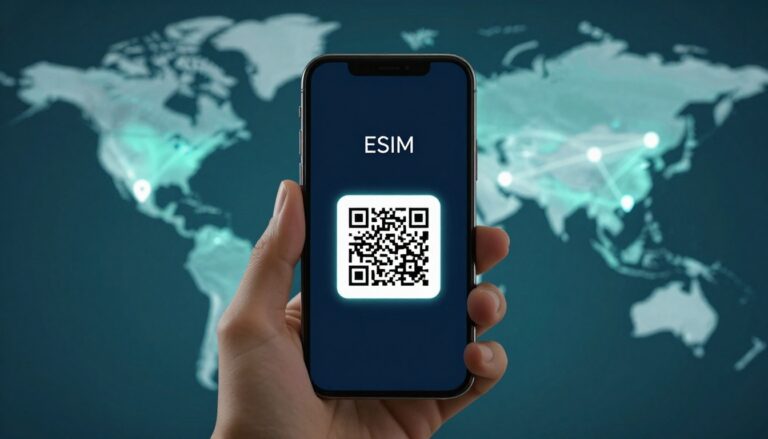
- Add the eSIM using the method your provider specifies. For a QR code, open Settings > Cellular > Add eSIM > Use QR Code, then scan the code. For app-based setup, launch the provider’s app and follow its prompts. If you need more detail, see how to install an eSIM on your iPhone.
- Label each line so you can tell them apart. When iOS asks you to label the plans, choose names such as “Home” and “Travel,” or use the destination name. Clear labels make it much easier to select the right line later.
- Choose your settings for calls and data. Keep your home line as the default voice line if you want to use your usual number for calls. Under Settings > Cellular > Cellular Data, select the travel eSIM. Turn off Allow Cellular Data Switching to prevent the iPhone from using your home line’s data if the travel line has weak coverage.
- Turn on the travel line after landing. In Settings > Cellular, tap the travel plan and turn on Turn On This Line if needed. Select it under Cellular Data, then enable Data Roaming for that line only if the plan requires it. Keep roaming off for your home line unless your carrier’s terms say otherwise.
Before takeoff, make sure the eSIM appears in Cellular settings and that you know where to find its roaming toggle. Once you land, follow the plan’s activation steps, then test data with Wi-Fi turned off. A quick check can confirm your iPhone is using the travel plan, not your home line.
Use this pre-flight checklist to avoid roaming surprises
Before you leave, check your iPhone settings and your plan’s activation instructions. A compatible phone is only part of the setup; the right line and roaming toggles help keep data on your travel plan instead of your home carrier.

Check these settings before departure
First, make sure your iPhone is unlocked. In Settings > General > About, look for Carrier Lock. “No SIM restrictions” means the phone can use another carrier’s plan. If you still need to confirm your phone is among eSIM-compatible devices, check your iPhone’s eSIM support and lock status.
| Setting | Practical choice before or during travel |
|---|---|
| Carrier Lock | Confirm it says “No SIM restrictions.” |
| Cellular Data | Select your travel eSIM after arrival. |
| Travel-plan Data Roaming | Turn it on only if the provider’s instructions require it. |
| Home-line Data Roaming | Keep it off unless your home carrier plan covers roaming. |
| Allow Cellular Data Switching | Turn it off to reduce the chance of data switching to your home line. |
The safest choices depend on your provider’s instructions and your home carrier’s fees. Some travel eSIMs require roaming on for the travel line, while others don’t. Apple also explains iPhone data roaming options, so check the details for each line rather than changing every roaming toggle at once.
After landing, confirm your travel eSIM is on and selected for cellular data. If you need a quick refresher, follow these steps to turn on your travel eSIM at your destination. Keep your home line available only as your carrier’s terms allow, especially if receiving calls or texts could trigger fees.
Decision rule: Choose the plan that matches your trip’s data needs, verified coverage, and full cost.
Conclusion
The right iPhone 13 travel eSIM comes down to what you can actually use: data at a fair cost, network access across your destinations, and setup terms that fit your arrival. Before you buy, confirm your exact model is eSIM-capable and unlocked. Those checks matter just as much as comparing plans.
Take a few minutes before departure to review your phone settings and the provider’s activation instructions. For a broader checklist, see how to choose the best eSIM for international travel.