eSIM Compatible Devices: Compare Price per GB, Setup, and Coverage
Will your current phone work with a travel eSIM, and will it save you money abroad? The answer depends on your exact device model and regional version, whether your phone is carrier-unlocked, and whether it supports the destination network.
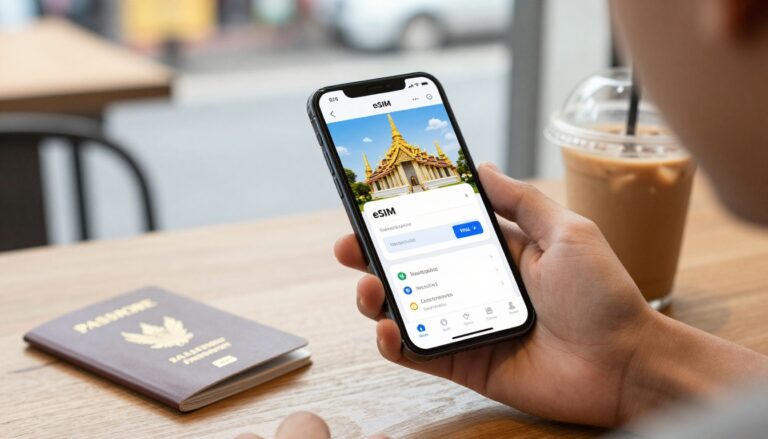
Many newer phones support eSIM, but a model name alone isn’t a guarantee. Start by checking Gohub’s eSIM-compatible device list, then compare travel plans by price per GB, setup time, and coverage before you go.
eSIM Compatible Devices: Compare Price, Setup Time, and Coverage
Many recent iPhones, Samsung Galaxy phones, and Google Pixel models support travel eSIMs, but the exact model, regional version, and carrier status matter. Setup can take under a minute on some phones, but plan prices and coverage depend on your destination and provider, not the device alone.

| Device category | Representative model range | Typical setup time | Plan value considerations | Coverage factors | Key requirements |
|---|---|---|---|---|---|
| iPhone | iPhone XS and newer | Often under a minute | Price per GB depends on the plan and destination | Provider networks and supported frequency bands | Unlocked phone; regional models may differ |
| Samsung Galaxy | Galaxy S20 and newer | Often under a minute | Compare plan data allowances and speeds | Local network partners and device band support | Unlocked model with eSIM settings available |
| Google Pixel | Pixel 3 and newer | Often under a minute | Phone model does not set plan pricing | Destination networks and regional compatibility | Check the exact model and carrier status |
| Tablets and cellular watches | Selected cellular iPads and smartwatches | Varies by device and carrier | Tablets may need their own plan; watches may share service | Plan availability and paired-phone support | Cellular model; some watches require a specific carrier plan or paired phone |
These model ranges and setup times are general guides, not guarantees. For an exact model check, use Gohub’s eSIM-compatible phone list. Plan availability can also depend on the provider and destination; Apple shares details about eSIM service providers.
Which phone families commonly support travel eSIMs?
iPhone XS and newer, Samsung Galaxy S20 and newer, and Google Pixel 3 and newer are common starting points. Still, two phones with the same family name can differ by region, so check your specific model before buying a plan. Some tablets and cellular smartwatches also support eSIM, though a watch may need a paired phone or a carrier-specific plan.
What makes an eSIM-ready phone different?
An eSIM-ready phone has an embedded SIM chip and software that downloads a mobile profile. That hardware support is only one part of the check: your phone also needs to be unlocked to use another provider’s plan, and the provider must support your device and destination network.
Compare eSIM Price per GB, Setup, and Network Coverage
Once you know your phone supports eSIM, compare the plan itself, not just the advertised data allowance. Price, installation rules, and local network access can make two plans for the same trip feel very different.
Calculate the real price per gigabyte
Use a simple formula: total plan price divided by usable high-speed data. For example, a $18 plan with 6 GB of high-speed data costs $3 per GB. If speeds drop after you use that allowance, don’t count slower data as equivalent.
Compare plans with similar validity periods, data limits, and destinations. Check for throttling, extra top-up fees, and expiration rules, since each can change the real value. A local data eSIM may cost less than your home carrier’s roaming plan, but prices vary widely by destination and provider. Treat any per-GB benchmark as a snapshot, not a promise.
Install the plan before your trip to save time
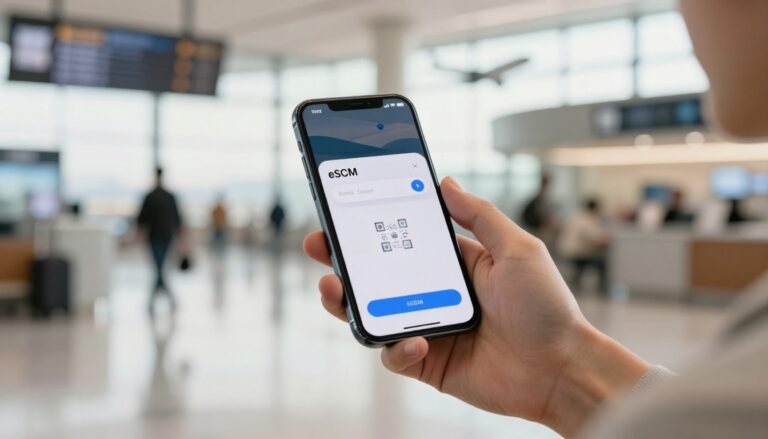
Many eSIM plans install through a QR code or provider app, usually over stable Wi-Fi. Setup can take under a minute, but activation rules vary. Some plans start when you install them; others begin when your phone connects to a network at your destination.
Check the provider’s instructions and install the plan before departure if the rules allow it. Apple also explains how to set up an eSIM on iPhone. After you arrive, select the travel line for mobile data. For the arrival steps, see how to activate your eSIM at your destination.
Check local networks and supported frequency bands
Coverage depends on the provider’s roaming agreements, its local network partner, your destination, and the frequency bands your phone supports. Check the provider’s coverage map and network details before buying, especially for rural areas, islands, or trips across several countries.
A plan that lists 4G or 5G support won’t connect at those speeds everywhere. The local network may not offer that service in every area, and your device must support the bands in use. Compare the networks listed for each destination, then choose a plan that fits where you’ll actually travel.
Test Your Phone’s eSIM Compatibility Before You Buy
Before you pay for a travel plan, check your phone’s eSIM hardware, carrier lock, settings, and exact model. These four checks catch the common compatibility surprises, and menu labels can vary by phone model and software version.
Look for the EID in your phone settings
- Dial
*#06#on your phone, if your device supports the code, or check its device information screen for an EID. An EID is a useful sign that your phone has eSIM hardware, but it doesn’t prove the phone is unlocked or that every plan will work.
Confirm the phone is unlocked
- On iPhone, open Settings, tap General, then About, and find Carrier Lock. “No SIM restrictions” means the phone is unlocked. Apple’s iPhone SIM troubleshooting steps show where to find this setting.
- On Android, check your carrier or network settings, or ask the original carrier to confirm the phone’s unlock status. If it’s locked, request an official unlock before buying a travel plan. See how to check and unlock a carrier-locked phone.
Find the eSIM setup option and check the model version
- Look for Add eSIM on iPhone under Settings > Cellular or Mobile Data. On Android, check Settings > Connections > SIM Manager or Network & Internet. You can also check eSIM support in Android settings. Then confirm the exact model number and sales region with the manufacturer, since some regional versions only support physical SIMs or have different eSIM features.
Fix Common eSIM Setup and Connection Problems
Even eSIM-compatible devices can run into setup or connection issues. The cause is often a carrier lock, an interrupted installation, or one setting that needs a quick check.

“SIM not supported” or carrier lock messages
Problem: Your phone rejects the travel eSIM, even though it has eSIM hardware. Cause: The original carrier may have locked the phone, which blocks profiles from other providers. Check your lock status and request an official carrier unlock.
Fix: Contact the carrier that originally sold or activated the phone and ask it to unlock the device. Once it confirms the unlock, restart your phone and try installing the travel profile again.
The QR code will not install the eSIM
Problem: The QR scan fails or installation stops partway through. Cause: Weak Wi-Fi, a code that was already used, or a plan limited to one installation can all prevent setup.
Fix: Switch to a stable Wi-Fi connection and check your provider’s setup instructions. If the code still fails, troubleshoot eSIM QR code problems or contact support before trying manual entry. Don’t delete a working eSIM profile unless your provider confirms you can reinstall it.
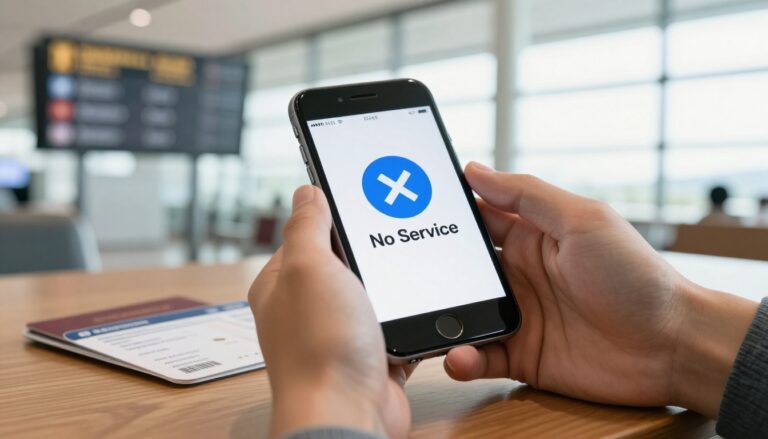
The phone shows no service after landing
Problem: Your travel line appears, but the phone won’t connect. Cause: The line may be off, another line may be selected for mobile data, or the plan may require data roaming.
Fix: Turn on the travel line, select it for mobile data, and enable data roaming if your plan requires it. Check network selection, then restart your phone. Confirm your destination is included in the plan, too. For iPhone steps, see Apple’s eSIM troubleshooting guidance.
Choose a Travel eSIM That Fits Your Device and Trip
The right travel eSIM depends on your phone, destination, trip length, and how you use data. A little planning now can save you from buying too little data or paying for more than you need.

Match the plan to your data habits and itinerary
Fixed-data plans suit travelers who can estimate their usage and want a clear price. Daily plans offer a set allowance each day, while unlimited-style plans can be handy for heavy use, but check whether speeds slow after a certain amount.
Maps and messaging use relatively little data, but video streaming, frequent uploads, and hotspot use can burn through an allowance fast. A multi-country trip also calls for a plan that covers every stop, not just your first destination. Compare travel eSIM plans by coverage and data needs, then check speed limits, hotspot rules, and fair-use terms before you buy.
Finish the setup before you leave home
Do these checks before departure:
- Confirm your phone has an EID, is unlocked, and shows an eSIM option in settings.
- Update your operating system, check destination coverage, and read the provider’s installation instructions.
- Install the profile over Wi-Fi if the provider allows pre-installation, then label it “Travel” so you can identify the line.
- After arrival, select the travel eSIM for mobile data. For Android, follow the Gohub eSIM installation steps.
Keep your home line available for calls or texts only if you understand its roaming charges. A data eSIM doesn’t automatically include a phone number or voice service. Apple explains the international travel eSIM and roaming options. Check Gohub’s compatible device list if you’re still unsure your phone supports eSIM.
Conclusion
Choosing among eSIM compatible devices starts with your exact model and unlock status, but that’s only half the check. Network support, price per GB, and coverage at your destination matter just as much, so compare the plan terms rather than choosing by data allowance alone.
Before you travel, check whether your phone supports eSIM, confirm its settings and unlock status, then review the plan’s price, network, and destination coverage. Install the profile according to the provider’s instructions while you still have reliable Wi-Fi. A few checks at home can save a lot of hassle after landing.